
Saved options and Workflows
Save Website Capture options by name, save a URL list as a Workflow, run it again, and schedule it.
Updated November 15, 2026
On this page
Use saved options to reuse one page's settings. Use a Workflow to run the same URL list again, by hand or on a schedule.
Save and apply options
Open a URL row's settings. The Saved options section sits with that page's other capture options.
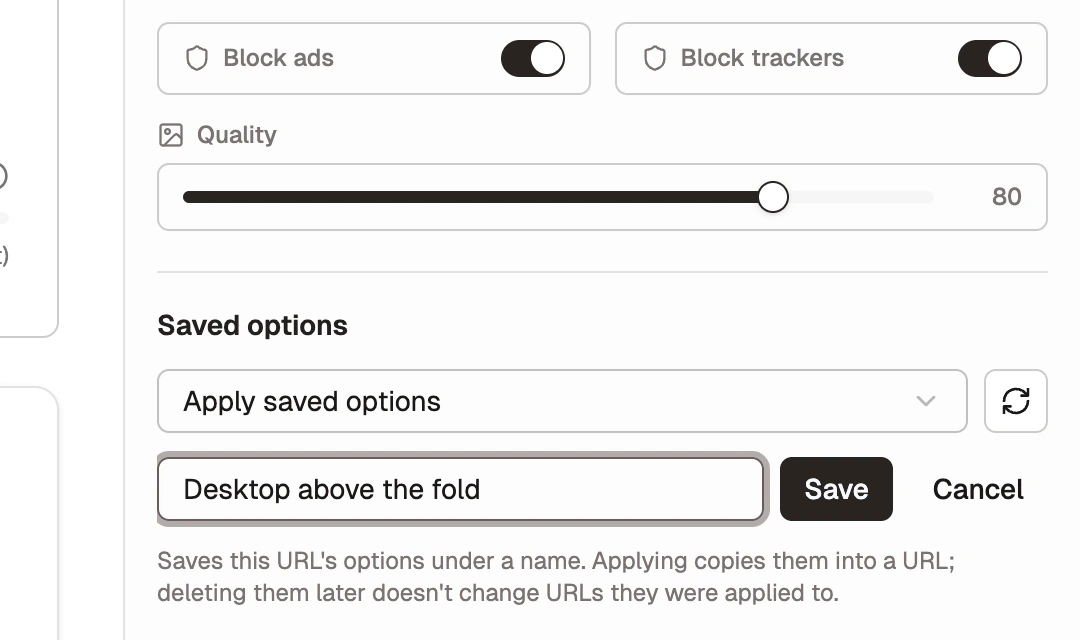
- Set the options you want for the page.
- Select Save current options…, enter a name such as
Mobile full page, and select Save. - On another URL, choose the name in Apply saved options. Select the refresh button next to it if a new name is missing.
Applying copies the options into that URL. Later changes to the saved options or deleting them do not change URLs you already applied them to.
Select Manage to rename or delete a saved option, then Done. Deleting asks for confirmation. A Workflow that used the deleted options runs with the base options instead and shows a note.
Save a Workflow
The Workflows card is below Run Settings. It saves the current URLs, their options, and the concurrency.
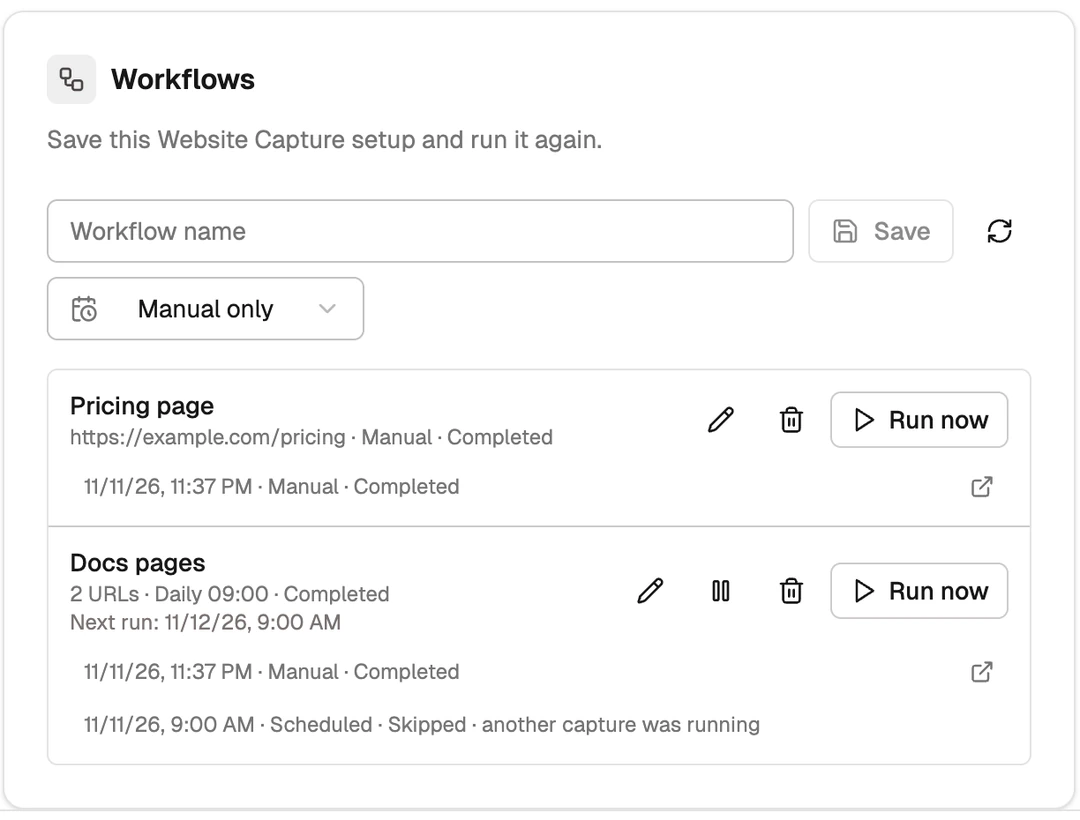
- Build the URL list and options on the page.
- Enter a Workflow name.
- Choose a schedule and select Save.
Save is available once there is at least one URL and a name.
Choose a schedule
| Schedule | Setting |
|---|---|
| Manual only | Runs only when you select Run now. |
| Interval | Every number of minutes, hours, or days. The shortest interval is 5 minutes. |
| Daily | A time of day and a time zone name such as Europe/Berlin. The time zone starts as your computer's. |
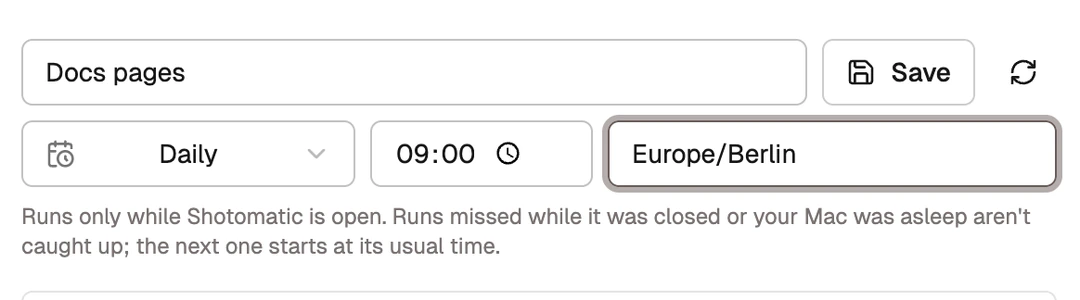
Scheduled Workflows run only while Shotomatic is open. If Shotomatic was closed or your computer was asleep at the scheduled time, that run is not made up later; the next one starts at its usual time. Each scheduled run counts toward your plan like any capture.
Run, pause, and manage
Each row shows the Workflow name, the URL or the number of URLs, its schedule, the latest run, and Next run for a scheduled Workflow.
- Run now starts it immediately. It is unavailable while another capture is running or the browser components are not ready.
- Pause schedule stops automatic runs. A paused Workflow shows Paused and still runs with Run now. Select Resume schedule to continue. The button appears only for a scheduled Workflow.
- Edit workflow loads it into the page. If you have unsaved URLs, Shotomatic asks before it replaces them. Select Save changes to update the same Workflow; its run history and pause stay as they are. Cancel editing leaves it unchanged.
- Delete workflow removes the Workflow and its schedule after you confirm. Screenshots from earlier runs stay in Capture History.
Read the run list
Under a Workflow, the five most recent runs show the time, whether you or the schedule started it, and the result: Active, Completed, Partial, Failed, Cancelled, or Skipped. Select a run that started to open its session.
A skipped run did not capture anything, and it says why:
| Reason | Meaning |
|---|---|
| another capture was running | Only one capture runs at a time. |
| browser not installed | Website Capture's browser components are missing. |
| offline | The computer had no connection. |
| more URLs than the free plan allows | The free plan captures 3 URLs per batch. |
| couldn't start | The run could not begin. |
A skipped run waits for the next scheduled time.
AI agents can run Workflows and, with your confirmation, schedule them. See Approvals and confirmations.