
Documents library
Create, open, rename, export, select, and delete editable screenshot Documents.
Updated August 10, 2026
Documents stores editable guides separately from Capture History. Open it under Workspace or press Command + 4.
Create a Document
Select New Document to create a blank Document immediately. Use the adjacent menu when you want to start from existing material:
- Images... imports local files;
- Capture History... lets you select sessions and frames;
- New capture... opens Auto Capture, Website Capture, or Action Capture.
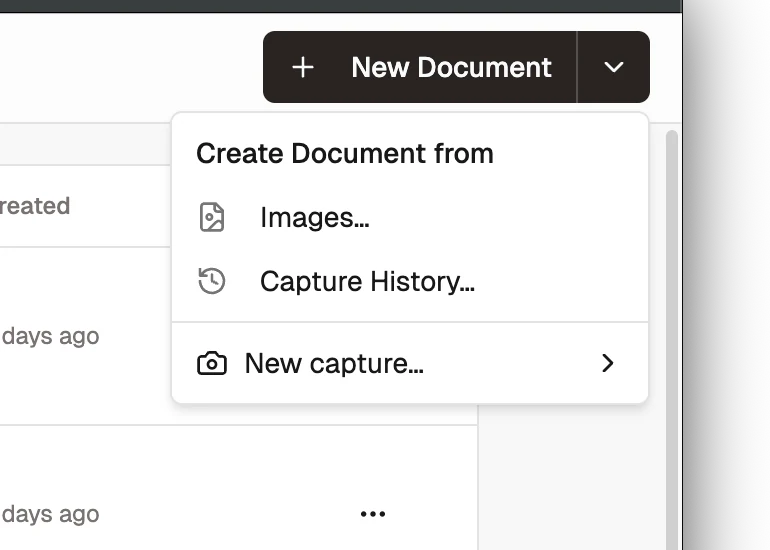
When you start a new capture from Documents, Shotomatic returns the completed frames to the new Document.
Use the library table
The table shows the preview, title, page count, updated time, and created time. Open a row in the editor or use its menu to rename, export PDF, or delete it.
Select several Documents to use available bulk actions, including batch PDF export. Empty Documents cannot be exported.
Understand ownership
Deleting a Document removes the images owned by that Document. It does not delete the source Capture History session or its original frames. Copies already used by another Document remain with that other Document.
Continue with adding and organizing pages.