
Document Editor tools and shortcuts
Use the canvas, page inspector, annotation tools, undo, redo, zoom, and keyboard shortcuts.
Updated August 10, 2026
On this page
The editor autosaves the title, Pages, framing, and annotations. The header shows Saving…, Saved, or Save failed. The Pages and Inspector panels can be resized or collapsed; the canvas resizes between them.
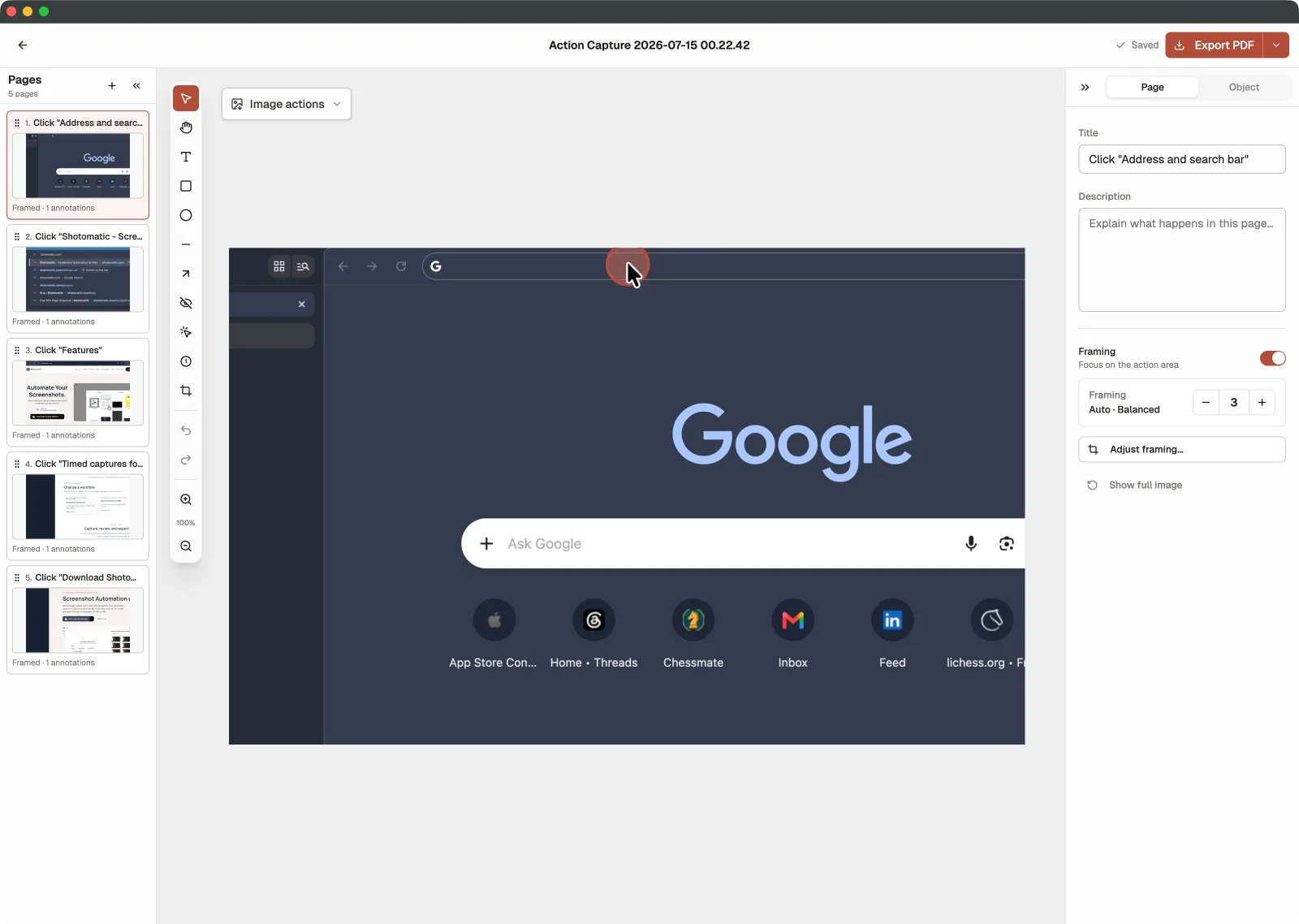
Canvas tools
| Tool | Shortcut | Use |
|---|---|---|
| Select | V | Select, move, and resize objects. |
| Pan | H | Move around the canvas. Hold Space for temporary pan. |
| Text | T | Add text. |
| Rectangle | R | Add a rectangular outline or callout. |
| Ellipse | O | Add a circular or elliptical outline. |
| Line | L | Add a straight line. |
| Arrow | A | Point to an interface element. |
| Blur | B | Hide sensitive details. |
| Click Marker | M | Add a click highlight. |
| Step Numbers | N | Add numbered step labels. |
| Framing | F | Focus or crop the visible Page region. |
Blur, Click Marker, and Step Numbers are Pro tools.
Use Undo and Redo in the toolbar or Command + Z, Shift + Command + Z, and Command + Y. Command + C and Command + V copy and paste selected annotations. Delete removes the selection. Use [ and ] to move a selected annotation backward or forward. Zoom controls change the canvas view without changing export size.
Edit Page details
The Page Inspector edits the Page title and description. Action Capture titles can be rewritten like any other title.
Edit an annotation
Select an object to open the Object Inspector. Available controls depend on the object:
- opacity and stacking order;
- text value, size, and color;
- rectangle, ellipse, line, or arrow color and width;
- blur strength;
- click-marker border, background, and size;
- step-number label and radius.
Annotations are non-destructive and can be edited or removed later.
Continue with Focus on action, crop, and framing.