
Approvals and confirmations
See when Shotomatic asks you to approve an agent or confirm a deletion, a lower history limit, or a Workflow schedule.
Updated November 11, 2026
On this page
Shotomatic asks you in two cases. The approval happens once per agent. A confirmation happens every time an agent wants to do something that is hard to undo or that runs later without you.
Approval
The one-time approval card is described in Connect an AI agent. It stays valid until you select Remove in Settings > AI agents or turn off access.
Confirmations
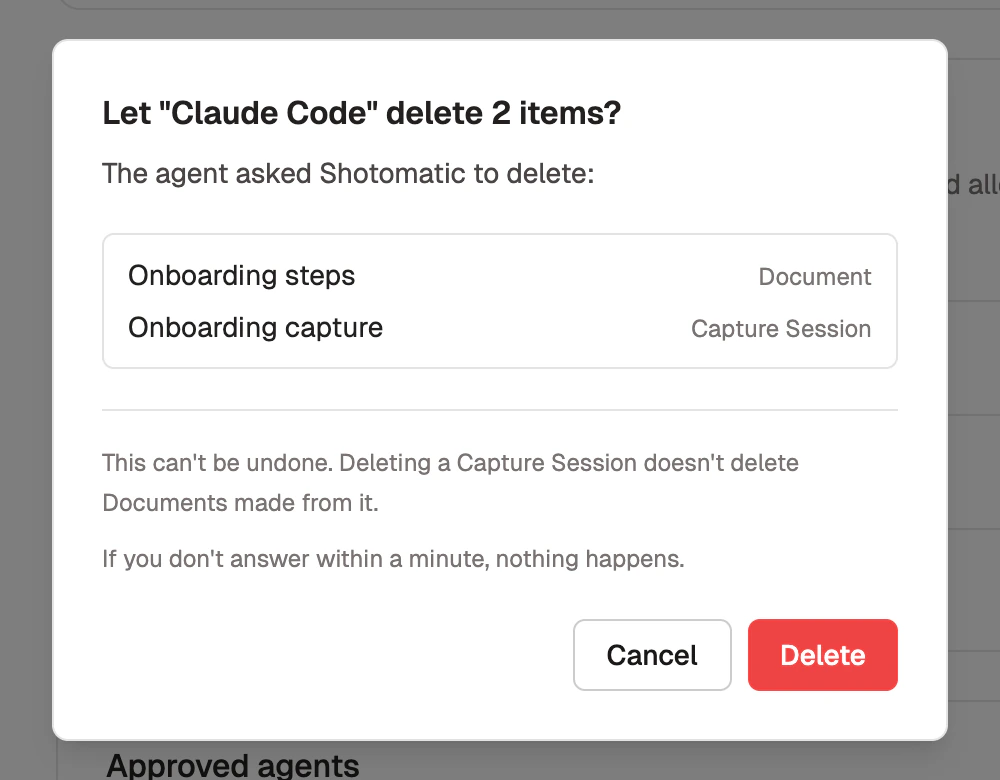
A confirmation card names the agent and says what it asked for. It has two buttons and applies to one request.
| Request | What the card says | Buttons |
|---|---|---|
| Delete Documents or Capture Sessions | Let "agent" delete N items? and lists each item with its kind | Cancel, Delete |
| Lower the Capture History limit so that old sessions are removed | Let "agent" delete N old sessions? and the new limit | Cancel, Delete |
| Save a Workflow with a schedule, or resume a paused Workflow | Let "agent" schedule a Workflow? and the Workflow name | Cancel, Confirm |
Things to know:
- Deleting cannot be undone. Deleting a Capture Session does not delete Documents made from it.
- Lowering the Capture History limit permanently deletes the oldest sessions and their screenshots. Documents made from them are kept.
- A scheduled Workflow runs only while Shotomatic is open and counts toward your plan like any capture. You can pause or delete it on the Website Capture page.
- If you do not answer within a minute, nothing happens.
- Shotomatic asks one question at a time.
Agents cannot delete Workflows or saved Website Capture options. Pausing a Workflow does not need a confirmation.
Refuse or stop at any time
Select Cancel to refuse a request. To end an agent's work, select Disconnect in the status row, remove the agent in Settings > AI agents, or turn off Let AI agents use Shotomatic.
Continue with what agents can do.