
Stop conditions, intervals, and keypresses
Control how often Shotomatic captures, what happens after each frame, and when the session stops.
Updated August 10, 2026
On this page
The options on Auto Capture define the whole run before you choose a source.
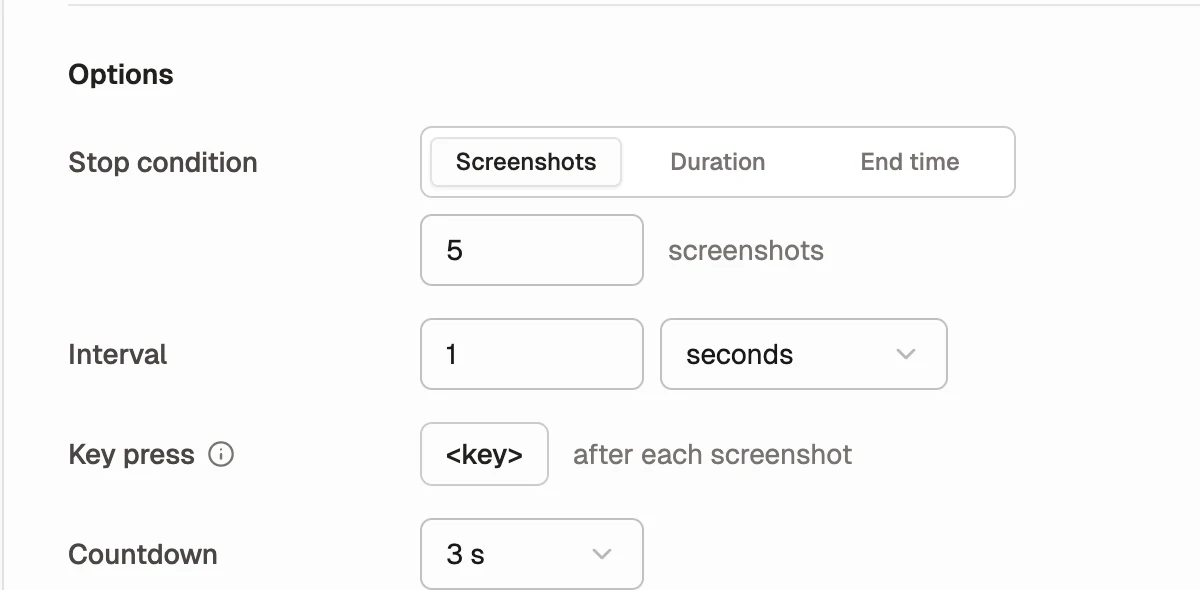
Choose a stop condition
Only one stop condition applies to a session.
| Stop condition | Behavior |
|---|---|
| Screenshots | Stops after the specified number of frames. The default is 5. |
| Duration | Runs for a set number of seconds, minutes, or hours. Paused time does not count. |
| End time | Stops at the local date and time you choose. Pausing does not move the end time. |
For time-based sessions, the interval must be greater than zero.
Set the interval
Interval is the wait between frames. You can enter milliseconds, seconds, minutes, or hours.
A short interval is useful for quick interface changes. A longer interval is better for dashboards, progress records, or a timelapse that runs over a long period.
Shotomatic performs each loop in this order:
- Save the screenshot.
- Send the recorded key, if one is set.
- Wait for the interval.
Record a keypress
Use Key press when each screenshot should advance the target. Select the field, then press the key or combination you want Shotomatic to send.
Supported inputs include letters, numbers, arrow keys, Enter, Tab, Escape, Space, F1 through F12, and combinations with Command, Control, Option, or Shift.
Accessibility permission must be enabled. Shortcuts registered globally by macOS or another app may not behave like a key sent directly to the selected window.
Set the countdown
The countdown gives you time to bring the target into the correct state before the first frame. Available values are:
- None
- 3 s
- 5 s
- 10 s
The default is 3 seconds.
Pause or stop a run
Pause capture holds the capture loop; select Resume capture to continue. A Duration session preserves its remaining active time while paused. An End time session still ends at the chosen clock time.
In the app or capture overlay, Stop capture pauses the run and opens Do you want to stop the automation? Select Yes to finish early or No to resume. On the floating toolbar, Finish capture ends the run immediately. Screenshots already captured remain in the current session and can be exported.
Progress text shows the frame count and, for time-based sessions, the remaining time.