
Action Capture
Record a workflow as pre-click screenshots with automatic titles, cursor overlays, and click markers.
Updated August 11, 2026
On this page
Action Capture records a workflow without an interval. For every accepted click, Shotomatic saves the target's state immediately before the click, then adds click metadata that can become a page title, cursor, and marker in a Document.
Screen Recording and Accessibility permission are required. Open Action Capture from the sidebar or press Command + 3.
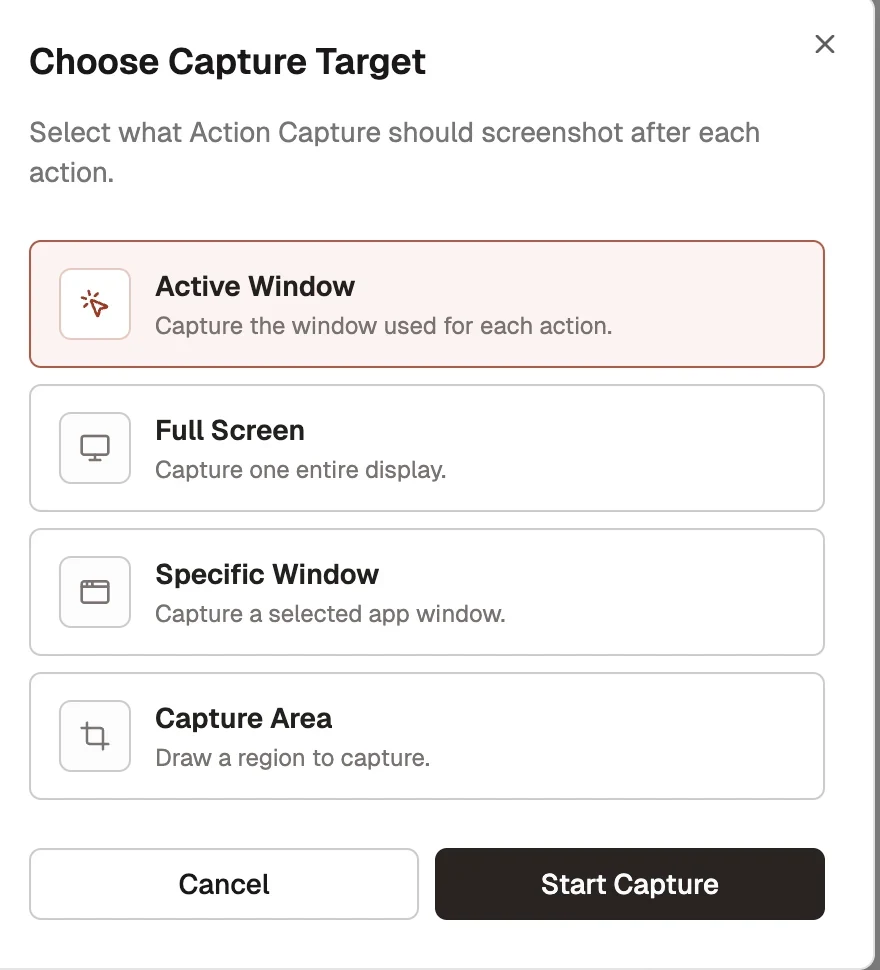
Choose a capture target
Select Start Action Capture, then choose one target.
| Target | What each step captures |
|---|---|
| Active Window | The app window used for that action. The window can change from step to step. |
| Full Screen | One selected display. |
| Specific Window | One selected app window for the whole run. |
| Capture Area | One selected rectangular region. |
For Full Screen or Specific Window, confirm the source in the display or window picker. For Capture Area, draw or resize the region, then select Start Action Capture in the overlay.
Configure accepted clicks
Select Configure before a run when the defaults need to change.
- Under Mouse click capture, choose whether every click adds a step, only clicks with a selected modifier key add a step, clicks with that key are skipped, or mouse clicks never add steps.
- Manual capture shortcut adds a step without a mouse click. The default is
Shift + Command + 2, and you can record a different shortcut. - Show cursor in shortcut captures controls whether that manual step includes the current pointer.
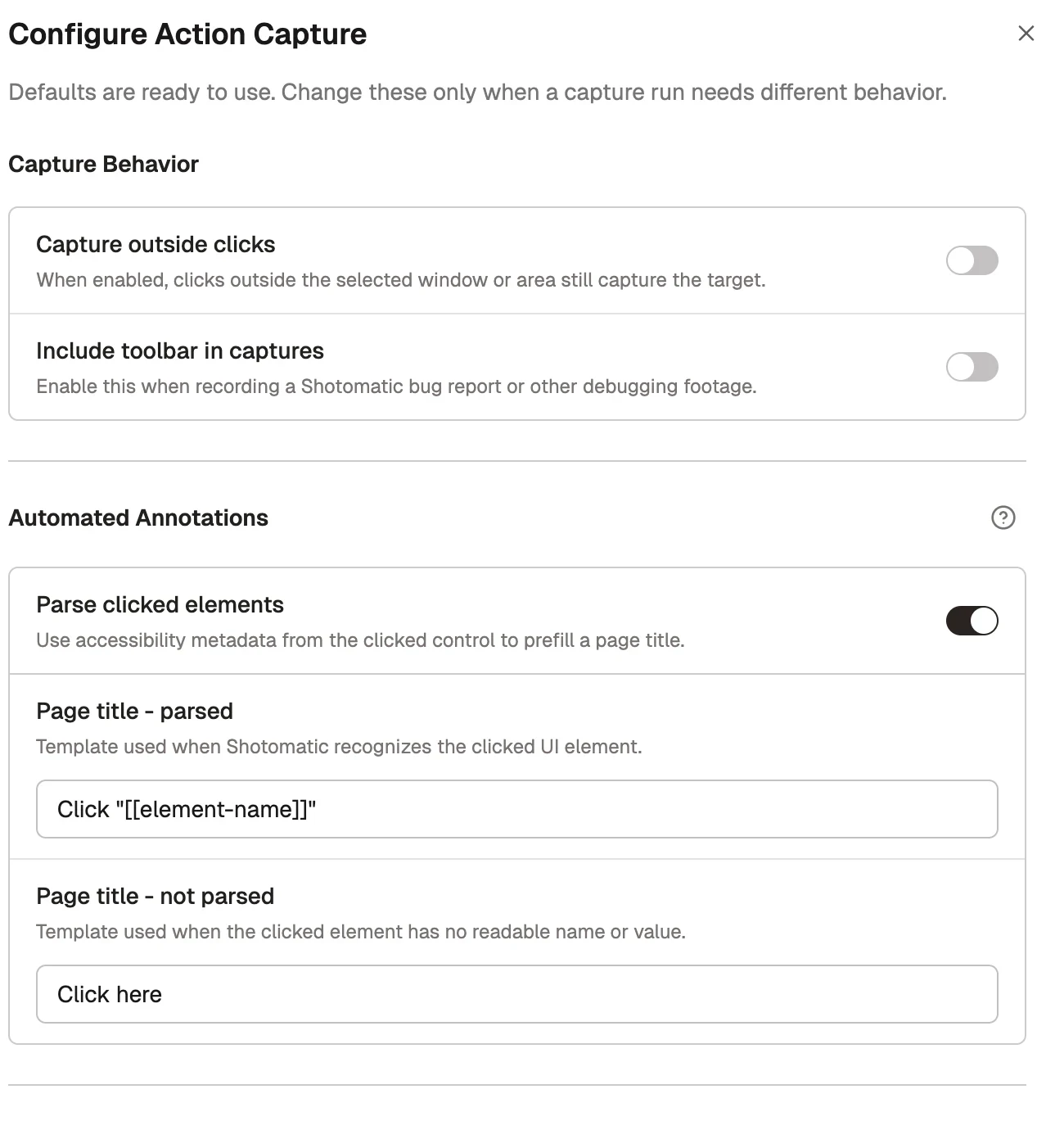
- Capture outside clicks is available for Specific Window and Capture Area. When enabled, a click outside the target still captures the selected target.
- Include toolbar in captures keeps the floating Action Capture toolbar visible in saved steps. Turn it on when the toolbar itself is relevant, such as a Shotomatic bug report.
- Shotomatic ignores clicks that occur too close together to avoid duplicate steps from one interaction.
- Configuration is stored locally and reused for later Action Capture runs.
Build automatic page titles
Turn on Parse clicked elements to read the clicked control through macOS Accessibility.
- Page title - parsed supports
[[element-name]]; the default isClick "[[element-name]]". - Page title - not parsed is used when no readable element name is available; the default is
Click here.
The target app determines how much accessibility metadata Shotomatic can read.
Add visual annotations
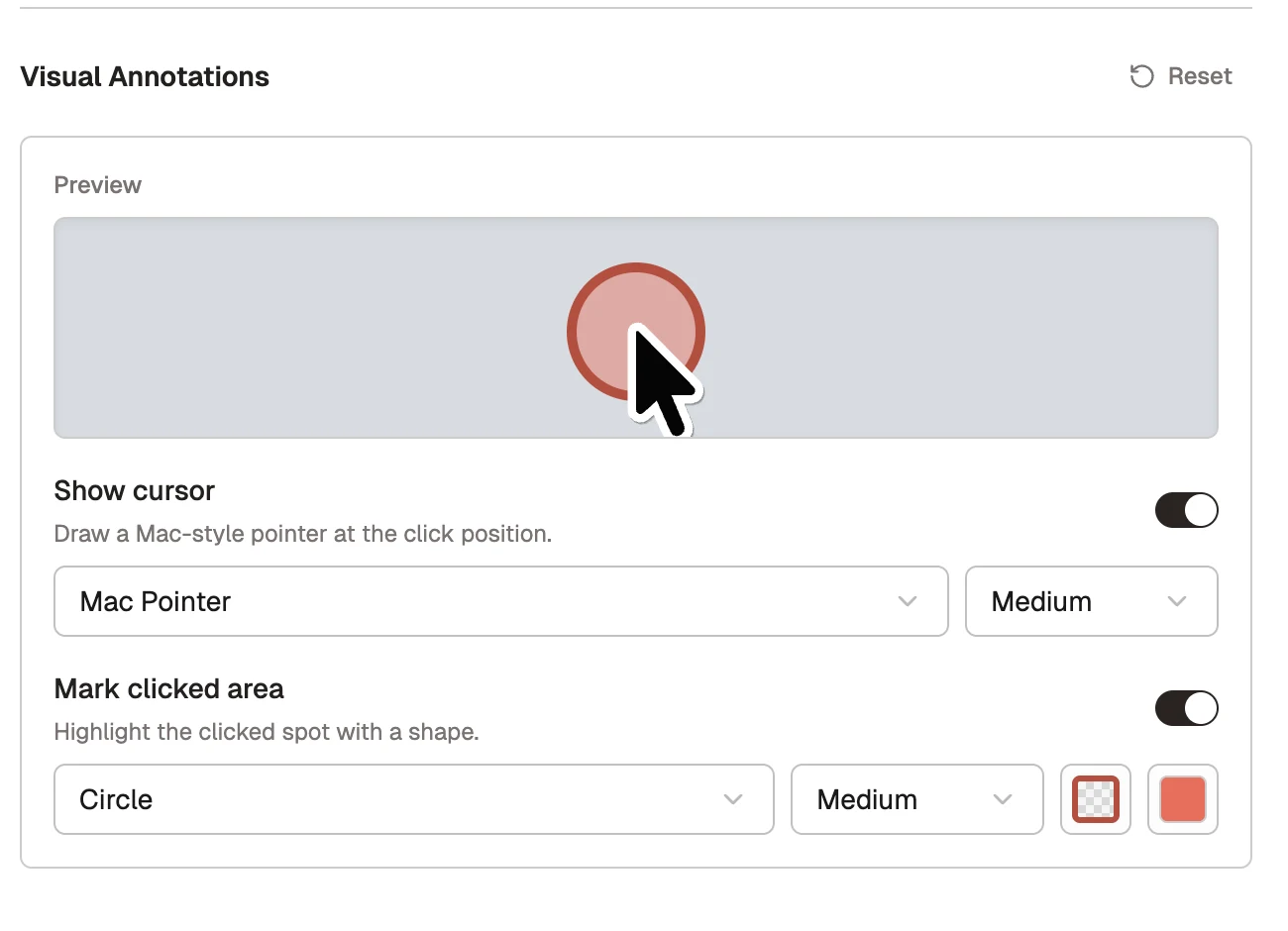
Visual Annotations are applied non-destructively when the captured work becomes a Document.
- Show cursor on click captures: Mac Pointer, Minimal Arrow, Touch Dot, or Crosshair; Small, Medium, or Large.
- Mark clicked area: Circle or Rectangle; Small, Medium, or Large; configurable border and background colors. This marker also applies to manual shortcut captures.
- Reset restores the visual annotation defaults.
Continue with recording controls and Recent work.