
Website Capture runs and results
Understand page states, cancel or retry individual URLs, and review a completed website batch.
Updated August 10, 2026
Every URL advances independently through the batch.
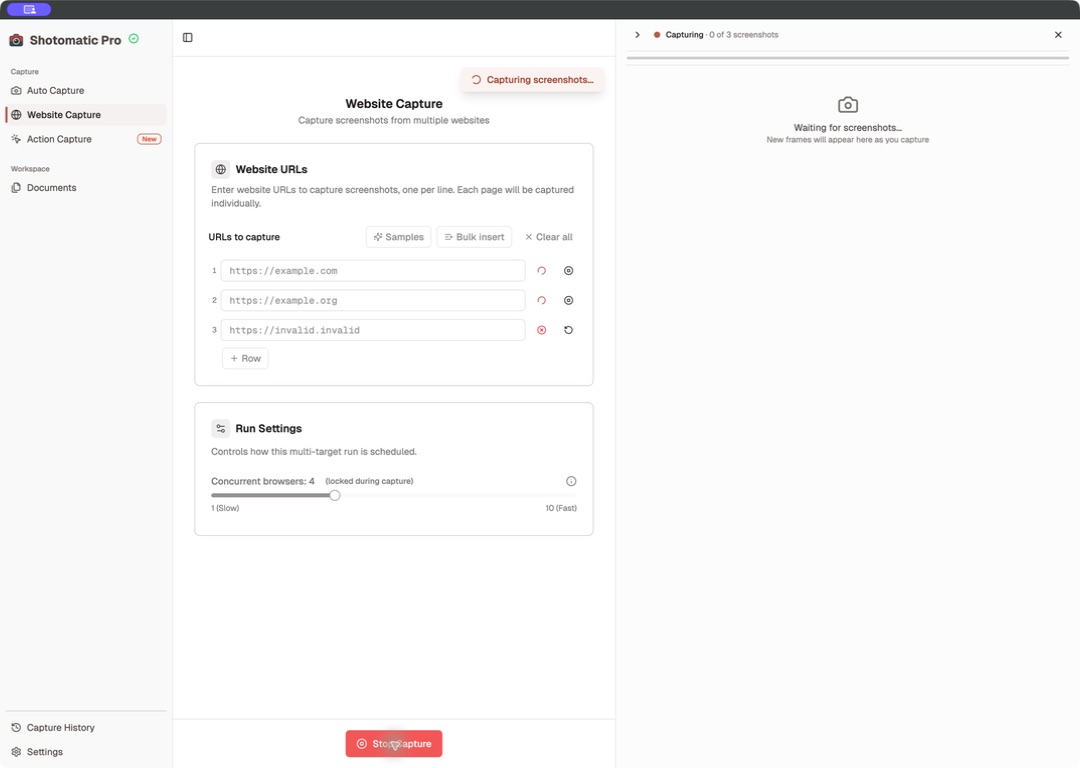
| State | Meaning |
|---|---|
| Capture pending | Waiting for an available browser slot. |
| Capturing | The page is loading or being captured. |
| Cancel requested | Cancellation was requested while work is shutting down. |
| Capture cancelled | The page stopped without a completed frame. |
| Retry pending | A failed or cancelled page is queued again. |
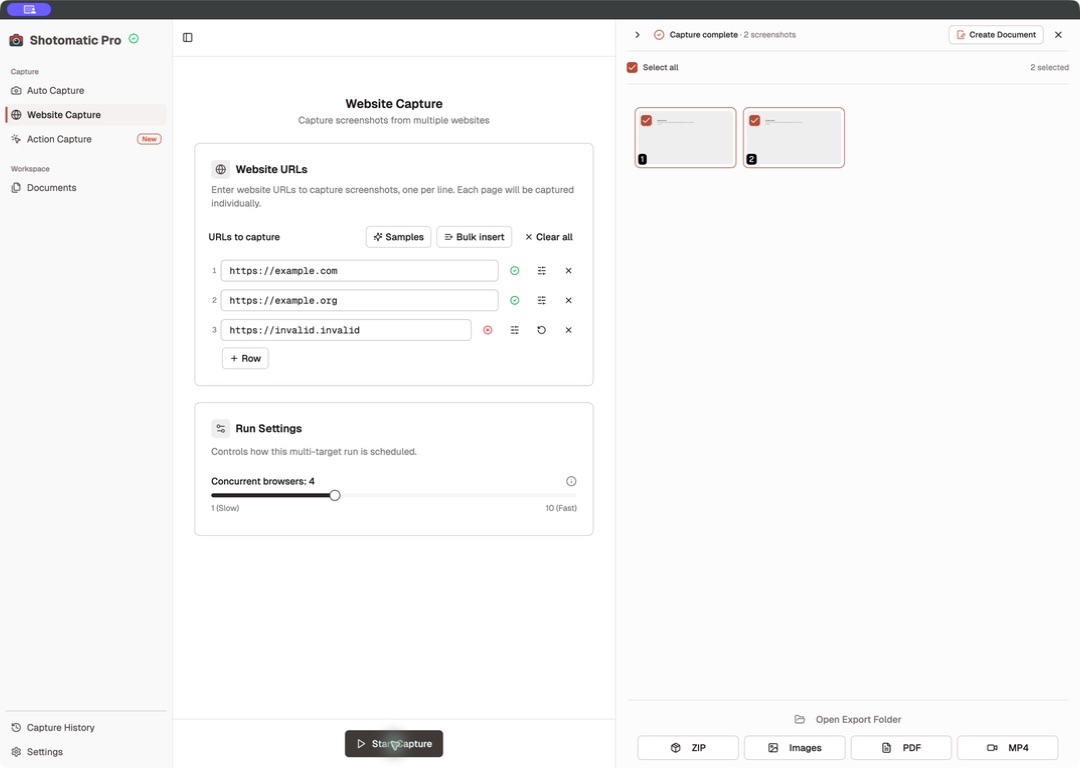
| Capture complete | A frame was saved. |
| Capture failed | The page could not produce a frame. |
A failed row can show a specific error instead of Capture failed.
Cancel and retry one page
Cancel an eligible row without stopping the rest of the batch. Retry a failed or cancelled row when its Retry control becomes available; it does not need to wait for every other URL to finish.
Stop the batch
Select Stop Capture to end remaining work and preserve completed frames. Inputs, row options, and concurrency unlock after the run settles.
Review results
Completed frames appear in the screenshot pane and the saved Capture History session. Select frames to export them or create a Document from the whole session.
A mixed-result batch can be marked Partial. A user-stopped batch may be Cancelled even when some completed frames remain available.
Common causes of failure
- invalid or unsupported URL;
- browser components are not ready;
- the page timed out under the chosen wait condition;
- the site blocked automation or failed to render;
- the Mac did not have enough memory for the selected concurrency.
Lower concurrency, change the wait condition, add a short delay, or disable a blocker for the affected URL before retrying.