
Add and organize Document pages
Upload images, import sessions, continue with a new capture, and reorder or duplicate pages.
Updated August 10, 2026
Open a Document in the editor. An empty Document offers three ways to add the first Pages.
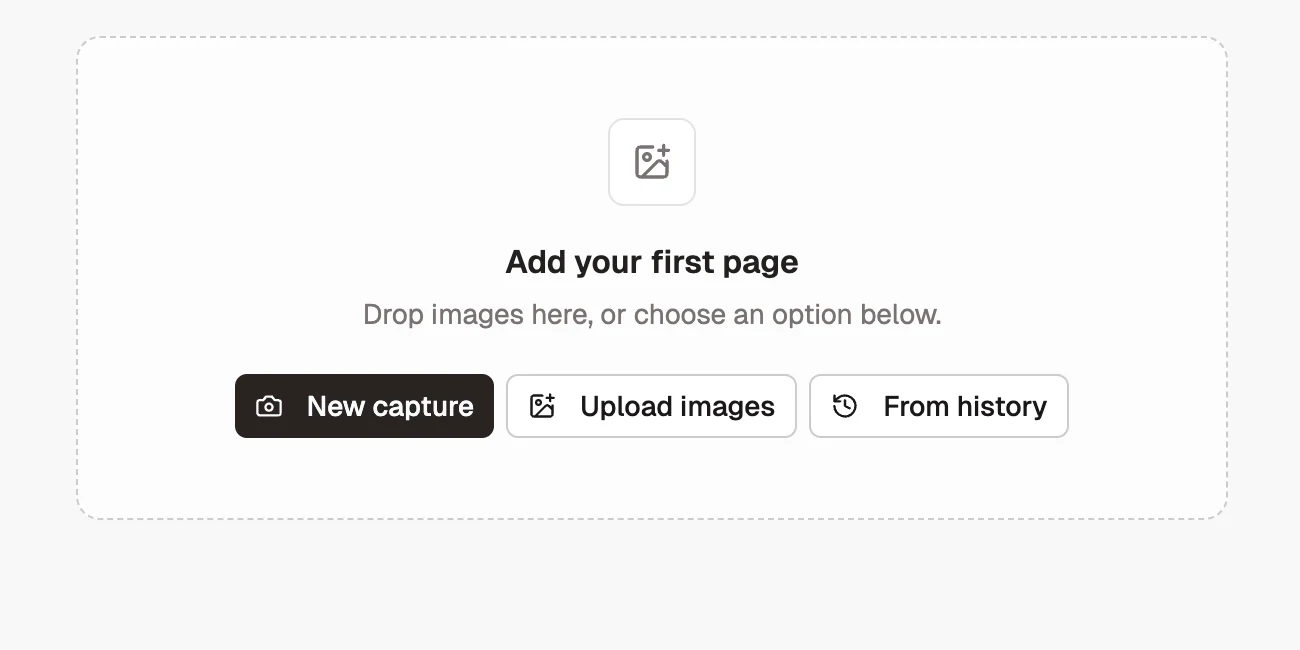
Upload images
Choose one or more images from Finder. Shotomatic copies them into the Document so later edits do not modify the original files.
Add from Capture History
- Open Add from Capture History.
- Select one or more Sessions.
- Expand a Session to include or exclude individual Frames.
- Select Add selected Frames.
Active sessions are excluded. Selection order determines the order of the new Pages.
Capture new Pages
From the Add Pages menu, open Capture new images…, then choose Auto Capture, Website Capture, or Action Capture. Finish the capture and Shotomatic returns its frames to the editor. New Pages can be inserted after the current Page.
Organize Pages
Drag Pages to reorder them. The list auto-scrolls while dragging near an edge. A Page menu provides:
- Duplicate page;
- Move up or Move down;
- Adjust framing;
- Show full image when framing is active;
- Delete page.
Deleting the last Page leaves an empty Document. Use the empty-state controls to add new Pages later.