
Focus on action, crop, and framing
Focus a Page on the captured action, choose framing levels, or define a manual crop.
Updated August 10, 2026
Framing controls which part of the source image is visible on a Page. It does not overwrite the source image.
Focus on a captured action
When a frame contains a captured action point, turn on Framing in the Page Inspector to zoom the Page around that point automatically.
Choose a framing level:
- Wide;
- Relaxed;
- Balanced;
- Close;
- Tight.
Wider levels preserve more context. Tighter levels emphasize the exact action.
Select Adjust framing… to preview the crop, switch between Focus on action and Custom, change the Focus level, and select Apply framing.
Adjust framing manually
Select Framing (F) or Adjust framing from the Page menu. Choose Custom, then move or resize the region until it includes the important context and select Apply framing.
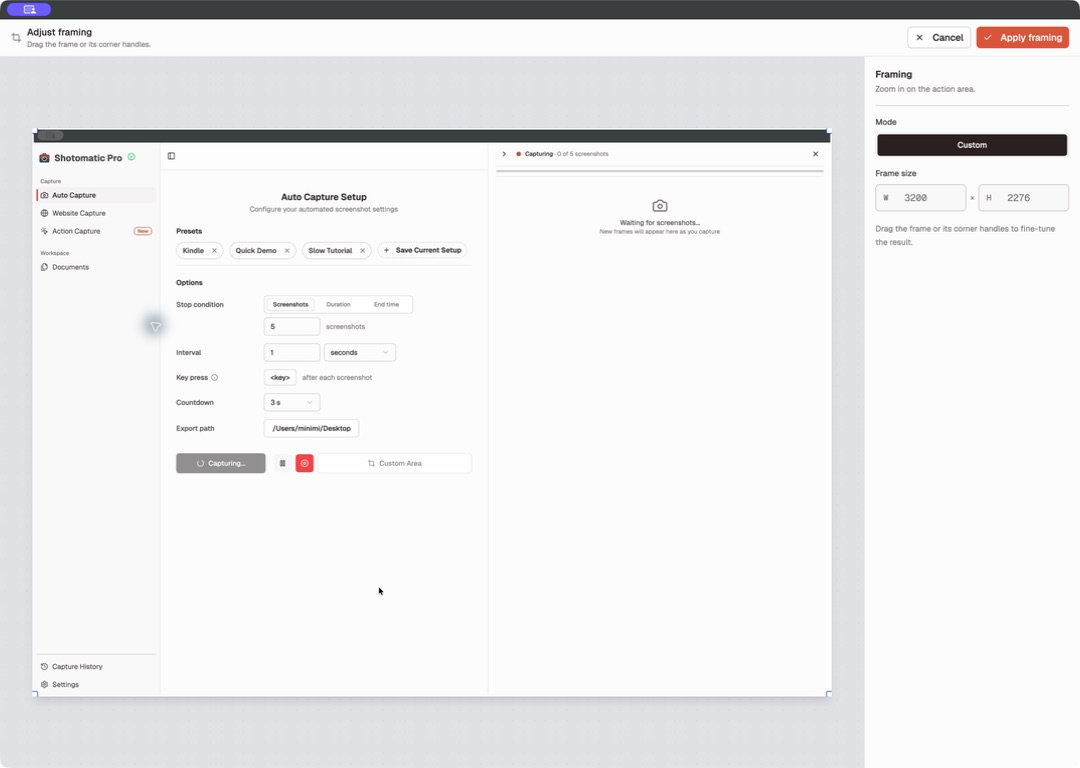
Use Show full image to remove the crop. When an Action Capture point exists, select Reset to action to rebuild automatic framing.
Protect sensitive information
Frame out irrelevant surroundings. Blur (B) is a Pro tool for details that must remain inside the Page. Review every Page at export size before sharing it.