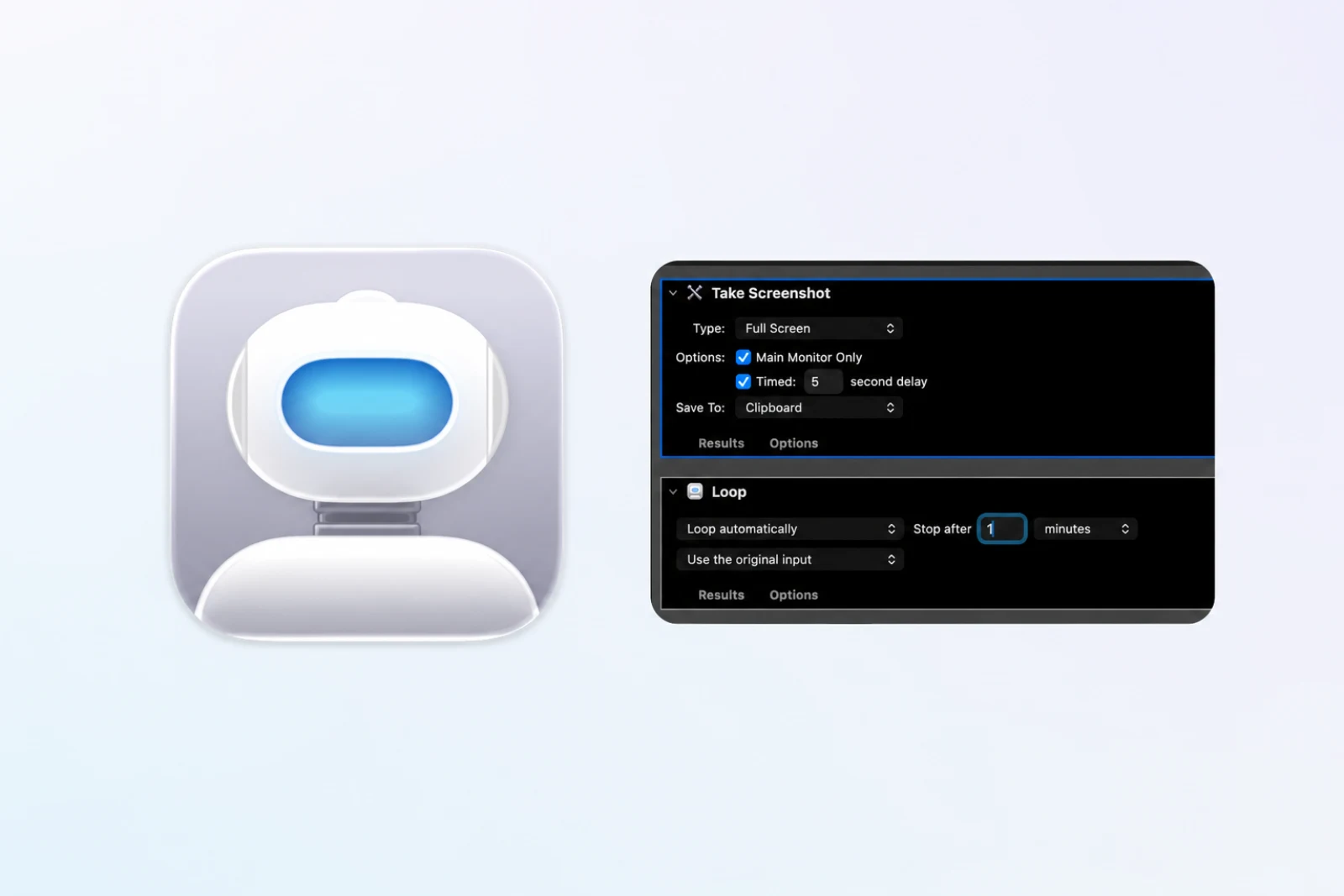
Tutorial
How to Take Repeated Screenshots with Automator on Mac
Build an Automator screenshot workflow with Take Screenshot and Loop, then use a shell action when you need ordered files.
7 min read
Practical guides for visual documentation, screenshot automation, website capture, and local files
Build an Automator screenshot workflow with Take Screenshot and Loop, then use a shell action when you need ordered files.
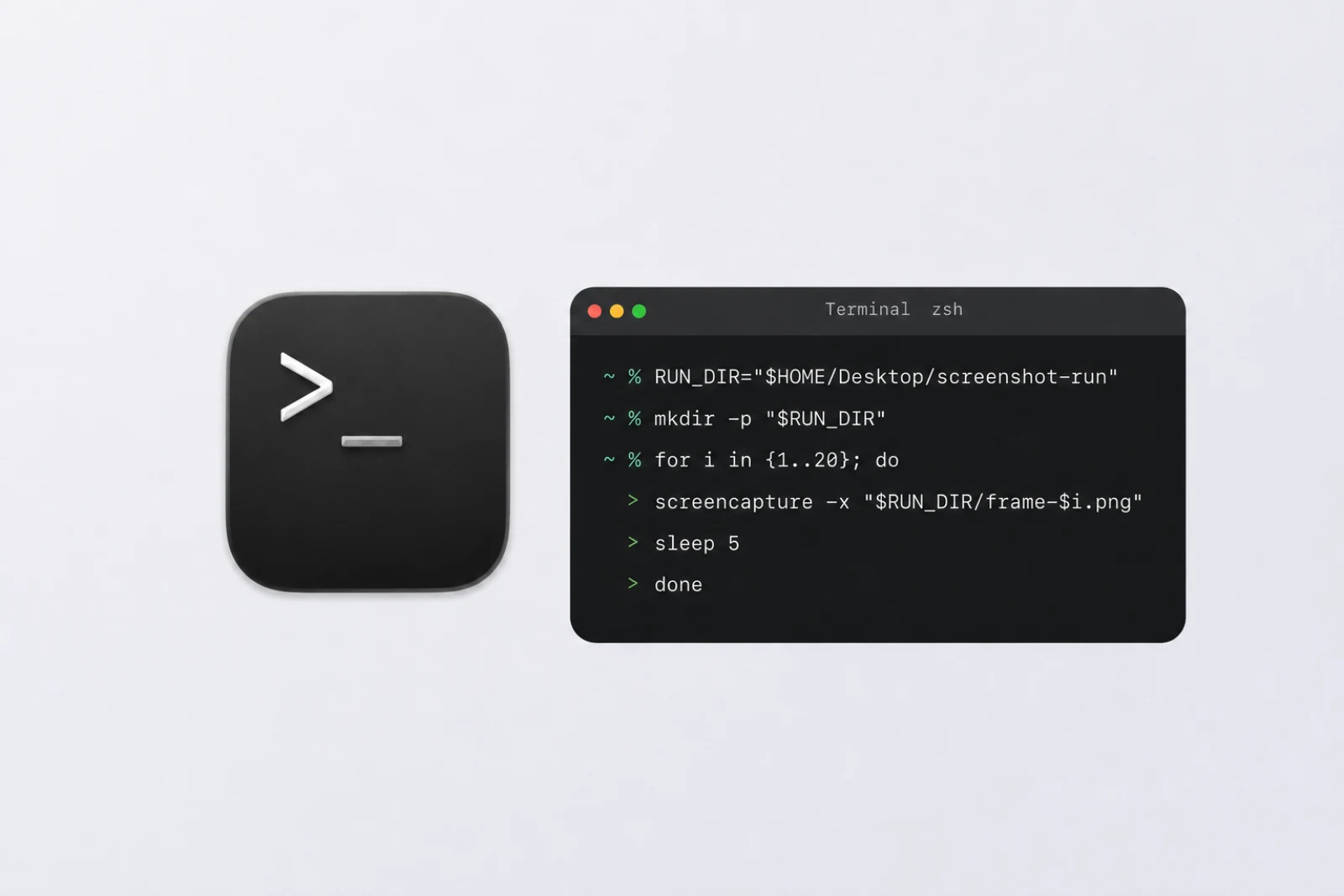
Use macOS screencapture loops for full-screen, fixed-area, and page-turn screenshots, with safe file names and troubleshooting.

Automate screenshots on Mac with screencapture, Automator, or Shortcuts, including permissions, safe loops, and troubleshooting.

A full-page screenshot gives you one tall image; a PDF export gives you searchable pages. See which format fits archives, reports, and sharing.

Check the reader's official PDF and offline options first, then save permitted ebook pages as an ordered, searchable PDF on Mac.
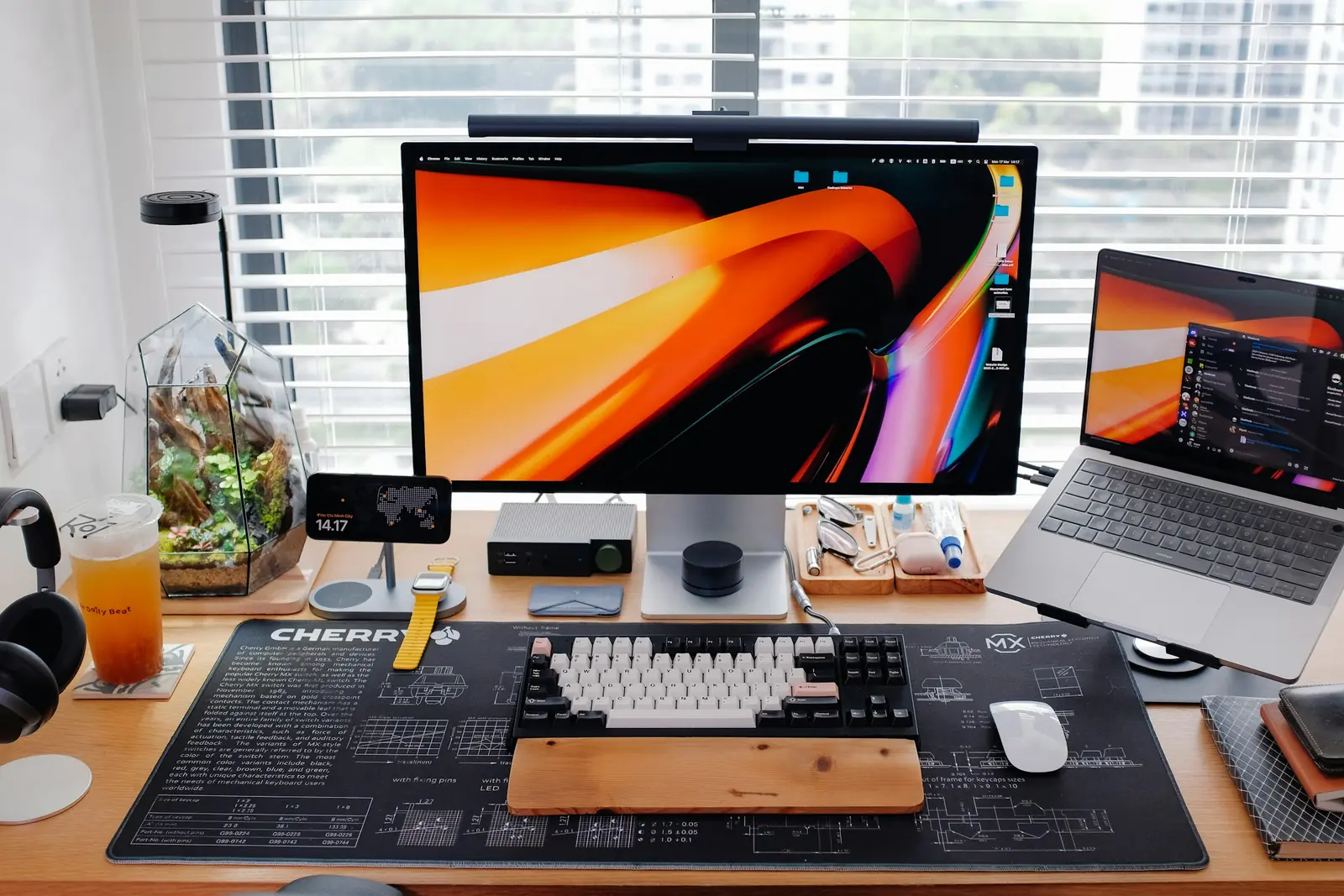
Choose a no-code way to automate website screenshots: URL-list capture, an automation platform with a screenshot API, monitoring tools, or browser helpers.

Use Playwright to automate website screenshots with JavaScript. Capture one page, full pages, mobile views, and URL batches with retries.

Use Puppeteer to automate website screenshots with JavaScript. Capture one page, full-page screenshots, URL batches, and mobile viewports with a reusable script.

Step-by-step guide to archiving manga chapters and webtoon episodes as PDFs on macOS using automated screenshots. Covers page-based manga, vertical-scroll webtoons, and legal considerations.
Archive your design portfolio from Dribbble and Behance as high-quality, searchable PDFs on your Mac. Batch capture project pages at Retina resolution with automated screenshots.
Shotomatic captures, organizes, and exports screenshot sessions on your Mac.