Use images you already have
Import screenshots from your Mac, put them in the right order, and turn them into editable pages.
Bring together new captures or existing images, organize the pages, add the guidance each step needs, and export the finished Document.
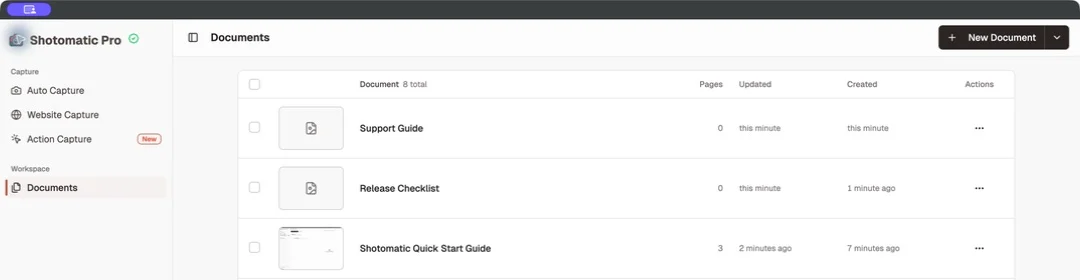
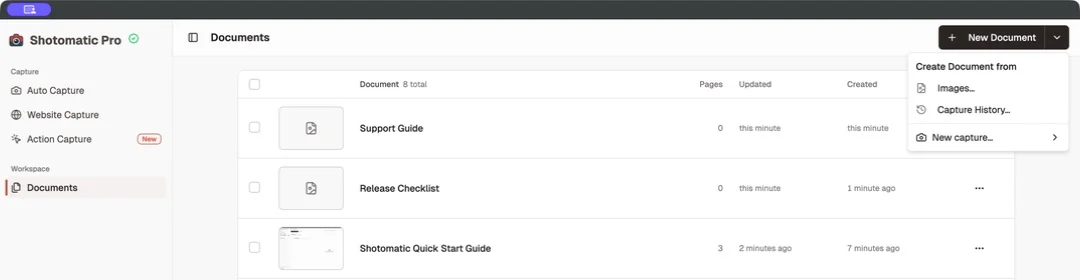
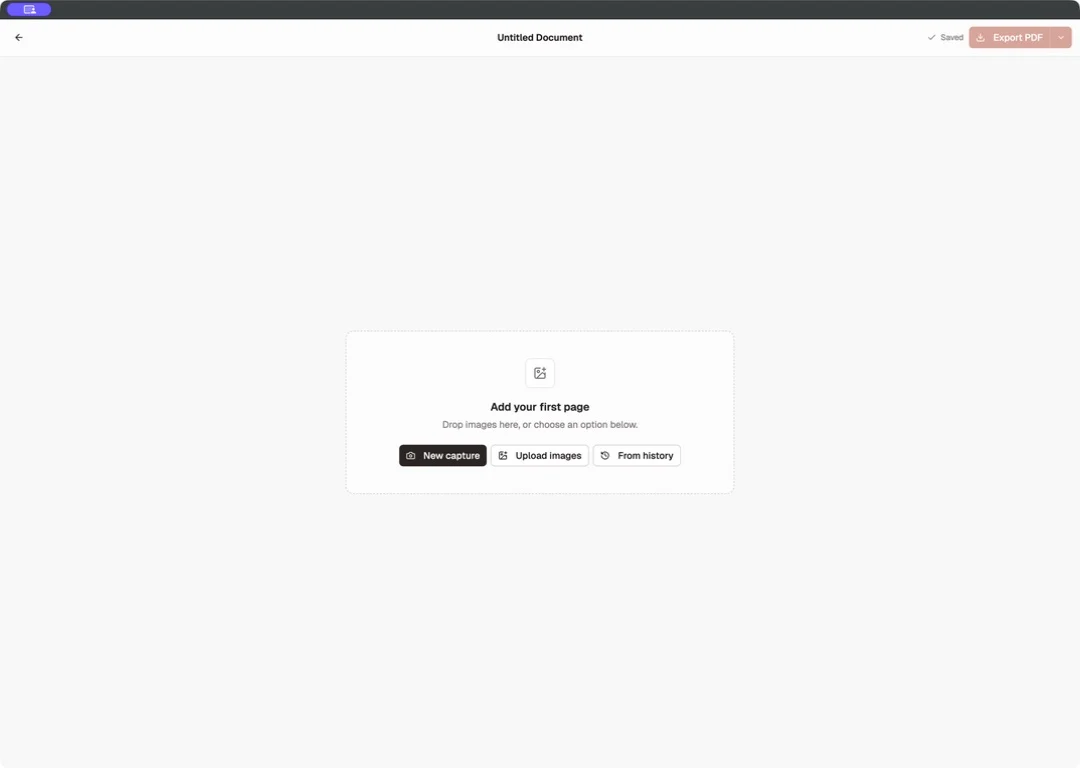
Documents accepts several starting points, so capture and editing can stay separate. Choose the route that matches the material you already have.
Import screenshots from your Mac, put them in the right order, and turn them into editable pages.
Create a Document from an earlier Shotomatic session without changing or deleting the source captures.
Begin Auto Capture, Website Capture, or Action Capture and continue in the editor when the session ends.
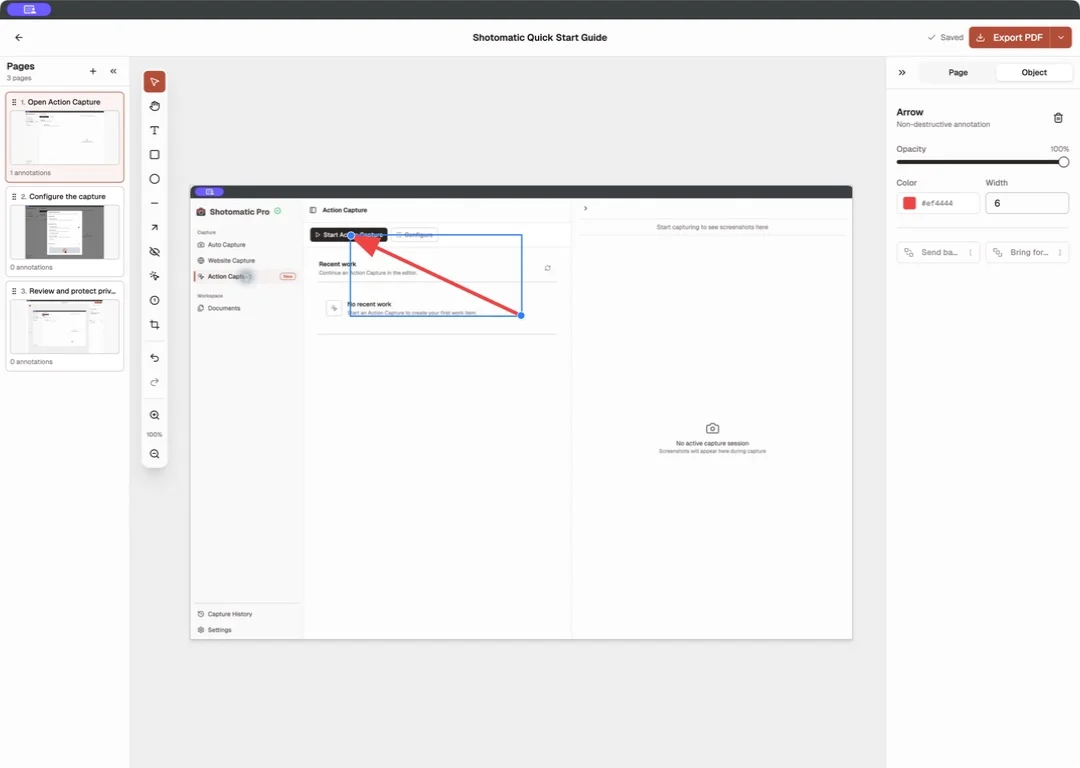
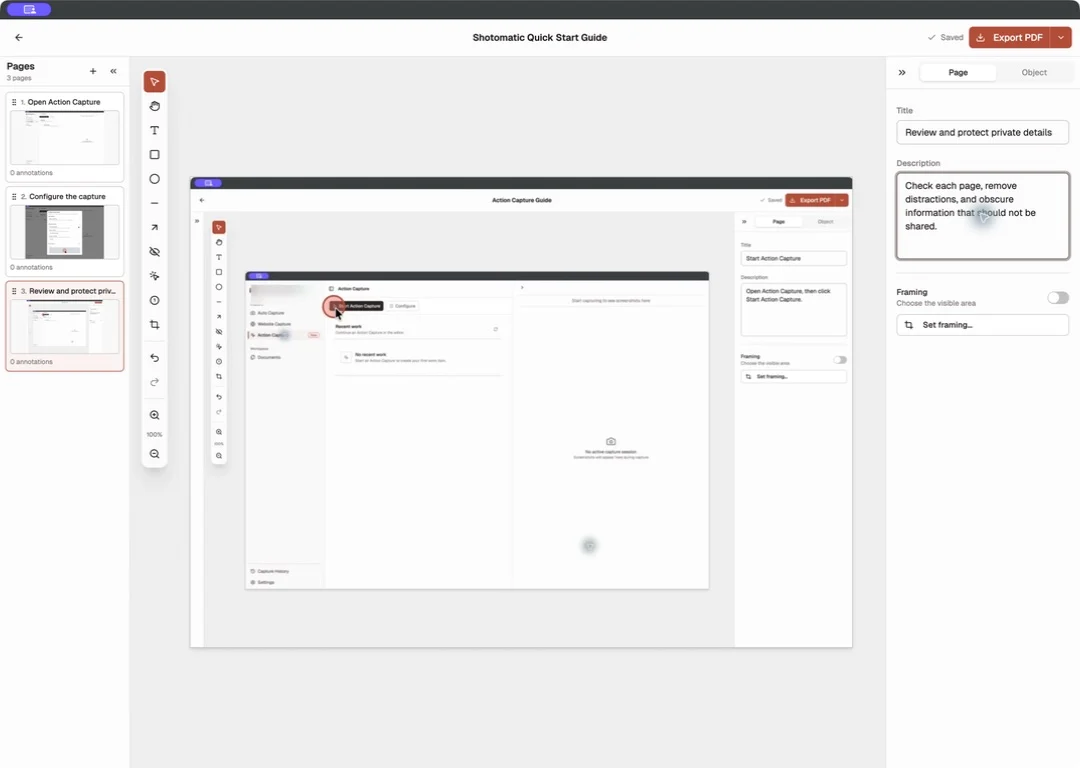
A useful screenshot guide makes the next action obvious. Put pages in task order, write a direct page title, and use the description only for context the screenshot cannot show.
Use an arrow, shape, line, or short text label when the target needs emphasis. Framing and Action Focus help when the full screen contains more detail than the reader needs.
Start with local images, Capture History, or a new capture session. Each image becomes an editable page.
Reorder, duplicate, or remove pages, then give each page a title and a short description.
Add only the annotations the reader needs, and use Framing or Action Focus to keep attention on the task.
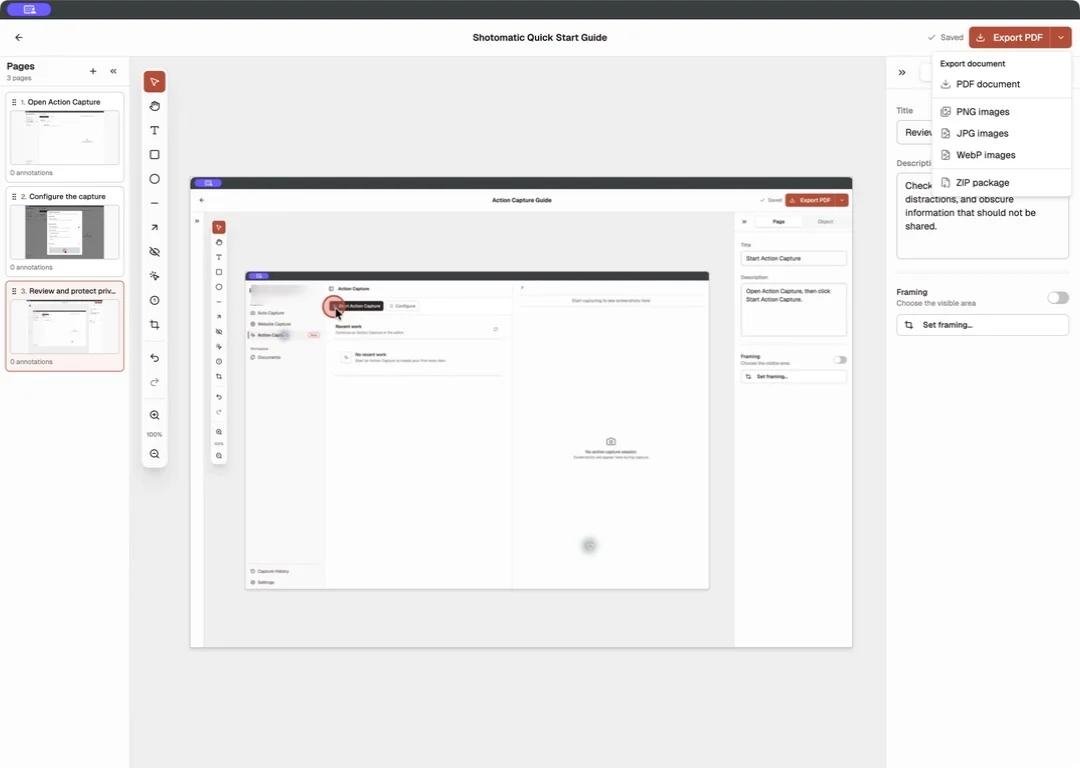
Export the finished Document as PDF, PNG, JPG, WebP, or ZIP and check the files before sharing them.
Included on Free
Pro editing tools
Use Action Capture when clicks define the steps. Use timed Auto Capture for progress or a product walkthrough. If the screenshots already exist, import them directly into a Document.
A Shotomatic Document is an editable sequence of screenshot pages. Each page can have a title, description, framing, and annotations before the Document is exported.
Yes. Create a Document from Images, select the files on your Mac, and then reorder and edit the imported pages.
No. A Document is separate from its source Capture History session, so deleting the Document does not delete the original session.
Free includes page organization, titles and descriptions, Text, Rectangle, Ellipse, Line, Arrow, Framing, Action Focus, undo, and redo. Pro adds Blur, Click Marker, and Step Numbers.
Free and Pro can export a Document as PDF, PNG, JPG, WebP, or ZIP.
Create the Document, put the pages in order, add the guidance that matters, and export the result.