Tutorials and help articles
Show one action per page so readers can complete a software task at their own pace.
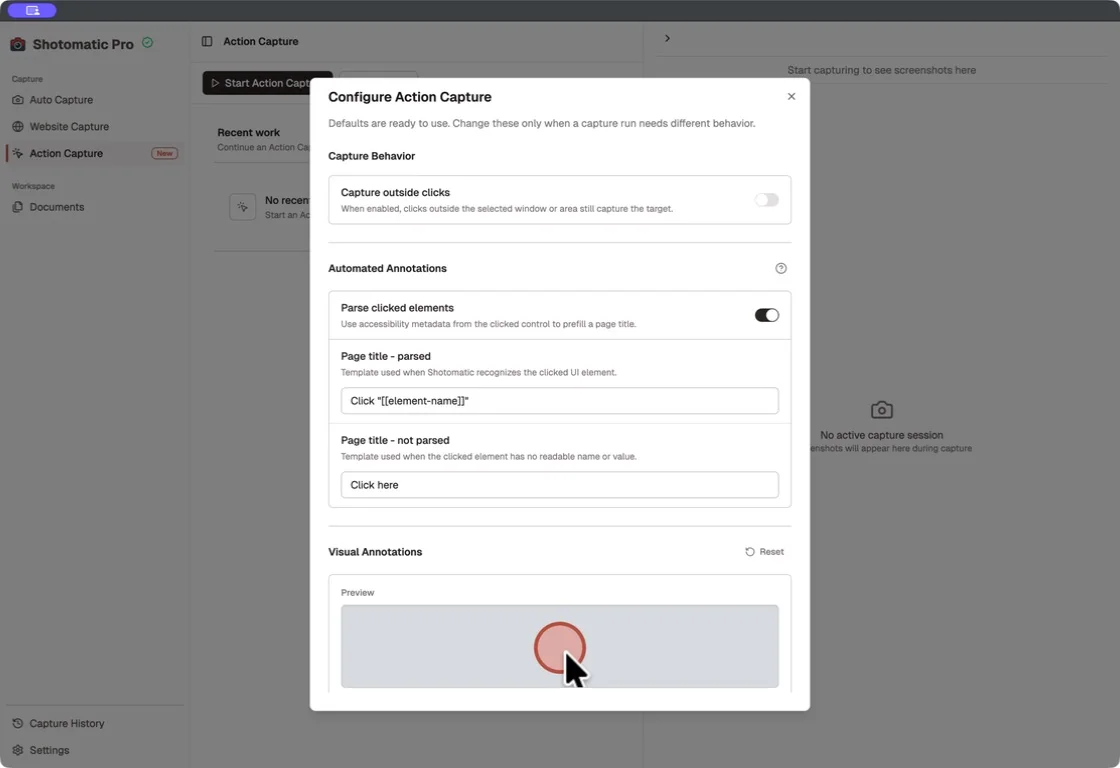
Save the target state before each accepted click, mark the action, edit the sequence, and export instructions readers can follow one step at a time.
Action Capture keeps the capture session focused on the task. The editor gives you a separate pass for ordering, explaining, and exporting the result.
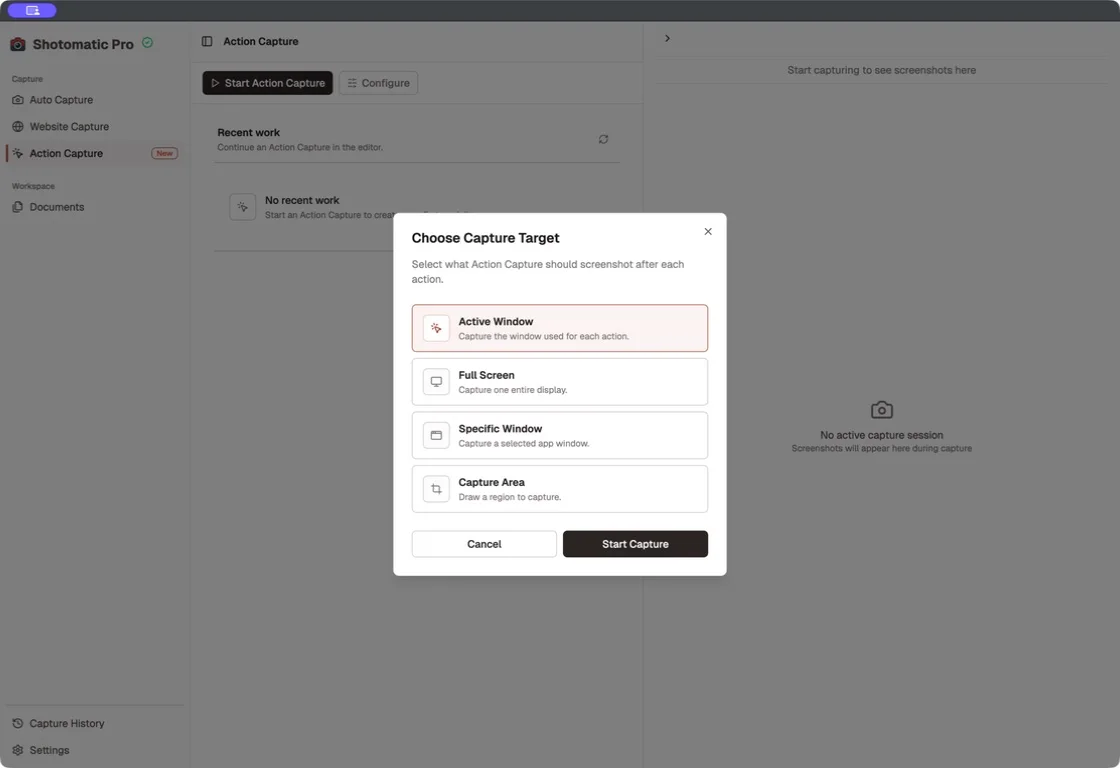
Start Action Capture, choose a window or area, and complete the task. Each accepted click saves the target state immediately before the action.
Open the captured sequence, remove unnecessary pages, and fix the order before adding detail.
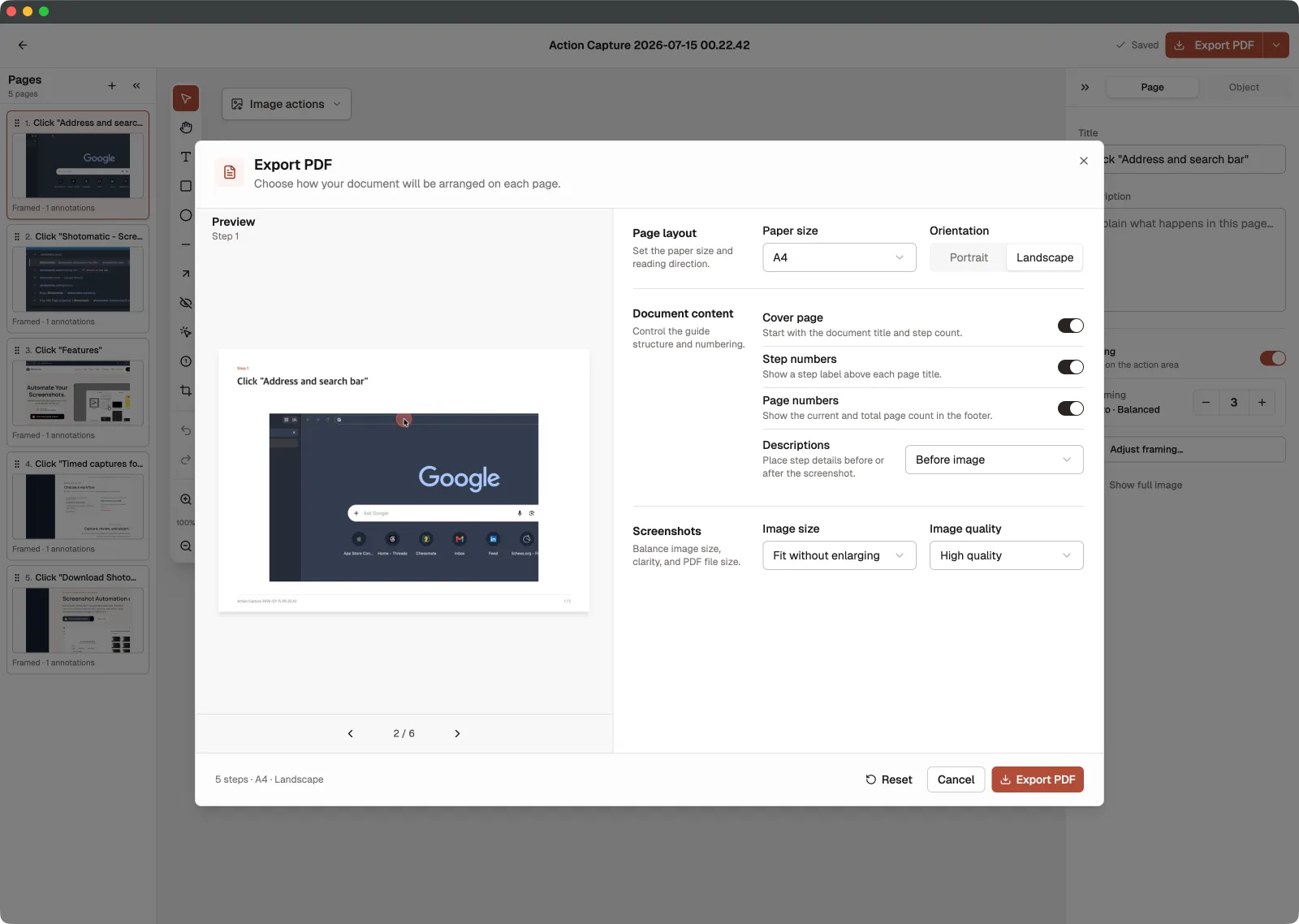
Add the context readers need, protect private details, and export the finished pages in the format you need.
Review the captured pages in order, remove clicks the reader does not need, and use Action Focus or Framing to keep the relevant part of the screen visible.
Text, rectangles, ellipses, lines, and arrows are available on Free. Pro adds Blur, additional Click Markers, and Step Numbers. Both plans export PDF, PNG, JPG, WebP, and ZIP.
See the complete Documents workflow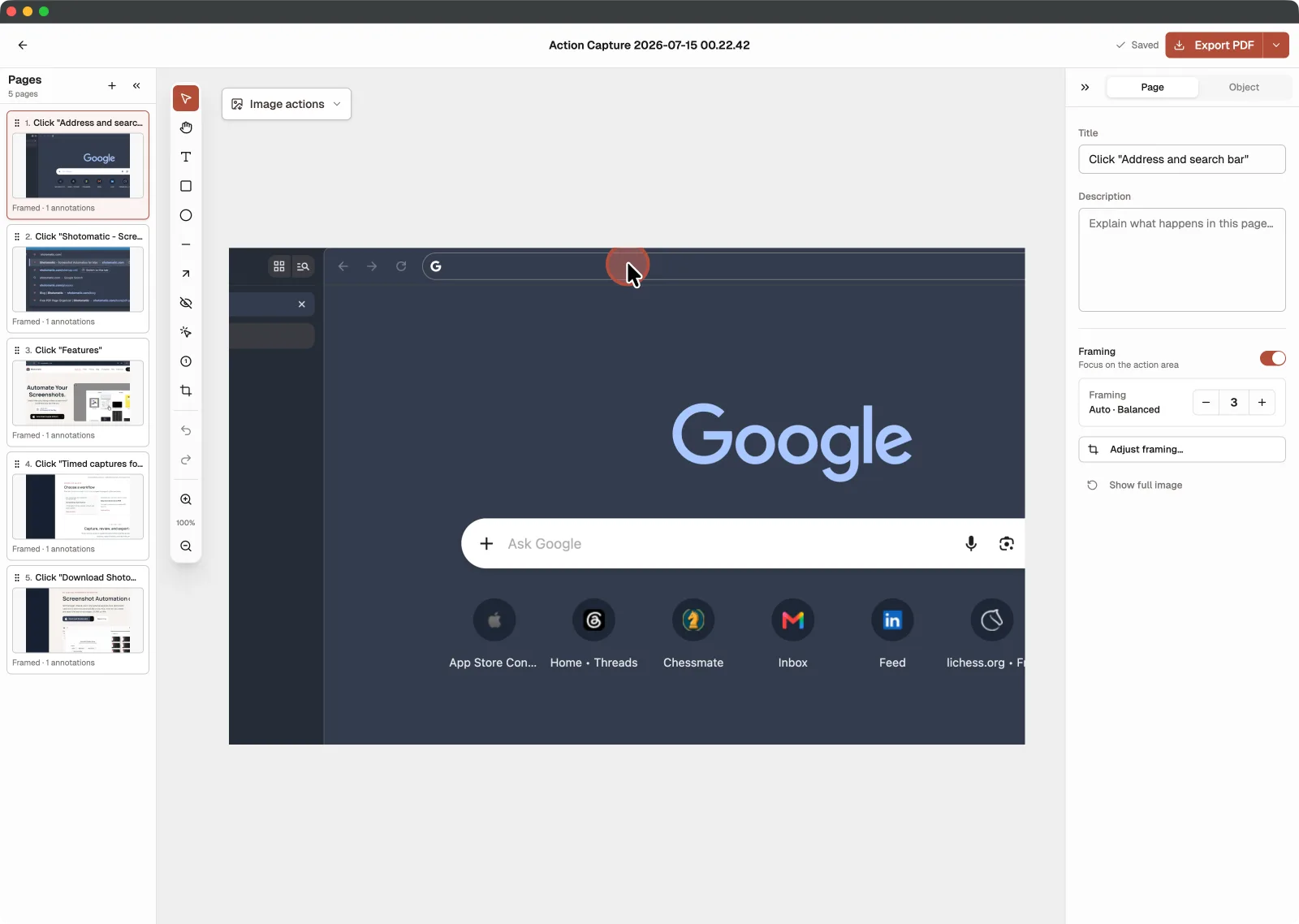
Free includes the editor and every document export format for guides with up to five captured steps. Pro removes the session limit and adds specialized annotation tools.
Free
Pro adds
After the fifth step is saved on Free, Action Capture pauses. Open the current document in the editor, or activate Pro and continue the same capture session.
Show one action per page so readers can complete a software task at their own pace.
Record the exact path to a setting, error, or result without asking someone to scrub through a video.
Turn a repeatable process into ordered instructions that can be reviewed, printed, or shared as files.
Action Capture saves the target state immediately before each accepted click, marks the click location, and collects the saved steps in an editable document.
You can save up to 5 steps in one Action Capture session. Shotomatic saves the fifth step before pausing. You can open the document in the editor or activate Pro and continue the same session. The number of guides and documents you save is not limited.
Free includes page organization, titles and descriptions, text, rectangles, ellipses, lines, arrows, framing, Action Focus, undo, and redo. Pro adds Blur, Click Marker, and Step Numbers.
Free and Pro can export a Document as PDF, PNG, JPG, WebP, or ZIP.
Use Action Capture when readers need an ordered reference they can scan and follow one step at a time. Use screen recording when motion, timing, or audio is necessary to understand the task.
Download Shotomatic for Mac and use Action Capture for your next tutorial, procedure, or support guide.