How to Automate Website Screenshots Without Code
Choose a no-code way to automate website screenshots: URL-list capture, an automation platform with a screenshot API, monitoring tools, or browser helpers.

No-code screenshot automation is easiest to reason about when you split it into two jobs.
You either need a clean set of screenshots from a known list of pages, or you need screenshots to happen inside a larger automation. Those sound similar, but they lead to different tools.
If the output is something a person will review, start with a URL-list capture tool. If the screenshot is one step in a workflow, start with an automation platform and a screenshot API.
Pick the job before you pick the tool
The fastest way to choose is to describe the job in one sentence.
| If the job sounds like this | Start with |
|---|---|
| "I have a list of pages and need screenshots I can review or send." | A URL-list capture tool |
| "A new row, form, or scheduled workflow should create a screenshot." | An automation platform plus a screenshot API |
| "Tell me when this page changes." | A website monitoring tool |
| "I just need one or two screenshots right now." | A browser extension or one-off capture helper |
| "The browser must log in, click things, or run assertions." | Code, usually Playwright or Puppeteer |
This article focuses on the no-code paths. If the work belongs in code, use the Puppeteer or Playwright guide instead.
Option 1: URL-list capture tools
Choose this path when you already know the pages you want to capture. It is useful for launch checks, QA evidence, client reports, competitor archives, and desktop/mobile captures of the same URL set.
The workflow is straightforward:
- Add the URLs.
- Choose capture settings.
- Run the batch.
- Review the screenshots.
- Export the result.
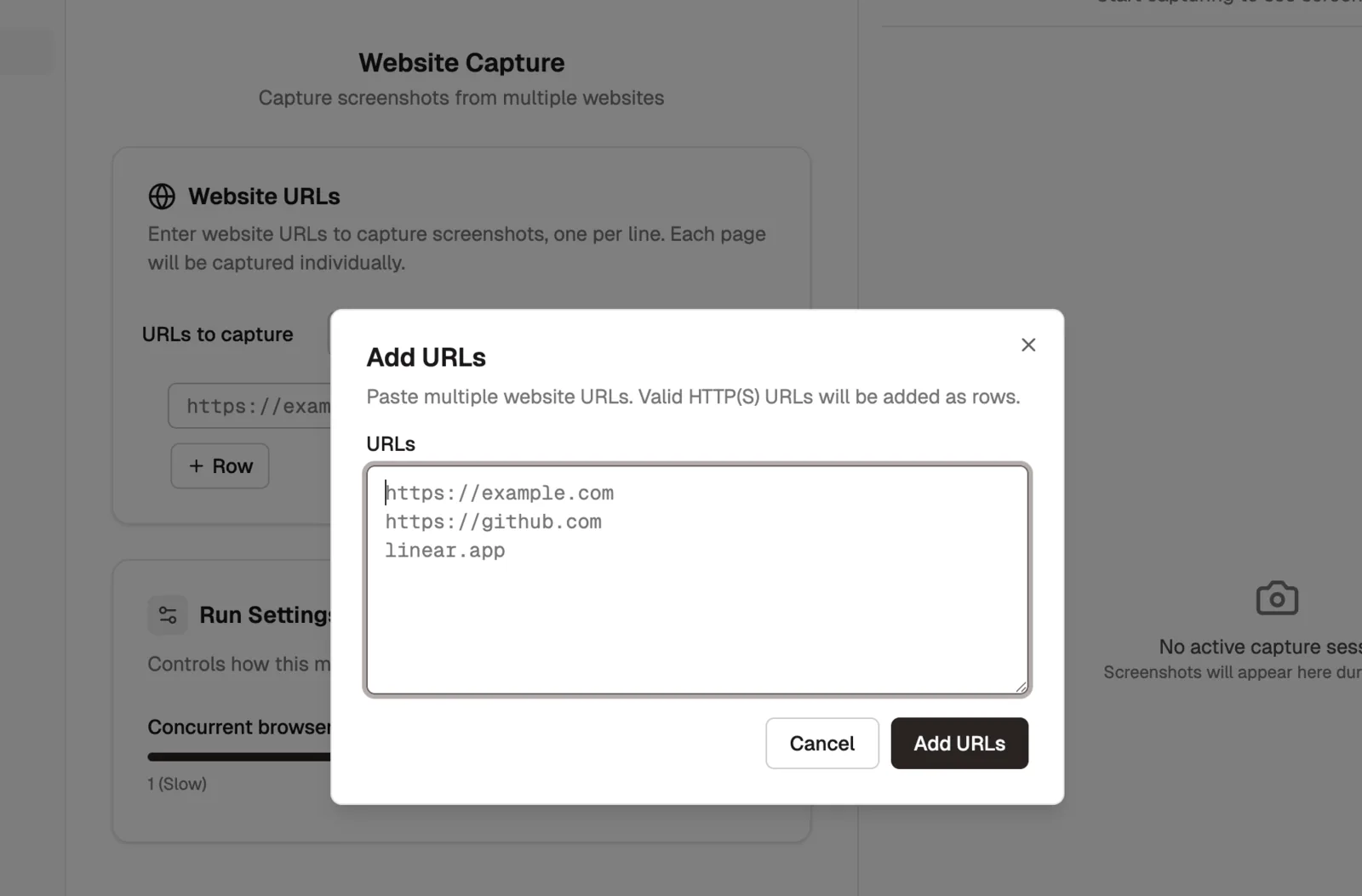
For example, Shotomatic's Website Capture lets you paste several URLs at once instead of building the batch row by row.
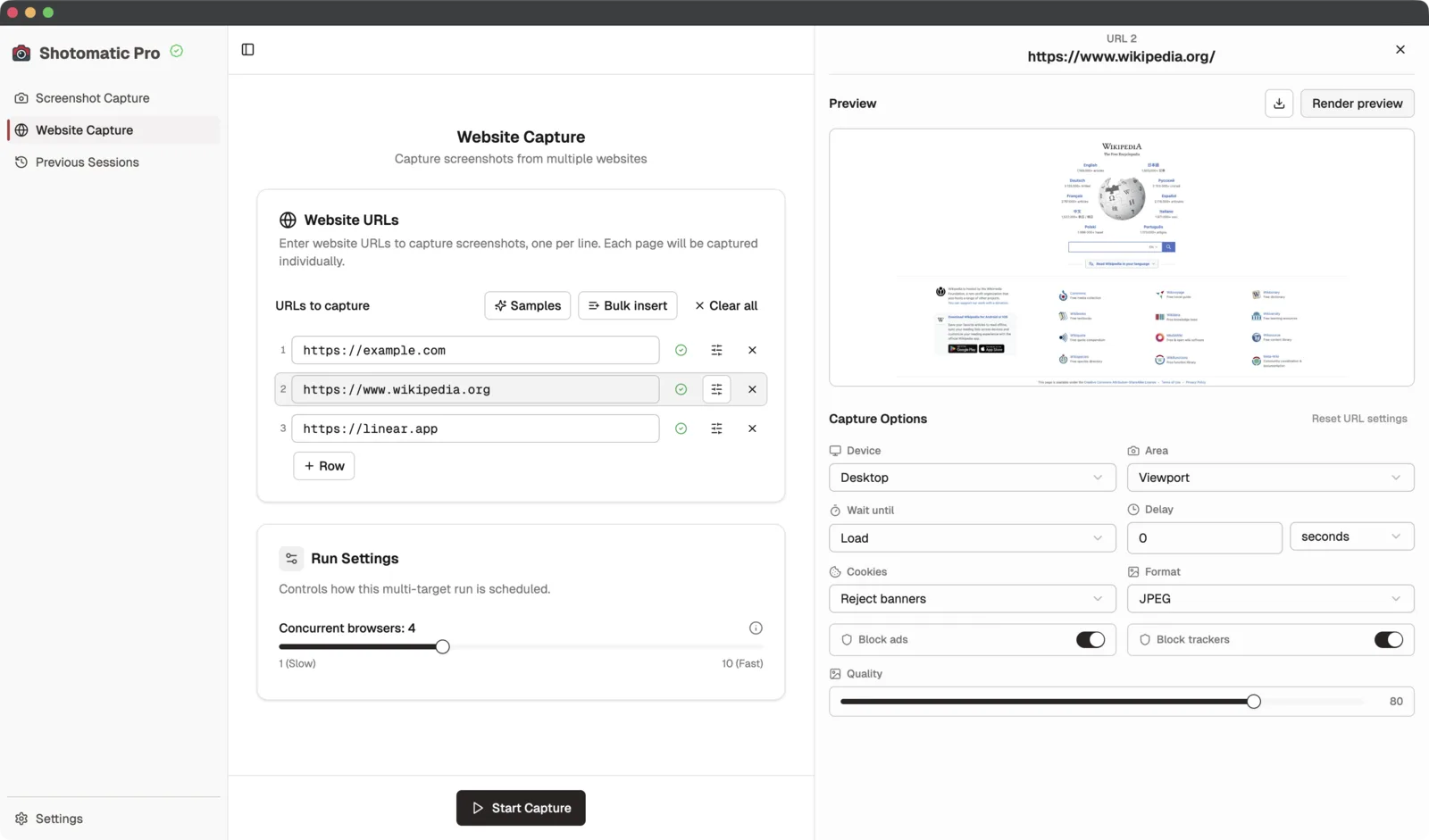
You can then select a URL and adjust the settings that affect that page: viewport size, full-page screenshot, wait behavior, cookie handling, image format, and export quality.
After the batch runs, the result should be easy to inspect and hand off.
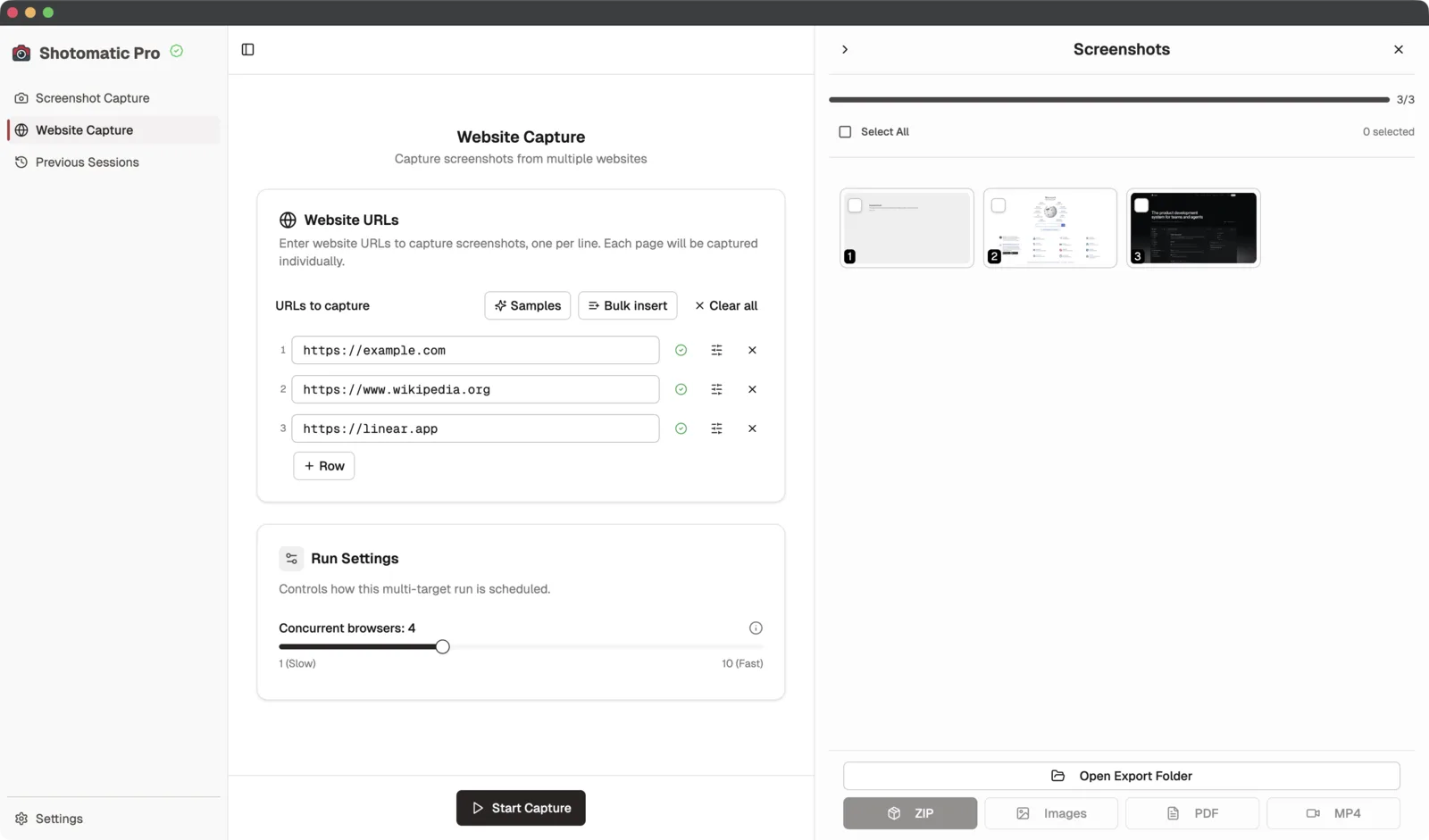
That is the main thing to check in a URL-list capture tool: can you add pages quickly, tune the pages that need different settings, review failures, and export the result in the format you need?
Use it when you need consistent screenshots from a page list and do not want a script to maintain.
Option 2: Automation platforms plus a screenshot API
Choose this path when a screenshot needs to happen as part of a larger no-code workflow.
For example:
- a new spreadsheet row creates a screenshot
- a form submission starts a capture
- a scheduled workflow captures a page every Monday
- the screenshot is saved to cloud storage
- a Slack or email message goes out after the file is ready
In this setup, the automation platform does not usually capture the page by itself. It calls a screenshot API, then passes the result to the next step.
A typical workflow looks like this:
- Store the URL in a spreadsheet, table, form response, or database.
- Use a no-code platform to read the URL.
- Send an HTTP request to a screenshot API with the URL and capture options.
- Save the returned image or file URL.
- Notify the right person or write the result back to the original record.
Tools like n8n, Make, and Zapier can send HTTP requests or webhooks, which is how they usually connect to screenshot APIs.
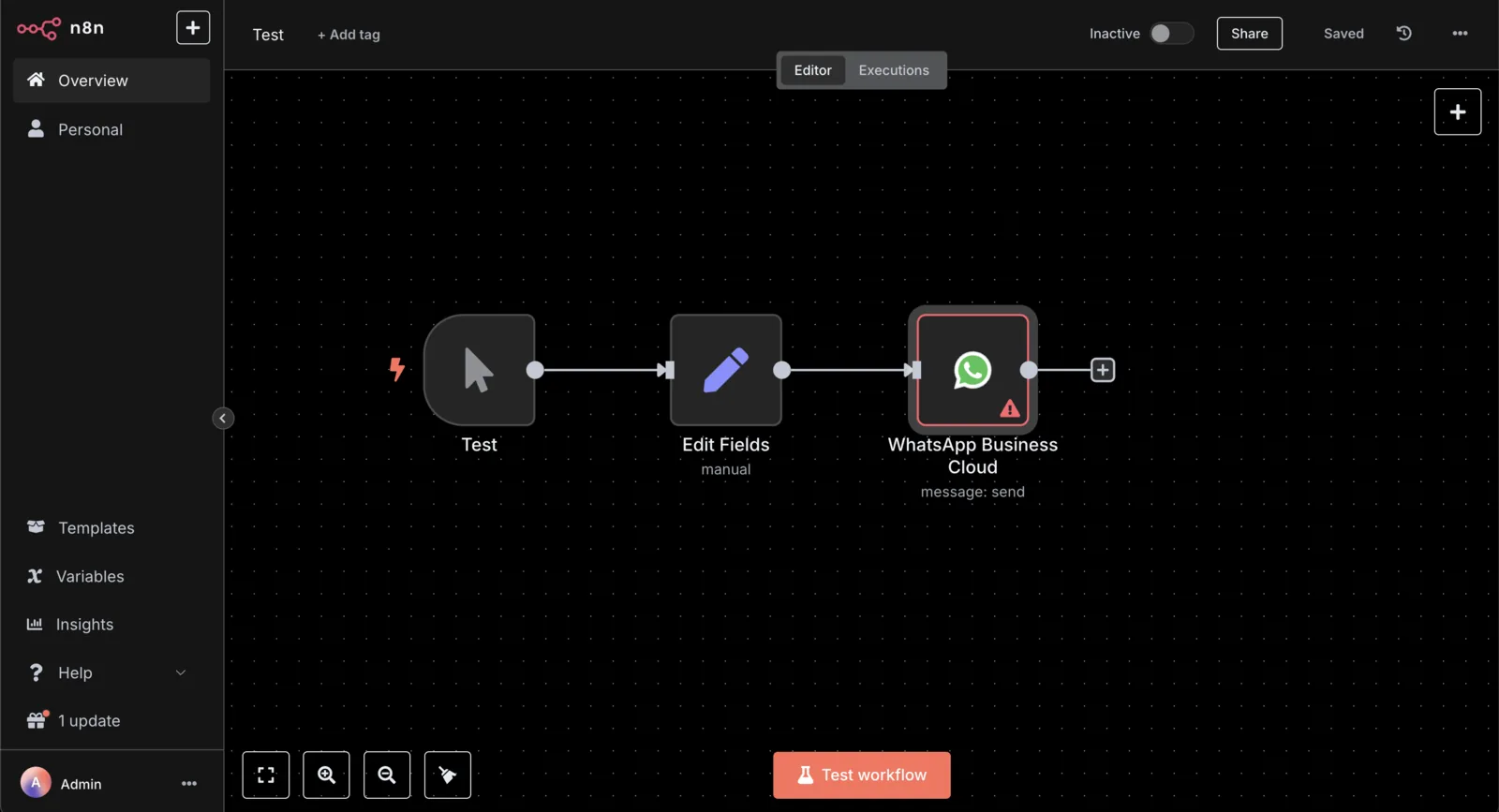
This path is flexible, but it is not the same as "no maintenance." You still need to think about API keys, usage limits, file naming, storage, retries, and failed captures. It is worth that overhead when the screenshot is part of a bigger process.
Use this path when the important part is automation around the screenshot: where the URL comes from, where the image goes, and what should happen next.
Option 3: website monitoring tools
Choose this path when you mainly care about change alerts.
Website monitoring tools watch pages over time and notify you when something changes. Some tools, such as Visualping, focus on page monitoring with visual evidence.
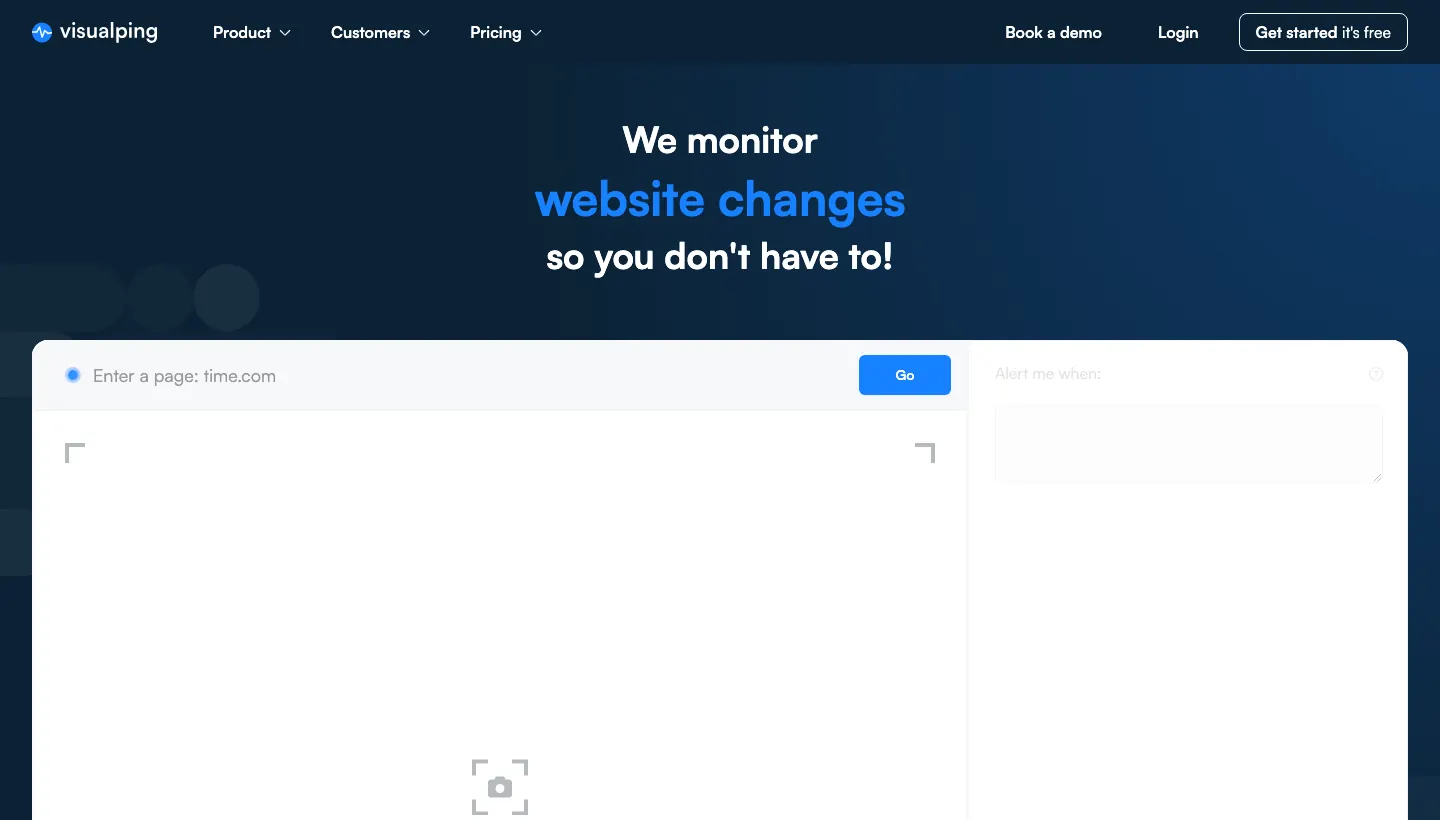
This is useful for:
- tracking a pricing page
- watching a competitor page
- checking whether a public page changed
- receiving alerts without manually rerunning a capture
It is less useful when the job is to produce a clean batch of screenshots for a report, QA pass, or archive. Monitoring tools are usually built around alerts first. Batch export and review may be secondary.
Option 4: browser extensions and one-off helpers
Choose this path when the volume is small.
A browser extension can be the fastest way to capture one page, especially for a full-page screenshot. It starts to feel awkward when you need the same settings across many URLs, predictable file names, repeatable runs, and a review step before handoff.
Use an extension when the work is occasional. Use a URL-list capture tool or API workflow when the work repeats.
When code is still the better option
No-code tools work best when the capture job is easy to describe without custom browser behavior.
Use Playwright or Puppeteer when you need to:
- log in before capture
- click through a flow
- wait for a specific selector or app state
- run screenshots inside CI
- compare screenshots against visual baselines
- control the browser from a developer-owned test suite
If a developer will maintain the workflow, code can be the right tool. If a marketing, QA, support, or agency workflow needs screenshots people can run and review without editing scripts, no-code is usually easier to keep alive.
A simple decision rule
Choose based on what you want to maintain.
For a reviewed batch of screenshots, use a URL-list capture tool.
For an automated workflow around the screenshot, use an automation platform and a screenshot API.
For change alerts, use a monitoring tool.
For browser behavior in code, use Playwright or Puppeteer.
For Shotomatic, the best fit is the first case: repeatable screenshots from a list of pages. The website screenshot automation page shows the actual app flow with URL import, per-URL options, review, and export. If you're still comparing desktop options first, the automated screenshot tool comparison covers where Shotomatic, Snagit, and CleanShot X each fit. You can also compare Shotomatic features or check current plans before choosing a route.
FAQ
Can I automate website screenshots without coding?
Yes. The main no-code options are URL-list capture tools, automation platforms connected to a screenshot API, website monitoring tools, and browser helpers for small jobs.
What is the easiest no-code way to take website screenshots?
If you already know which pages to capture, a URL-list capture tool is usually the simplest path. Add the pages, choose capture settings, review the screenshots, and export the files.
Can n8n, Make, or Zapier automate website screenshots?
Yes, if you connect them to a screenshot API through an HTTP request or webhook action. This is useful when screenshots are one step in a larger workflow, such as reading URLs from a sheet, saving images to storage, and notifying a teammate.
When should I use Playwright or Puppeteer instead?
Use Playwright or Puppeteer when you need custom browser logic, login flows, CI integration, or visual test assertions. Use no-code tools when the work is mostly capture, review, export, monitoring, or handoff.
Can I capture different settings for different URLs?
Some URL-list capture tools support per-URL settings such as viewport, full-page capture, wait time, image format, and cookie handling. Check this before choosing a tool. Shotomatic's Website Capture supports per-URL capture options.
Related posts
See more postsHow to Automate Website Screenshots with Playwright
Use Playwright to automate website screenshots with JavaScript. Capture one page, full pages, mobile views, and URL batches with retries.

How to Automate Website Screenshots with Puppeteer
Use Puppeteer to automate website screenshots with JavaScript. Capture one page, full-page screenshots, URL batches, and mobile viewports with a reusable script.

How to Take Website Screenshots Automatically on Mac
Take website screenshots automatically on Mac from a URL list. Capture full pages or viewport shots for audits, archives, and recurring checks.
How to Capture Website Screenshots in Bulk on Mac
Capture website screenshots in bulk on Mac with Shotomatic. Paste a URL list, choose desktop/tablet/mobile presets, run parallel capture, and export for audits or reports.

Need no-code website screenshot automation?
Use Website Capture for URL-list screenshots, per-page capture options, reviewable results, and exports without maintaining a script.