Automate Screenshots on Mac with the Command Line
Use macOS screencapture loops for full-screen, fixed-area, and page-turn screenshots, with safe file names and troubleshooting.
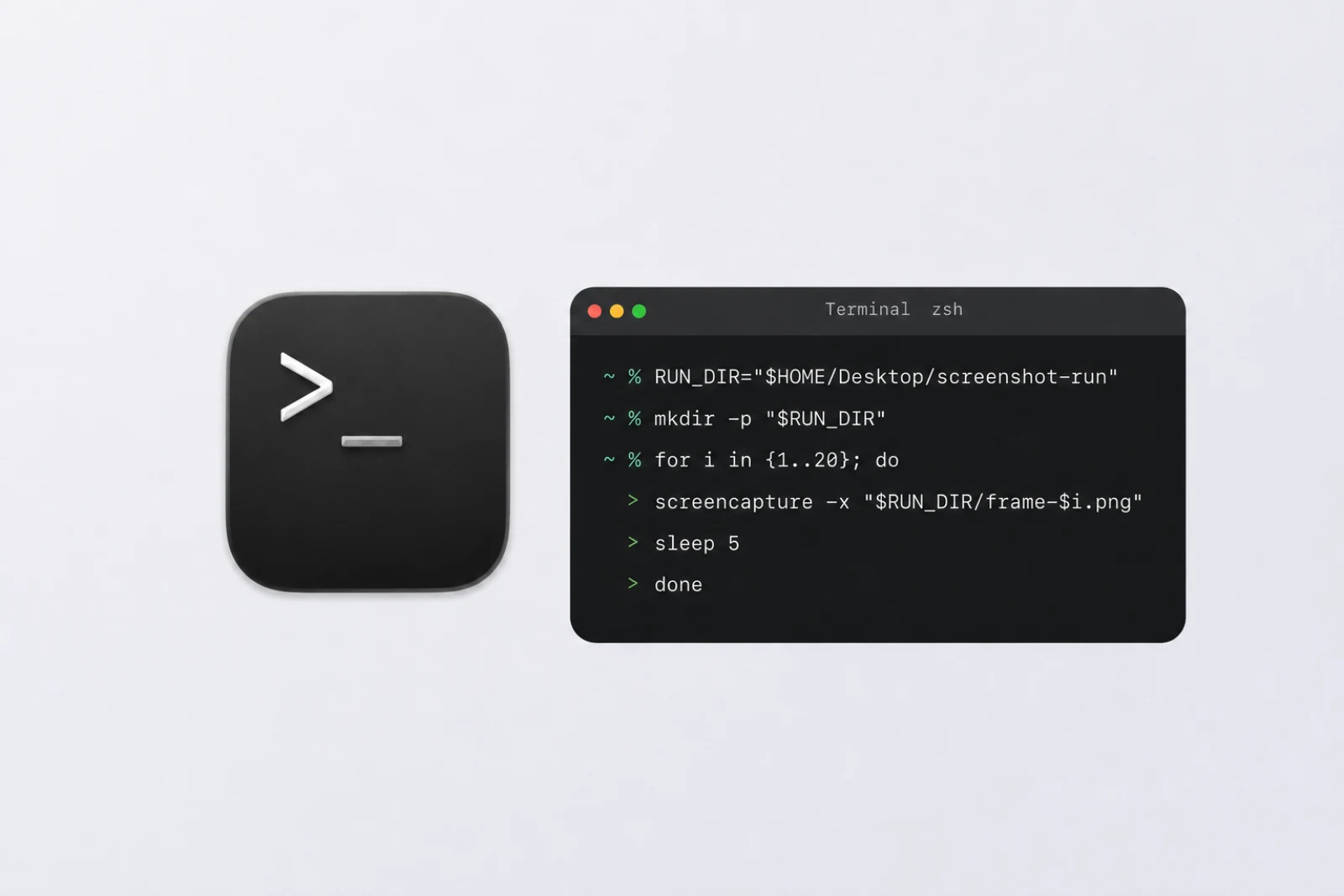
In this guide, you will automate screenshots from Terminal with macOS screencapture. You will check permission, test one capture, build full-screen and fixed-area loops, add an optional page-turn keypress, then learn how to stop and troubleshoot the run.
Check permission before debugging the command
If a capture is blank or misses protected app content, Terminal may need screen capture access. Open System Settings > Privacy & Security > Screen & System Audio Recording, allow Terminal, then reopen Terminal if macOS asks.
You do not need Accessibility access for screenshots alone. It is required only when osascript controls another app or sends a key through System Events.
Take one screenshot from Terminal
Start with a single file:
screencapture -x "$HOME/Desktop/test-screenshot.png"
The -x option turns off the screenshot sound. If the file looks correct, move on to a short loop.
Useful built-in options include:
| Option | Result |
|---|---|
-R x,y,width,height | Capture a fixed rectangle |
-m | Capture only the main monitor |
-i | Choose an area or window interactively |
-w | Allow interactive window selection only |
-T 5 | Delay a capture by five seconds |
-t jpg | Save in JPG format |
-C | Include the cursor in a non-interactive capture |
The -T flag works as a simple screenshot timer. Run man screencapture in Terminal to see the options available on your version of macOS.
Capture the full screen every few seconds
Use this three-frame loop before a longer run:
RUN_DIR="$HOME/Desktop/screenshot-run-$(date +%Y%m%d-%H%M%S)"
mkdir -p "$RUN_DIR"
COUNT=3

for ((i=1; i<=COUNT; i++)); do
  screencapture -x "$RUN_DIR/frame-$(printf "%03d" "$i").png"
  if (( i < COUNT )); then
    sleep 5
  fi
done
The files sort as frame-001.png, frame-002.png, and so on. The conditional skips the unnecessary five-second wait after the final screenshot.
Check all three files before increasing COUNT for the real run. Press Control-C to stop early; files already saved remain in the run folder.
Capture one fixed area repeatedly
Add -R when the target stays in one place:
RUN_DIR="$HOME/Desktop/area-run-$(date +%Y%m%d-%H%M%S)"
mkdir -p "$RUN_DIR"
COUNT=20

for ((i=1; i<=COUNT; i++)); do
  screencapture -x -R 100,100,1200,800 "$RUN_DIR/frame-$(printf "%03d" "$i").png"
  if (( i < COUNT )); then
    sleep 5
  fi
done
The rectangle format is x,y,width,height. If the window moves, the command still captures the old coordinates. Run three frames first and move the target only after the loop finishes.
On Retina displays, a 400x300 logical rectangle may produce an 800x600 Retina screenshot. The command used the right area; macOS saved it at the display's pixel density.
Save JPG files instead of PNG
Use -t jpg and a .jpg extension:
screencapture -x -t jpg "$HOME/Desktop/test-screenshot.jpg"
PNG is a safer default for interface text and diagrams. JPG is smaller for photographic content but can soften small text.
Press a key between screenshots without overshooting
This page-turn loop captures first, presses the right arrow only when another capture remains, then waits for the new page to render:
RUN_DIR="$HOME/Desktop/page-run-$(date +%Y%m%d-%H%M%S)"
mkdir -p "$RUN_DIR"
COUNT=50

for ((i=1; i<=COUNT; i++)); do
  screencapture -x "$RUN_DIR/page-$(printf "%03d" "$i").png"

  if (( i < COUNT )); then
    osascript -e 'tell application "System Events" to key code 124'
    sleep 1
  fi
done
key code 124 is the right arrow. The if (( i < COUNT )) guard prevents another keypress after the final page has been captured.
Test with three pages first. Keep the target app in front for the whole run. If focus changes, System Events sends the arrow to the wrong app.
Keep a long run awake
For an unattended run, put the script in a file and launch it through caffeinate:
caffeinate -i /bin/zsh "$HOME/Desktop/capture-run.zsh"
The -i option prevents idle system sleep while the script is running. It does not fix a locked screen, a moved window, or an app that stopped updating, so test the workflow before leaving it alone.
Troubleshoot a failed screencapture loop
| Symptom | What to check |
|---|---|
| Blank or incomplete image | Give Terminal Screen & System Audio Recording access, reopen it, and retest |
could not create image from display | Confirm the session is logged in and the display is available |
| Wrong crop | Update the -R coordinates after placing the window in its final position |
| Files overwrite each other | Use a new timestamped folder and unique numbered names |
| Right arrow goes elsewhere | Restore focus to the target app and shorten the test to three pages |
| A page is skipped | Increase the sleep after the keypress |
| Script keeps running | Return to Terminal and press Control-C |
When a script is no longer the easy option
Command-line screenshot automation is a good fit for stable coordinates, raw files, and workflows you are comfortable maintaining. When each run needs a different target, count, interval, keypress, or review step, a visual interface is easier to adjust.
Shotomatic keeps those capture controls and finished frames in one Mac app, with image, ZIP, PDF, and MP4 export. See how Shotomatic handles screenshot automation on Mac.
If the images already exist and the main task is packaging them, follow how to save screenshots as a PDF on Mac.
FAQ
Can I automate screenshots from Terminal on Mac?
Yes. macOS includes screencapture, which you can run in a shell loop to save full-screen or fixed-area screenshots at an interval.
How do I stop a screencapture loop?
Press Control-C in the Terminal window running the loop. The screenshots already written to disk remain in the output folder.
Can screencapture save JPG or PDF instead of PNG?
Yes. Use the -t option with a supported format such as jpg or pdf, and give the output file the matching extension.
Can a screenshot script press a key between captures?
Yes. Use osascript with System Events, but grant Accessibility access only if needed and keep the target app focused.
Related posts
See more postsHow to Automate Screenshots on Mac with Built-In Tools
Automate screenshots on Mac with screencapture, Automator, or Shortcuts, including permissions, safe loops, and troubleshooting.
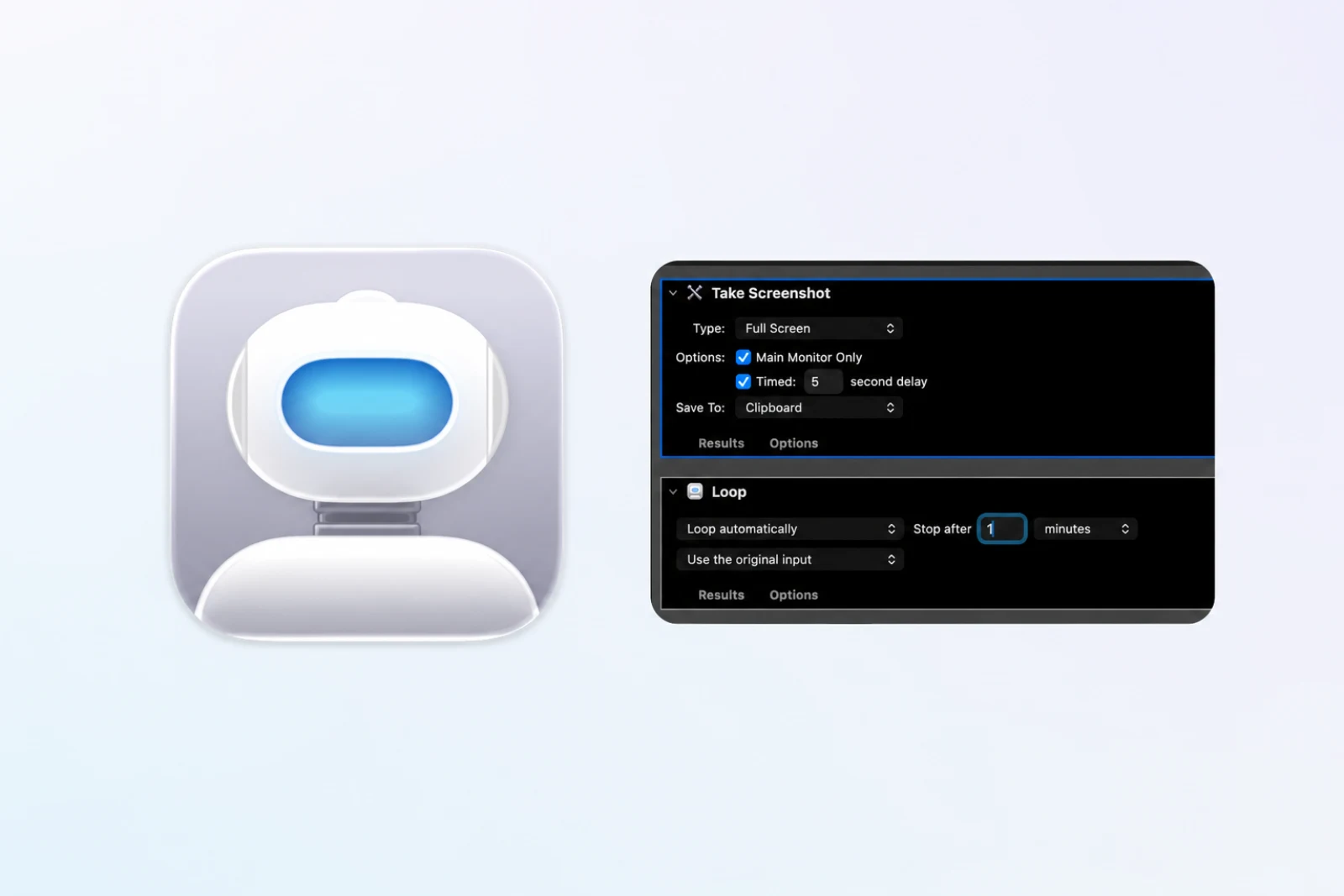
How to Take Repeated Screenshots with Automator on Mac
Build an Automator screenshot workflow with Take Screenshot and Loop, then use a shell action when you need ordered files.
Automate Screenshots with the Apple Shortcuts App on Mac
Build a Mac Shortcuts screenshot routine, run it from a personal automation trigger, and fix scripting or screen recording permissions.
What Is Screenshot Automation on Mac?
What screenshot automation means on Mac, how it differs from manual screenshots and screen recording, and when a dedicated capture workflow starts to matter.
Turn repeatable screenshots into finished work
Shotomatic captures, organizes, and exports screenshot sessions on your Mac.