How to Automate Website Screenshots with Playwright
Use Playwright to automate website screenshots with JavaScript. Capture one page, full pages, mobile views, and URL batches with retries.

In this article, we will build a Playwright screenshot script in stages: first a single viewport capture, then full-page capture, a reusable URL runner, and a mobile viewport.
Playwright works well when screenshots need to live beside the code that drives them. You get real browser rendering, isolated browser contexts, explicit viewport control, device emulation, and hooks for waiting on the page state you care about.
The examples use Shotomatic's features page, https://www.shotomatic.com/features, so the same page can be compared across viewport, full-page, batch-ready, and mobile captures.
TL;DR: Use Playwright when screenshot automation belongs in code. Create a browser context, set the viewport or device, wait for the page state you care about, call
page.screenshot(), then add full-page capture, batching, retries, and reporting. If writing and maintaining that script is not the work you want to own, Shotomatic's Website Capture may be simpler.
When Playwright is the right tool
Use Playwright when the screenshot has to follow browser logic.
Use it when you want to:
- capture screenshots inside CI
- log in before taking a screenshot
- wait for a specific selector or app state
- run the same screenshot job against Chromium, Firefox, or WebKit
- create responsive screenshots from explicit viewport settings
- generate screenshots inside an internal tool
It gets less convenient when the person who needs the screenshots is not the person maintaining the script. If the job should live in code, Playwright is a good place to start.
Install Playwright for a screenshot script
For a plain Node.js script, install the Playwright library and the browser you want to automate:
$ mkdir website-screenshots-playwright
$ cd website-screenshots-playwright
$ npm init -y
$ npm i -D playwright
$ npx playwright install chromium
The Playwright library docs use the same basic shape: install the package, install browsers, import Playwright, launch a browser, and interact with pages. If you need Firefox or WebKit later, install those browsers too.
Create a folder for scripts and output:
$ mkdir scripts screenshots
Capture one website screenshot
Create scripts/capture-one.js:
const { chromium } = require("playwright");
const fs = require("node:fs/promises");

const url = "https://www.shotomatic.com/features";
const outputPath = "screenshots/shotomatic-features.png";

(async () => {
  await fs.mkdir("screenshots", { recursive: true });

  const browser = await chromium.launch();
  const context = await browser.newContext({
    viewport: { width: 1440, height: 1000 },
    deviceScaleFactor: 1,
  });

  const page = await context.newPage();

  try {
    await page.goto(url, { waitUntil: "load", timeout: 45_000 });
    await page.screenshot({ path: outputPath });
    console.log(`Saved ${outputPath}`);
  } finally {
    await context.close();
    await browser.close();
  }
})();
Run it:
$ node scripts/capture-one.js
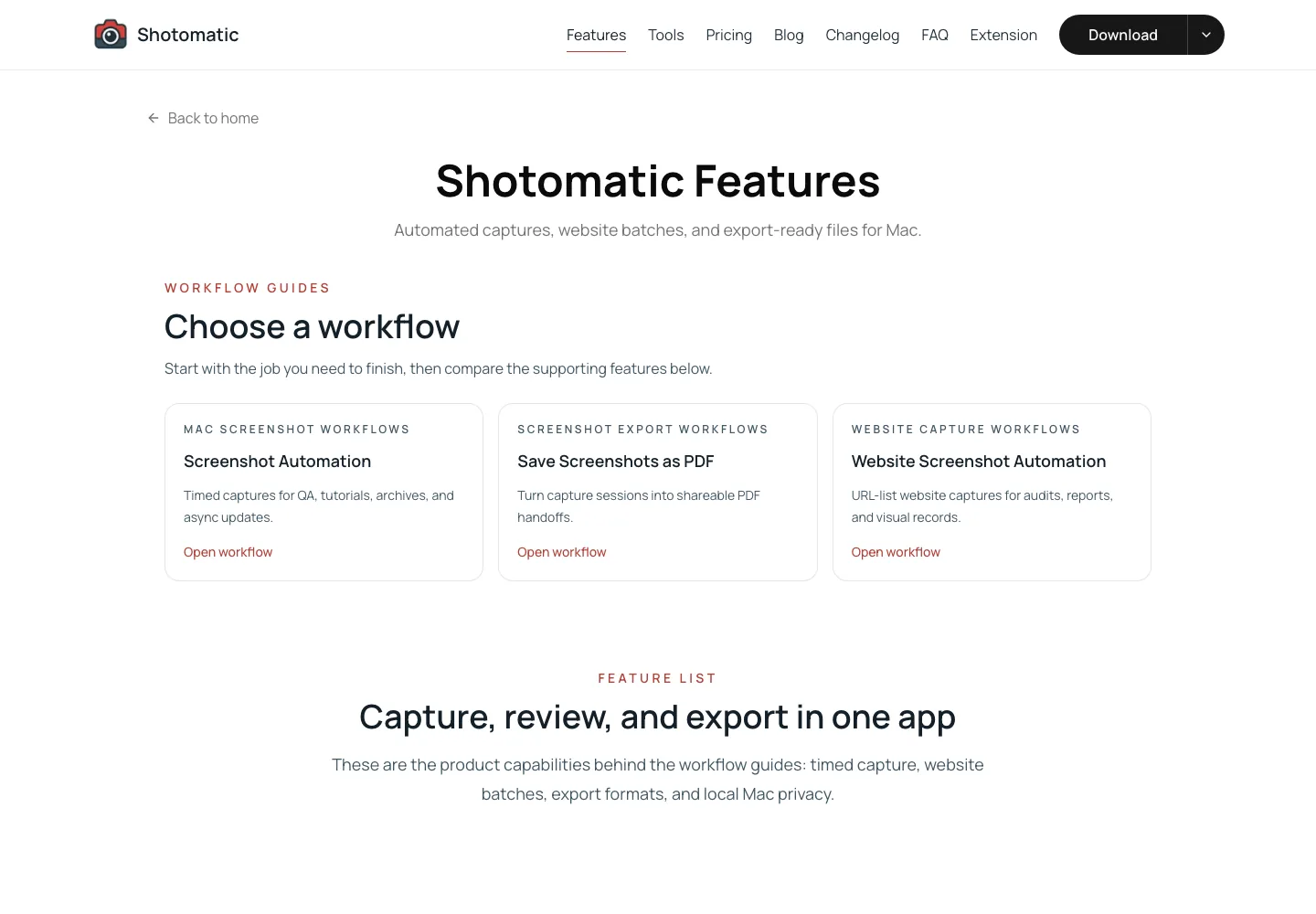
That captures the visible viewport. Playwright's screenshot API also supports full-page screenshots, element screenshots, buffers, clipping, and image quality options.
Running that script creates screenshots/shotomatic-features.png:
Capture a full-page screenshot
For a full-page screenshot, pass fullPage: true:
await page.screenshot({
  path: "screenshots/shotomatic-features-full-page.png",
  fullPage: true,
});
Use full-page capture when you need the whole document from top to bottom. Use a viewport screenshot when you care about what a visitor sees at a specific screen size.
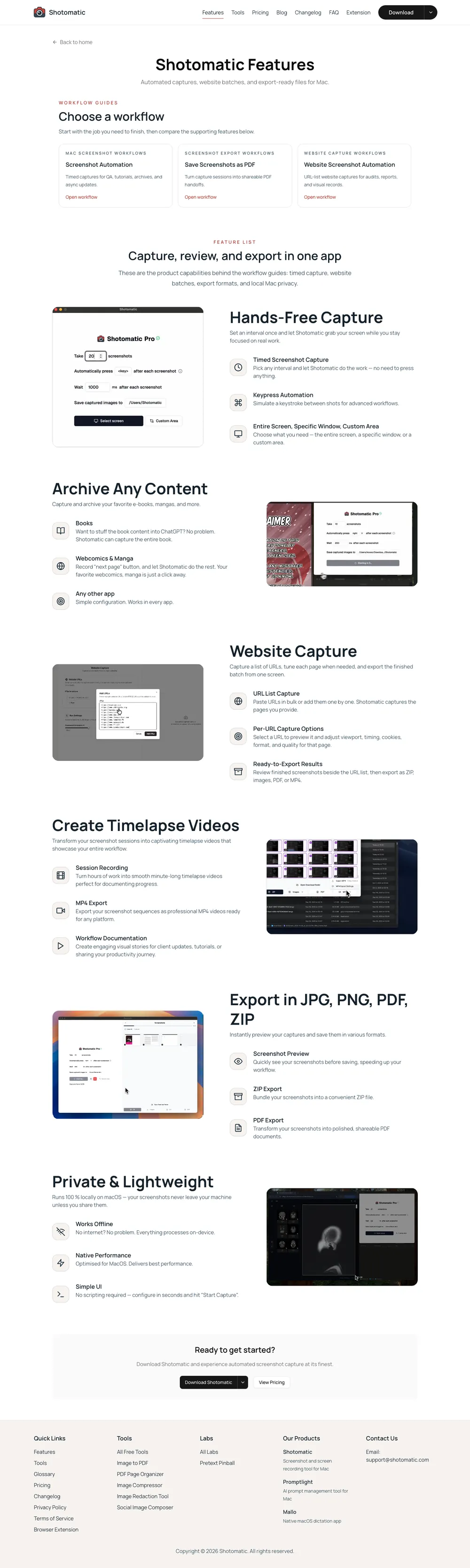
Full-page capture still depends on the page state. fullPage: true changes the capture area, but it does not force lazy-loaded images, animations, or in-view sections to render. The lazy-loading section below shows why the page state matters.
Put the target URL in a batch script
Once the single-page script works, move the target URL into a script that can accept a list and save files with predictable names. The example still uses only /features, so the output stays easy to follow. Later, you can add more URLs to the same array.
Create scripts/capture-batch.js:
const { chromium } = require("playwright");
const fs = require("node:fs/promises");

const urls = ["https://www.shotomatic.com/features"];

const outputDir = "screenshots";

function filenameForUrl(url, index) {
  const parsed = new URL(url);
  const rawName = `${parsed.hostname}${parsed.pathname}`;

  const slug = rawName
    .replace(/^www\./, "")
    .replace(/\/$/, "")
    .replace(/[^a-z0-9]+/gi, "-")
    .replace(/^-+|-+$/g, "")
    .toLowerCase();

  return `${String(index + 1).padStart(2, "0")}-${slug || "home"}.png`;
}

async function captureUrl(browser, url, index) {
  const context = await browser.newContext({
    viewport: { width: 1440, height: 1000 },
    deviceScaleFactor: 1,
  });

  const page = await context.newPage();
  const outputPath = `${outputDir}/${filenameForUrl(url, index)}`;

  try {
    await page.goto(url, { waitUntil: "load", timeout: 45_000 });
    await page.locator("body").waitFor({ state: "visible", timeout: 15_000 });
    await page.screenshot({ path: outputPath, fullPage: true });

    console.log(`Captured ${url} -> ${outputPath}`);
    return { url, ok: true, outputPath };
  } catch (error) {
    console.error(`Failed ${url}: ${error.message}`);
    return { url, ok: false, error: error.message };
  } finally {
    await context.close();
  }
}

(async () => {
  await fs.mkdir(outputDir, { recursive: true });

  const browser = await chromium.launch();

  try {
    const results = [];

    for (const [index, url] of urls.entries()) {
      results.push(await captureUrl(browser, url, index));
    }

    const failed = results.filter((result) => !result.ok);

    if (failed.length > 0) {
      process.exitCode = 1;
      console.error(`${failed.length} screenshot(s) failed.`);
    }
  } finally {
    await browser.close();
  }
})();
This version runs sequentially on purpose. It is slower, but much easier to debug. Once it works reliably for your pages, add concurrency.
Add concurrency for bigger batches
For 5 URLs, a simple loop is fine. For 50 or 500, you probably want a small concurrency limit.
Avoid opening hundreds of pages at once. Browser automation is memory-hungry, and many sites will rate-limit or break if you hit them too aggressively. Start with 2-4 concurrent captures and increase only after you see stable results.
Add the same helper used in the Puppeteer version of this guide:
async function runWithConcurrency(items, limit, worker) {
  const results = new Array(items.length);
  let nextIndex = 0;

  async function runNext() {
    while (nextIndex < items.length) {
      const currentIndex = nextIndex;
      nextIndex += 1;
      results[currentIndex] = await worker(items[currentIndex], currentIndex);
    }
  }

  const workers = Array.from({ length: Math.min(limit, items.length) }, () => runNext());

  await Promise.all(workers);
  return results;
}
Then replace the sequential loop:
const results = await runWithConcurrency(urls, 3, (url, index) => captureUrl(browser, url, index));
This keeps one browser open, creates isolated browser contexts for captures, and limits how many pages are active at the same time. Playwright's Library docs use explicit browser contexts in the Node script flow, which gives each capture its own lifetime.
Capture mobile or tablet screenshots
Playwright includes device emulation descriptors for common phones and tablets. For example:
const { chromium, devices } = require("playwright");

(async () => {
  const browser = await chromium.launch();
  const iPhone = devices["iPhone 13"];

  const context = await browser.newContext({
    ...iPhone,
  });

  const page = await context.newPage();
  await page.goto("https://www.shotomatic.com/features", {
    waitUntil: "load",
  });
  await page.screenshot({
    path: "screenshots/shotomatic-features-iphone-13.png",
  });

  await context.close();
  await browser.close();
})();
Here is the same features page captured with the iPhone 13 descriptor:
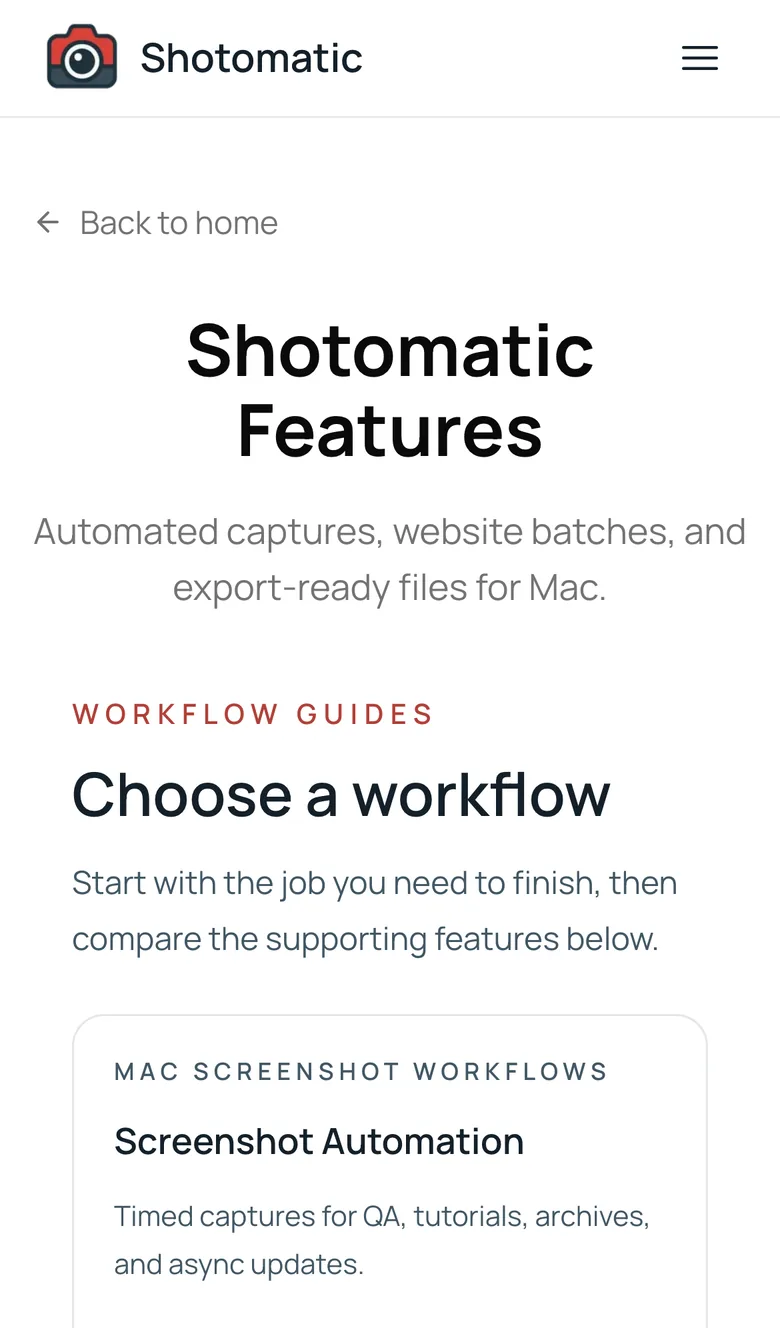
Use device descriptors when user agent, touch support, viewport, and device scale factor matter. Use a plain viewport when you only need a specific size:
const context = await browser.newContext({
  viewport: { width: 390, height: 844 },
  deviceScaleFactor: 2,
  isMobile: true,
});
Handle lazy-loaded content
Many pages load images or reveal sections only after they enter the viewport. If you capture the full page too early, the screenshot can preserve empty space where below-the-fold content has not appeared yet.
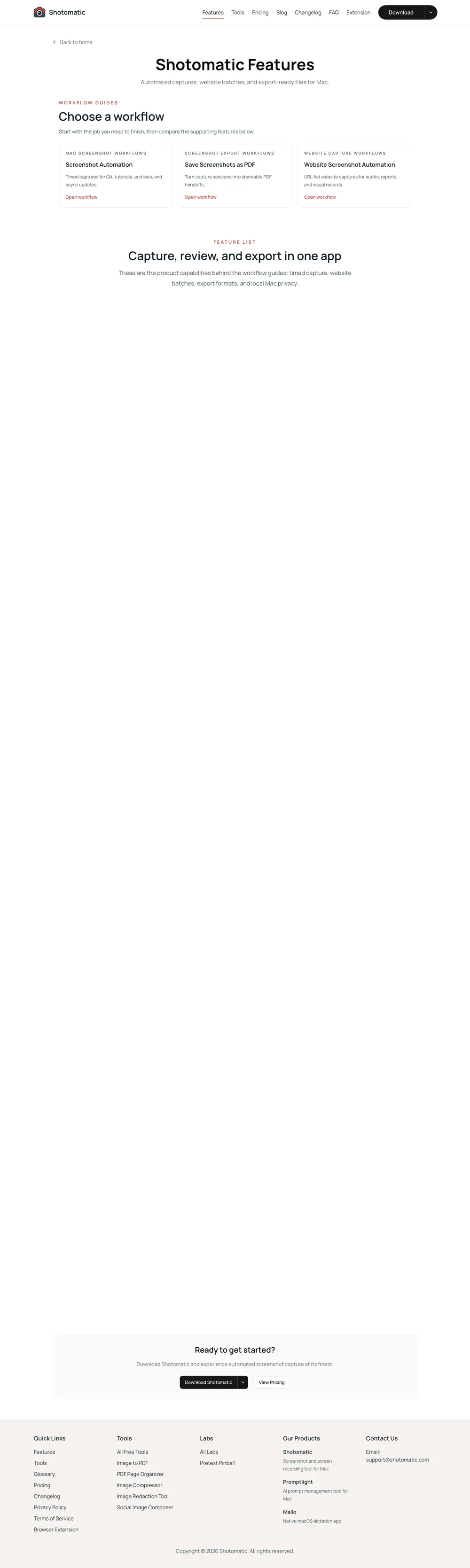
Before a full-page screenshot, scroll through the document to trigger lazy-loaded images and in-view sections:
async function triggerLazyLoading(page) {
  await page.evaluate(async () => {
    const delay = (ms) => new Promise((resolve) => setTimeout(resolve, ms));
    const viewportHeight = window.innerHeight;
    const scrollHeight = document.body.scrollHeight;

    for (let y = 0; y < scrollHeight; y += viewportHeight) {
      window.scrollTo(0, y);
      await delay(600);
    }

    window.scrollTo(0, 0);
    await delay(300);
  });
}
Use it before page.screenshot():
await page.goto(url, { waitUntil: "load", timeout: 45_000 });
await triggerLazyLoading(page);
await page
  .waitForFunction(() => Array.from(document.images).every((image) => image.complete && image.naturalWidth > 0), null, {
    timeout: 15_000,
  })
  .catch(() => {});
await page.screenshot({ path: outputPath, fullPage: true });
Some pages need more than this. Custom scroll containers, animations, deferred API calls, or virtualized content can all require a page-specific selector or state.
Choose the right wait strategy
Most screenshot reliability problems come down to timing.
Playwright's navigation docs explain that page.goto() waits for the load event by default, but modern pages may keep fetching data or rendering after that event. For screenshots, you usually want one of these strategies:
- use
waitUntil: "load"as a starting point for ordinary public pages - wait for a specific locator that proves the content you care about rendered
- use
page.waitForFunction()when readiness depends on app state - scroll before capture when images lazy-load
- avoid fixed sleeps as the primary wait rule
For example:
await page.goto(url, { waitUntil: "load", timeout: 45_000 });
await page.getByRole("heading", { name: "Shotomatic Features" }).waitFor({ state: "visible", timeout: 15_000 });
await page.screenshot({ path: outputPath, fullPage: true });
Avoid assuming one wait rule works for every page. If you maintain the target site, a locator or app-state wait is usually more reliable than waiting for a generic network condition.
Add retries
Network requests fail. Pages time out. Third-party widgets hang. A real batch script should retry the URL that failed before giving up on the run.
async function withRetries(task, retries = 2) {
  let lastError;

  for (let attempt = 0; attempt <= retries; attempt += 1) {
    try {
      return await task();
    } catch (error) {
      lastError = error;
      console.warn(`Attempt ${attempt + 1} failed: ${error.message}`);
    }
  }

  throw lastError;
}
Wrap the page work:
await withRetries(async () => {
  await page.goto(url, { waitUntil: "load", timeout: 45_000 });
  await page.screenshot({ path: outputPath, fullPage: true });
});
In production, also write a JSON report with each URL, output path, status, error message, and timestamp. That report saves time later when someone asks which pages failed and why.
A practical folder structure
For screenshot jobs you expect to run again, keep the input, output, and script separate:
website-screenshots-playwright/
  scripts/
    capture-batch.js
  urls/
    launch-pages.txt
    competitor-pages.txt
  screenshots/
    2026-06-23-launch/
    2026-06-23-competitors/
  reports/
    2026-06-23-launch.json
This makes the workflow easier to rerun. It also keeps the screenshot set tied to the URL list that produced it.
Common mistakes
- Capturing too early: the browser may reach
loadbefore the content you care about is visible. Wait for a selector or add a page-specific check. - Opening too many pages at once: high concurrency can crash the browser, exhaust memory, or trigger rate limits. Start small.
- Using one filename pattern for every site: URLs can contain query strings, trailing slashes, duplicates, and odd characters. Always sanitize filenames and include an index.
- Forgetting browser cleanup: close pages, contexts, and the browser. Leaked contexts become a real problem in long-running jobs.
- Treating full-page screenshots as visual tests: a screenshot file is evidence. A visual regression test also needs baselines, comparison thresholds, and a review process.
Alternatives to a Playwright screenshot script
Playwright is not the only way to automate website screenshots. The choice depends on who owns the work after the first script exists.
If you only need a focused browser automation script, Puppeteer may be enough. Playwright makes more sense when screenshots sit near a broader test suite, when you need Chromium, Firefox, and WebKit coverage, or when Playwright Test's runner, traces, and reports are already part of the work.
If you are building screenshot capture into a product, a screenshot API may save work compared with maintaining browsers yourself.
If writing and maintaining this script is not the work you want to own, read how to automate website screenshots without code, or use Website Capture in Shotomatic when you want URL-list screenshots, per-page capture options, reviewable results, and exports without maintaining Playwright code.
FAQ
Can Playwright automate website screenshots?
Yes. Playwright can launch a browser, open a URL, set viewport or device options, and save a page screenshot with page.screenshot().
Can Playwright take full-page screenshots?
Yes. Pass fullPage: true to page.screenshot() to capture the full scrollable page instead of only the visible viewport.
Can I capture screenshots of multiple URLs with Playwright?
Yes. Put your URLs in an array, loop through them, and create a new browser context for each capture. For larger batches, add a concurrency limit and error handling.
Should I use Playwright or Puppeteer for website screenshots?
Use Playwright when you want cross-browser coverage, device emulation, or a larger testing workflow around the screenshots. Puppeteer is also practical for Chrome-focused screenshot scripts.
When is a no-code screenshot workflow better than Playwright?
A no-code workflow is better when non-developers need to run, review, or export URL-list screenshots without maintaining scripts, browser dependencies, or CI jobs.
References
The examples above were checked against the current official docs:
- Playwright's Library docs for the browser, context, page, and cleanup flow
- Playwright's screenshots guide and
Page.screenshot()API for screenshot options - Playwright's emulation docs for device descriptors
- Playwright's navigation docs and
page.waitForFunction()API for waiting behavior
Related posts
See more postsHow to Automate Website Screenshots with Puppeteer
Use Puppeteer to automate website screenshots with JavaScript. Capture one page, full-page screenshots, URL batches, and mobile viewports with a reusable script.

How to Automate Website Screenshots Without Code
Choose a no-code way to automate website screenshots: URL-list capture, an automation platform with a screenshot API, monitoring tools, or browser helpers.

How to Capture Website Screenshots in Bulk on Mac
Capture website screenshots in bulk on Mac with Shotomatic. Paste a URL list, choose desktop/tablet/mobile presets, run parallel capture, and export for audits or reports.

How to Create Employee Onboarding Guides with Screenshots
Build role-based employee onboarding guides with screenshots for first-day access, first-week tasks, training, checks, and ownership.
Need no-code website screenshot automation?
Use Website Capture for URL-list screenshots, per-page capture options, reviewable results, and exports without maintaining a script.