Introducing Documents: Build Screenshot Guides in Shotomatic
Documents brings captured and imported screenshots into one workspace where you can organize pages, add annotations, and export a finished guide.
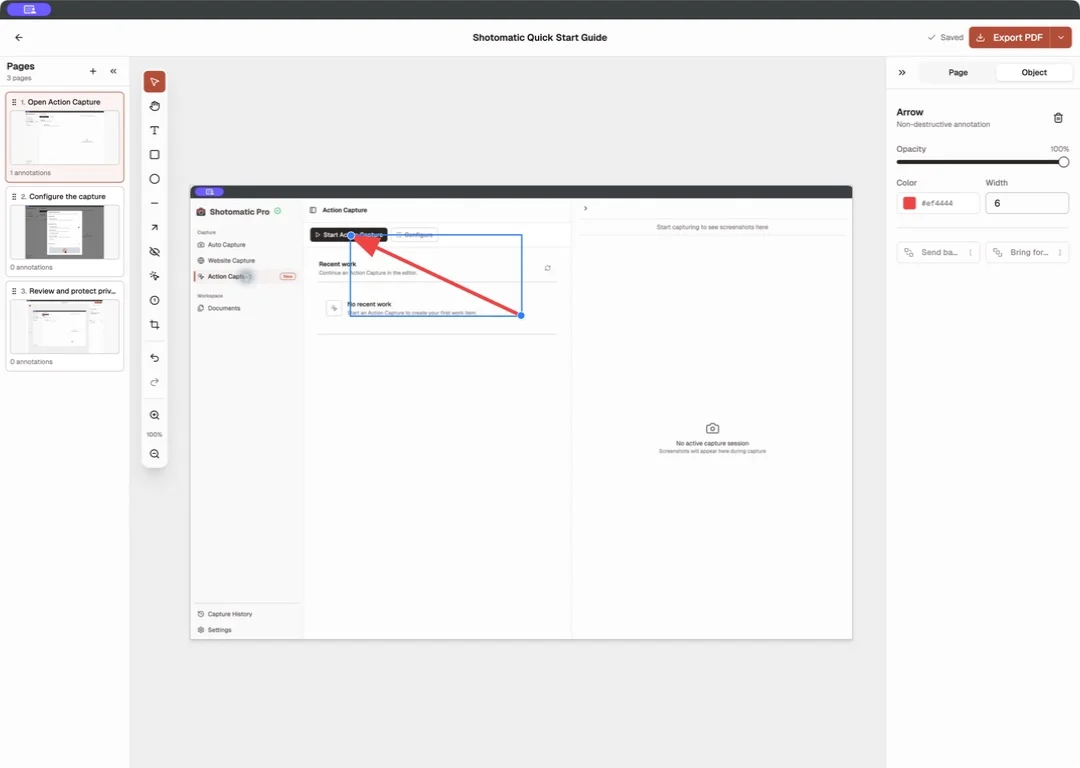
Documents keeps the pages, instructions, annotations, and exports for a screenshot guide in one place. Start with images from your Mac, an earlier Capture History session, or a new capture. You can then arrange the pages, write the instructions, add visual cues, and export the result without moving the sequence between several apps.
Start from images or a capture
The New Document menu brings the available starting points together. Create a Document from local images or Capture History, or begin a new Auto Capture, Website Capture, or Action Capture session.
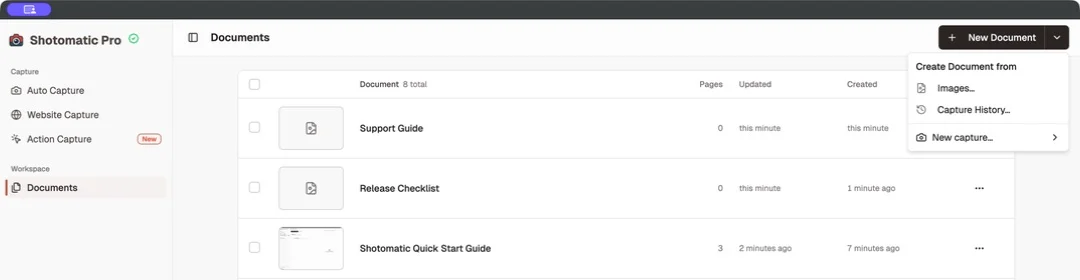
Imported screenshots become editable pages. A Document created from Capture History remains separate from the original session, so you can edit or delete the Document without deleting the source captures.
Organize the guide page by page
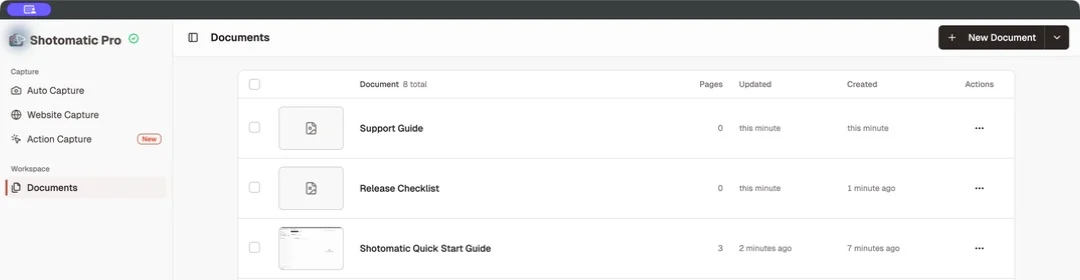
The page list keeps the sequence visible while you edit. Reorder, duplicate, or remove pages, then give each page a direct title and a short description. Changes save as you work.
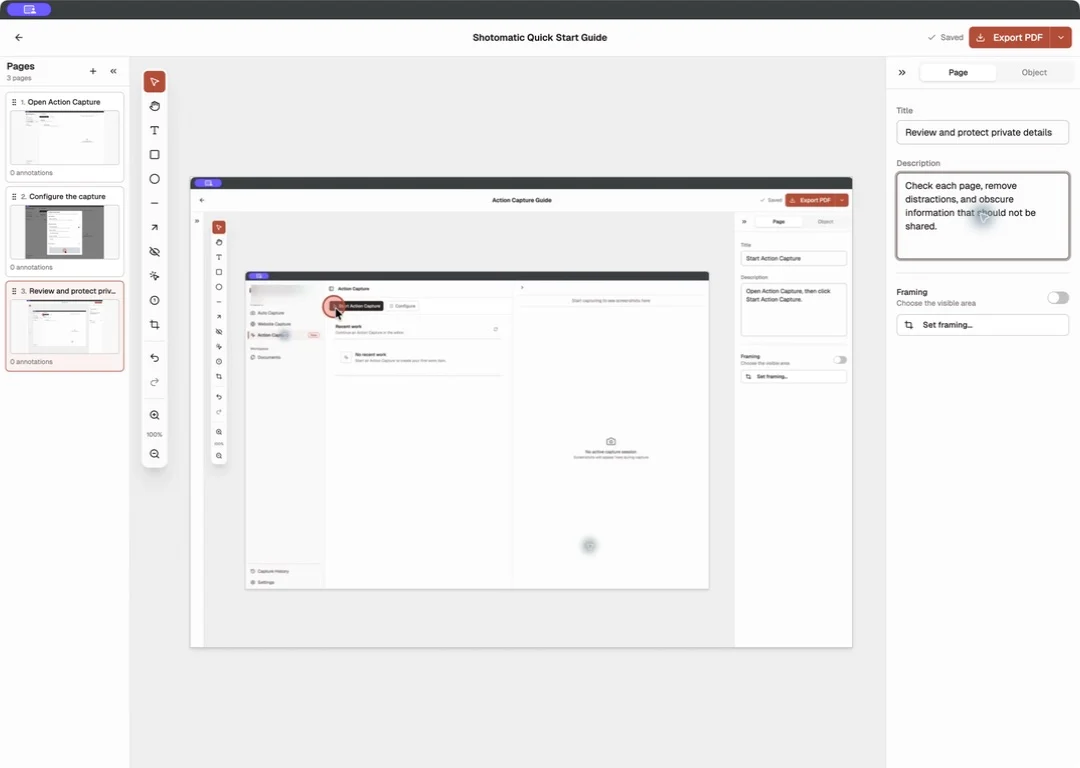
The Documents library shows each guide with its page count and recent update time, so you can return to work in progress or revise an older guide.
Add annotations and focus
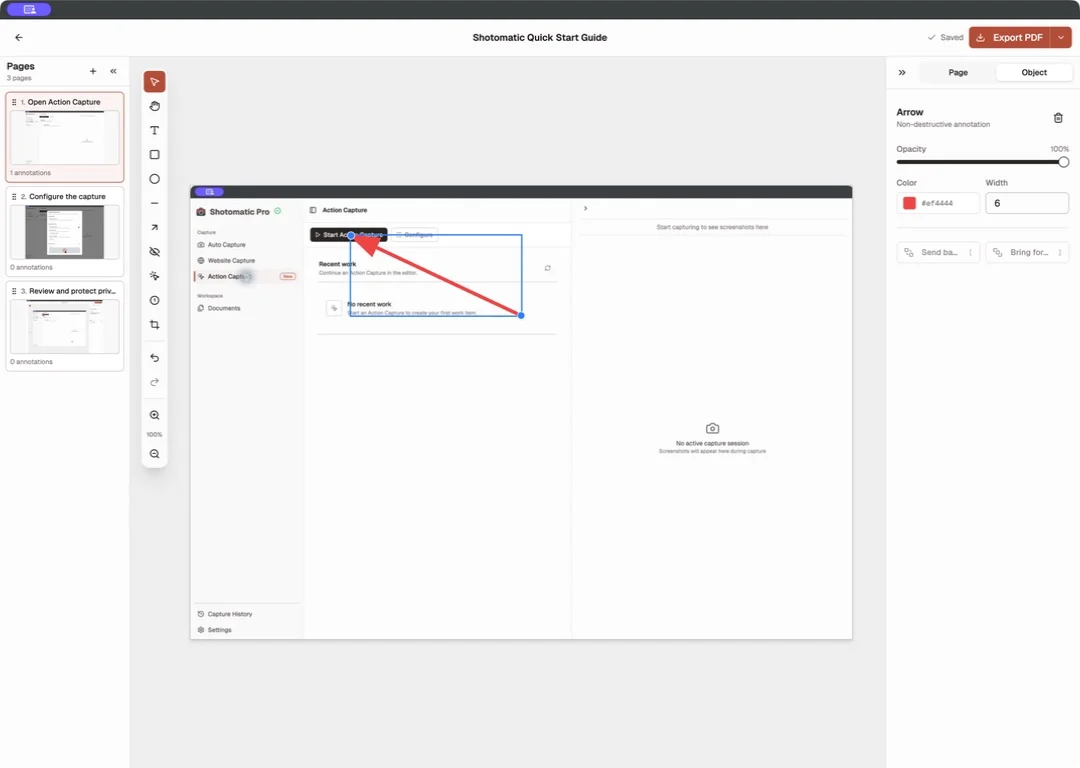
Free includes Text, Rectangle, Ellipse, Line, Arrow, undo, redo, and Framing controls for custom crops or click-based Action Focus. Pro adds Blur, Click Marker, and Step Numbers for redaction and repeated step labels.
Export the finished Document
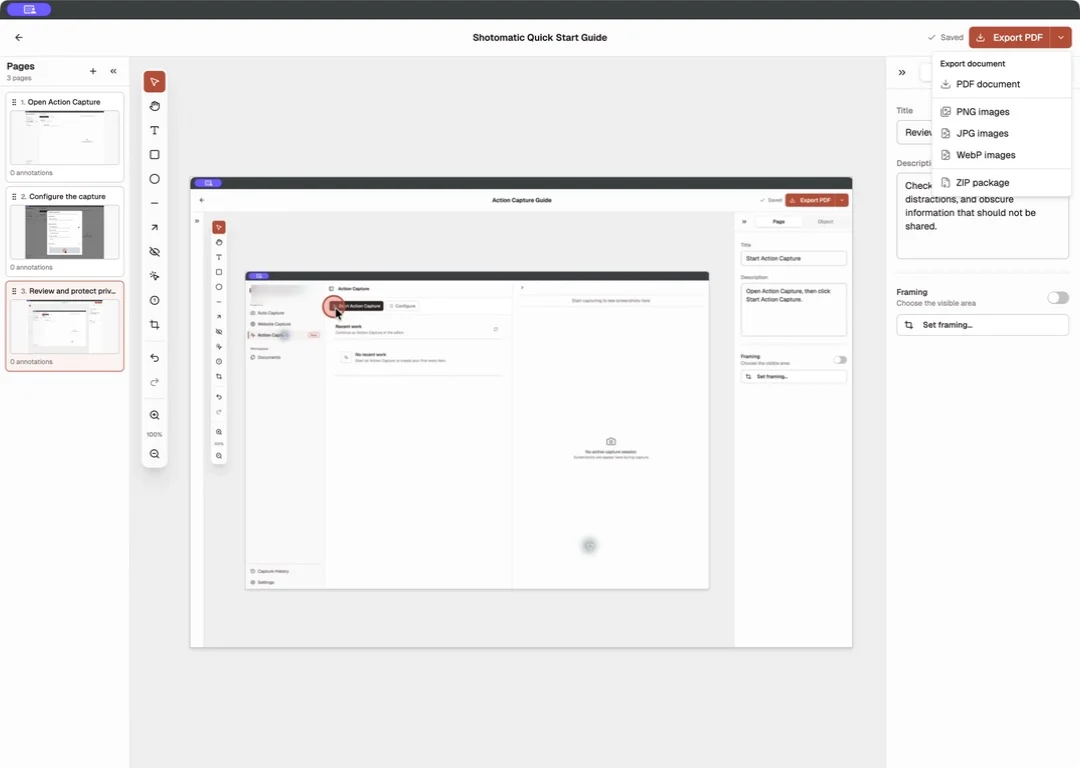
Free and Pro can export a Document as PDF, PNG, JPG, WebP, or ZIP. Use PDF for one ordered file, an image format for individual pages, or ZIP when you need the full set together.
See the full Documents feature page, follow the Documents User Guide, or learn how to create a step-by-step guide from clicks.
Related features and updates
Related features
Introducing Action Capture: Turn Clicks into Step-by-Step Guides
Action Capture saves the target state before each accepted click, marks the action, and turns the saved steps into an editable document.
Previous Sessions
Shotomatic now saves completed capture history automatically, so you can revisit past sessions without turning on a separate save-as-you-go option.
Export Screenshots as PDF Documents or Animated GIFs
Transform your screenshot sessions into professional PDFs for documentation or engaging GIFs for tutorials. Perfect for creating user guides, bug reports, and demos.
Ready for a simpler screenshot workflow?
Automate recurring captures and save time.