Introducing Action Capture: Turn Clicks into Step-by-Step Guides
Action Capture saves the target state before each accepted click, marks the action, and turns the saved steps into an editable document.
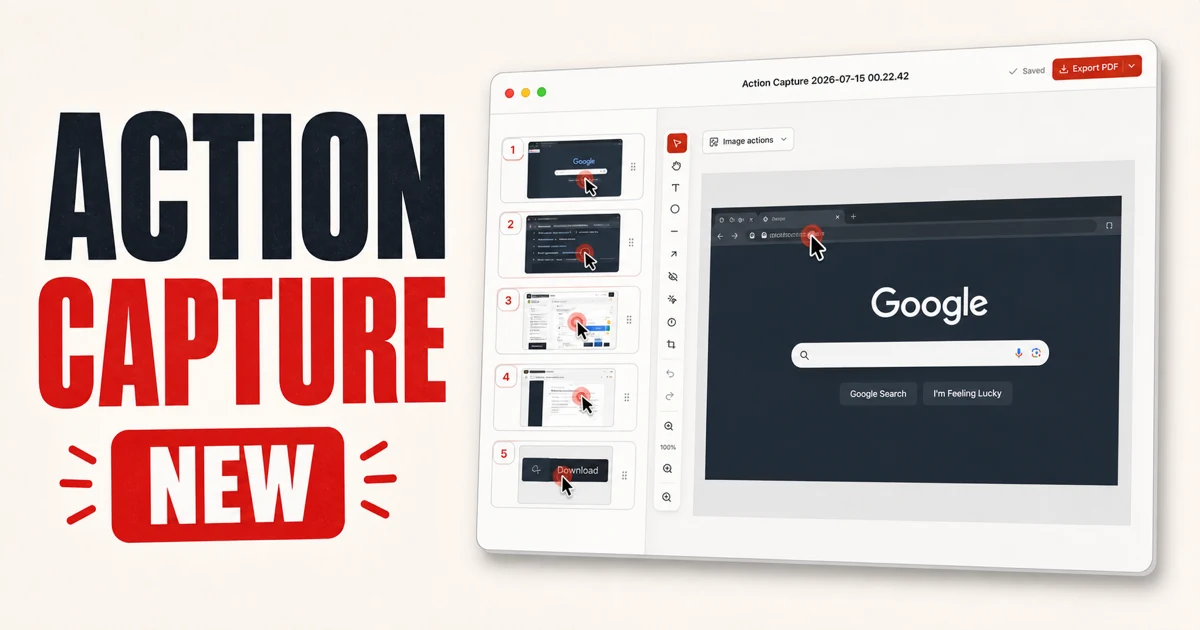
Action Capture turns accepted clicks into a sequence of documented steps. Start a capture session and complete the task in another app. Shotomatic saves the target state immediately before each accepted click and marks where the action belongs.
See Action Capture in action
This one-minute demo follows a capture from the first click through review and PDF export.
Capture steps as you work
Manual tutorial capture makes you stop after every action, take a screenshot, and then return to the task. That interruption makes it easy to miss a step or lose your place.
Action Capture uses each accepted click as the capture trigger. You can move through the task at a normal pace while Shotomatic collects the screenshots in order. The click marker shows the action the reader should take on that saved screen.
Free users can save up to 5 steps in one session. Shotomatic saves the fifth step and pauses the session, then lets you open the document in the editor or activate Pro and continue the same session. The number of saved guides and documents is not limited.
Review the captured sequence
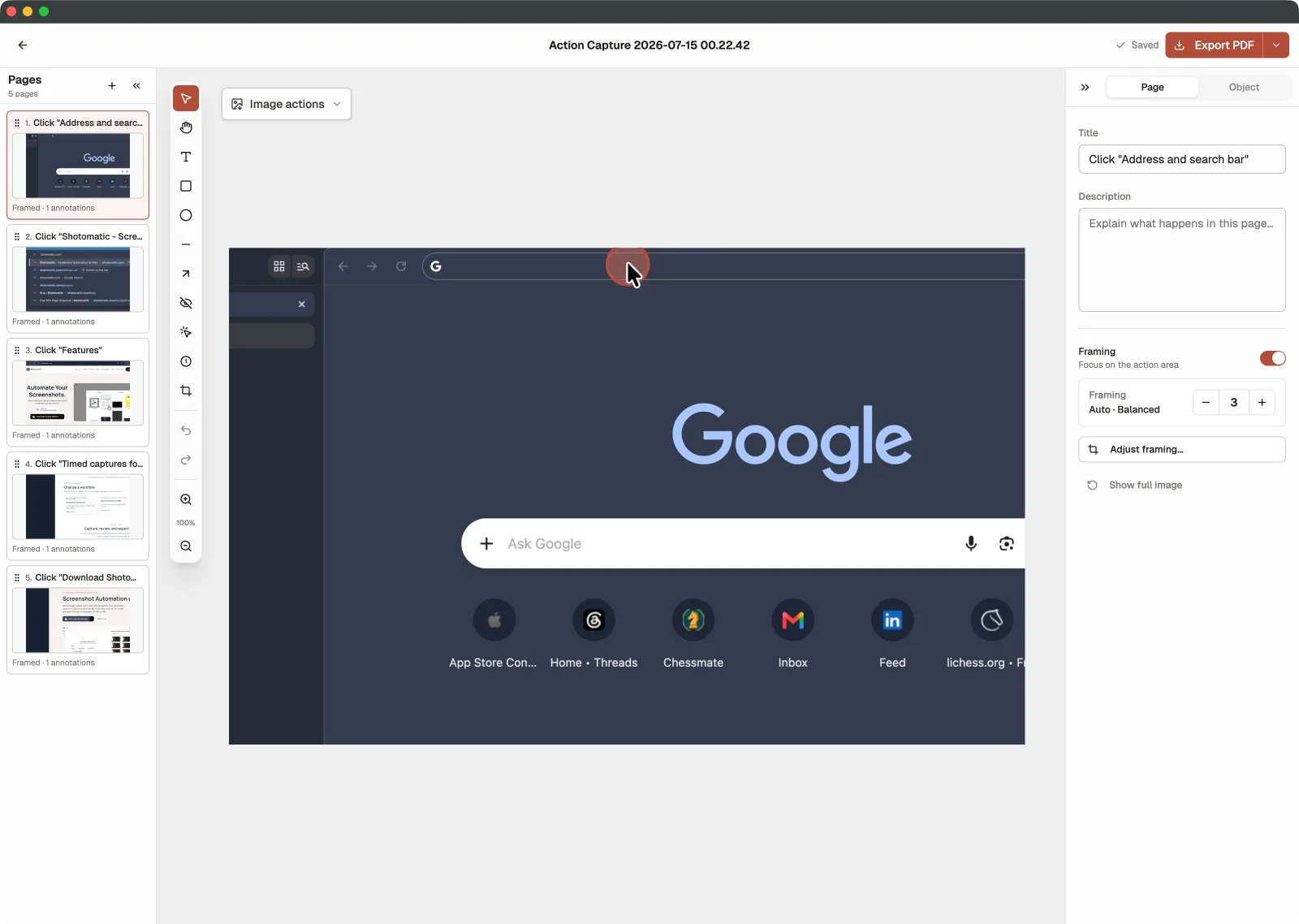
When the capture session ends, open the screenshots in the editor and check the sequence from beginning to end. Remove steps that do not help the reader and keep one screenshot for each action they need to follow.
Every user can edit titles and descriptions, organize pages, add text, rectangles, ellipses, lines, and arrows, and adjust Framing or Action Focus. Pro adds Blur, extra Click Markers, and Step Numbers.
Export the finished document
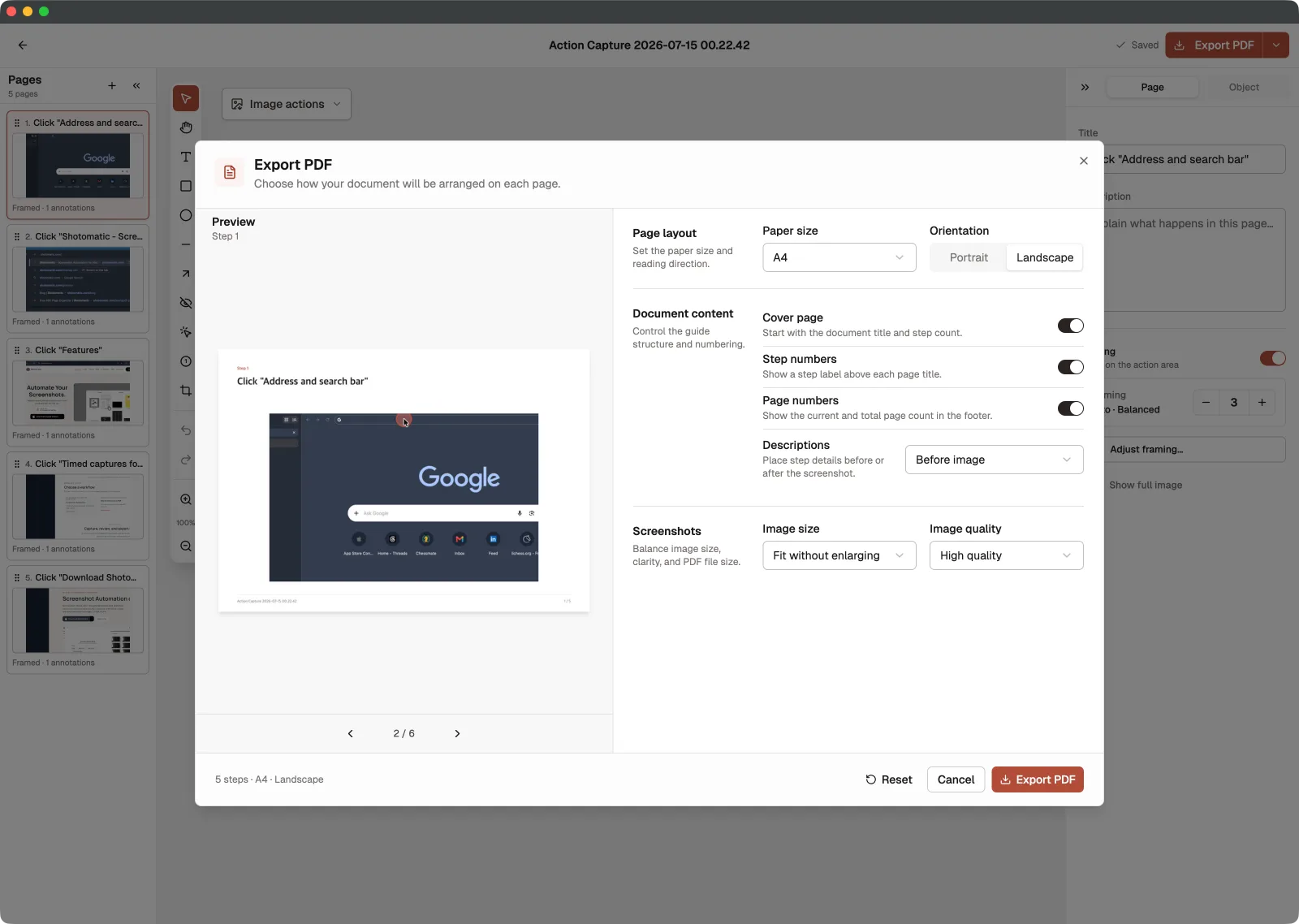
Free and Pro users can export the finished Document as PDF, PNG, JPG, WebP, or ZIP. The pages stay in step order in each export. For PDF, choose the paper size, orientation, cover and numbering options, description placement, and image quality before saving the file.
Action Capture and Auto Capture
Auto Capture takes screenshots on a time interval. It works well for progress records, page sequences, and timelapses where time determines when a frame should be saved.
Action Capture saves the target state immediately before an accepted click. It is the better fit when the task itself should determine the steps, such as showing how to change a setting, complete a form, or move through a product flow.
When to use Action Capture
Action Capture is designed for tasks where the order of clicks matters:
- product tutorials and help center guides
- customer support instructions
- onboarding and training material
- internal procedures and software documentation
- repeatable QA or bug reproduction steps
For a short task, manual screenshots may still be enough. Screen recording is a better fit when motion, timing, or audio is part of the explanation. Use Action Capture when the output should be an ordered visual guide built from the actions the reader needs to repeat.
See the full Action Capture feature page, follow How to Create a Step-by-Step Guide from Clicks on Mac, or explore Documents for the shared editing and export workflow.
Update to Shotomatic v1.9.0 to create step-by-step guides from your clicks.
Related features and updates
Related features
Manage Multiple Screenshots with Visual Thumbnails
Preview, organize, and export multiple screenshots at once with our visual thumbnail sidebar. Perfect for batch operations and quick navigation through capture sessions.
Export Screenshots as PDF Documents or Animated GIFs
Transform your screenshot sessions into professional PDFs for documentation or engaging GIFs for tutorials. Perfect for creating user guides, bug reports, and demos.
Image Format Converter: Convert HEIC, WebP, PNG, and JPG in Your Browser
New free Image Format Converter that turns HEIC, WebP, PNG, and JPG files into JPG, PNG, or WebP on your device, in batches of up to 50 images.
Ready for a simpler screenshot workflow?
Automate recurring captures and save time.