Snipping Tool Not Working? How to Fix Windows Screenshot Shortcuts
Fix Snipping Tool, Windows + Shift + S, and Print Screen when they stop working on Windows 11 or 10, from quick checks to repairing or reinstalling the app.

When a Windows screenshot shortcut seems to do nothing, it's worth checking whether it really failed before you start fixing things. Windows + Shift + S and Print Screen copy to the clipboard, so a snip can work perfectly and still leave nothing you can see. If it truly failed, the fix is usually one of a few steps: restart Snipping Tool, update it, or repair or reset it.
This guide starts with a quick way to tell which problem you have, then works through the fixes in order, with separate checks for Print Screen and the Windows key, and the shortcuts you can use in the meantime.
What's actually wrong?
| What you see | Likely cause | Start with |
|---|---|---|
| The screen dims, but you can't find the screenshot | It went to the clipboard, or saving is off | Check the clipboard and Screenshots folder |
| Windows + Shift + S does nothing | Snipping Tool is stuck or out of date, or a key is blocked | Restart, update, then repair the app |
| Print Screen does nothing | Fn key, the Print Screen setting, or another app | Print Screen checks below |
| Snipping Tool won't open at all | A damaged app install | Repair, reset, or reinstall |
Check whether the screenshot worked
Before changing anything, look in the places a screenshot can go:
- Paste it. Open Paint, a document, or a chat and press Ctrl + V. If an image appears, the shortcut worked and copied to the clipboard.
- Open Pictures > Screenshots. Snipping Tool saves snips there while its automatic saving is on.
- Check OneDrive. If your Pictures folder is backed up to OneDrive, the folder is inside OneDrive.
If you find it, the shortcut is fine and only the saving or the notification is missing. Our guide to where screenshots go on Windows covers each location, and how to turn Snipping Tool's automatic saving back on.
Restart Snipping Tool and your PC
A stuck Snipping Tool process can stop the capture bar from appearing:
- Press Ctrl + Shift + Esc to open Task Manager.
- Find Snipping Tool in the list, select it, and choose End task.
- Try Windows + Shift + S again.
If that doesn't help, restart the PC. Community reports on Microsoft's forum describe the capture overlay locking up until the process is ended or the PC restarts.
Update Snipping Tool and Windows
Snipping Tool updates through the Microsoft Store, separately from Windows. Open the Microsoft Store, go to your Library, and install any updates listed, including Snipping Tool. Then open Settings > Windows Update and install pending updates, and restart if asked.
Repair or reset Snipping Tool
If the shortcut still doesn't work, or the app won't open, repair it. Microsoft's guide to repairing apps gives these steps:
- Open Start > Settings > Apps > Installed apps.
- Find Snipping Tool, select the More icon (the three dots), then Advanced options.
- Select Repair. This tries to fix the app without removing your data.
- If that doesn't help, select Reset. This returns the app to its default state, which may clear its settings, such as the save location.
Test the shortcut after each step.
Reinstall Snipping Tool
If repair and reset don't fix it, reinstall. In Settings > Apps > Installed apps, select the More icon next to Snipping Tool and choose Uninstall. Then open the Microsoft Store, search for Snipping Tool, and install it again. On Microsoft's forum, several people report that a reinstall worked when a reset didn't.
If Print Screen doesn't work
- Try Fn. On many laptops, Print Screen shares a key with another function. Hold Fn and press Print Screen.
- Check the Print Screen setting. On Windows 11, a keyboard setting decides whether Print Screen opens Snipping Tool or copies the whole screen. Search Settings for "Print screen" to find it, and turn it off and on again if it seems stuck. Its location varies between Windows versions.
- Close keyboard and screenshot utilities. Keyboard software or other screenshot apps can take over the Print Screen key. One report on Microsoft's forum traced the problem to a keyboard utility overriding the Windows setting. Close those apps and try again.
If the Windows key shortcuts don't work
If Windows + Shift + S fails, check whether other Windows key shortcuts work, such as Windows + E for File Explorer.
- If none of them work, the Windows key itself is blocked. Some keyboards, especially gaming keyboards, have a mode that turns off the Windows key; check your keyboard's manual.
- If only Windows + Shift + S fails, close key-remapping or macro software and test again, then continue with the Snipping Tool fixes above.
Take screenshots while you fix it
These shortcuts don't depend on the Snipping Tool capture bar:
- Windows + Print Screen saves the whole screen to Pictures > Screenshots.
- Alt + Print Screen copies the active window to the clipboard.
- Windows + Alt + Print Screen saves the app in front to Videos > Captures through Xbox Game Bar.
Our guide to every Windows screenshot shortcut lists them all with what each one saves.
A capture route that doesn't depend on Snipping Tool
If screenshots are part of your daily work, for example documenting a process or capturing the same window again and again, a broken shortcut can stall the whole job. Shotomatic runs on Windows 10 and 11 and captures on its own, without Snipping Tool:
- Auto Capture saves a screen, a window, or a custom area at an interval until it reaches a screenshot count, a duration, or an end time.
- Action Capture saves a screenshot each time you click, and its manual shortcut, Ctrl + Shift + 2, adds a step from the keyboard.
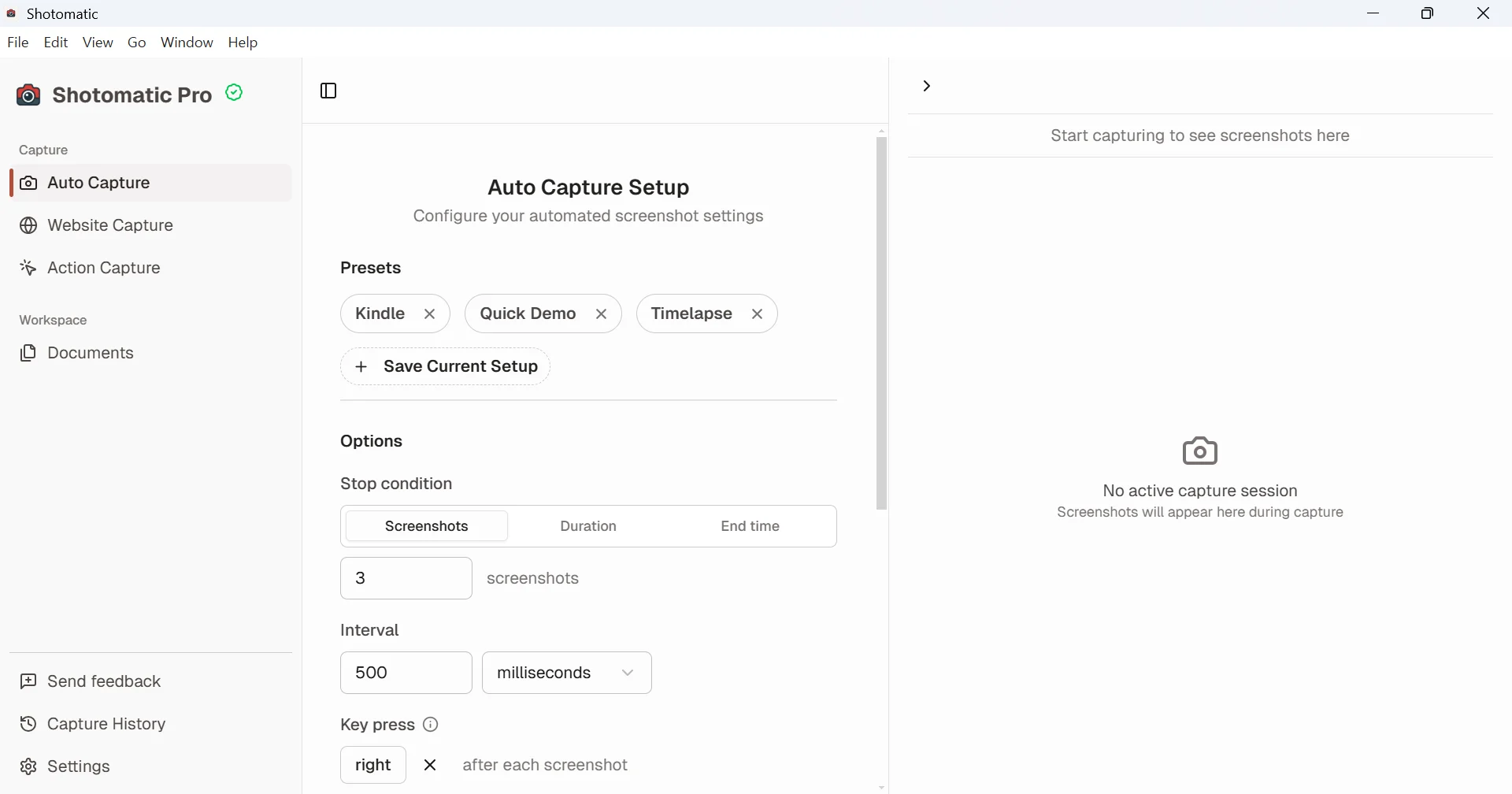
Windows doesn't ask you to grant capture permissions first, so you can start right after installing Shotomatic on Windows. For one-off screenshots, the fixes above usually get Snipping Tool working again.
Frequently Asked Questions
Turn repeatable screenshots into finished work
Shotomatic captures, organizes, and exports screenshot sessions on Mac and Windows.
Related posts
See more postsHow to Take a Screenshot on Windows 11 and 10: Every Shortcut
Every way to take a screenshot on Windows 11 and 10: Snipping Tool, Print Screen, Windows + Print Screen, Alt + Print Screen, and Game Bar, with what each one saves.

Where Do Screenshots Go on Windows? Find Them by Shortcut
Windows saves screenshots to Pictures > Screenshots, but some shortcuts only copy to the clipboard. Find a missing screenshot by the keys you pressed.

Snipping Tool Alternatives for Windows (2026)
What Snipping Tool already does on Windows 11, where it stops, and when ShareX, Greenshot, Snagit, or Shotomatic is the better screen capture tool.

Can Claude Code Take Screenshots of Your Screen?
Claude Code reads screenshots you paste, and with the right setup it can capture your screen itself. Here are the four ways and when to use each.
