Screenshot Automation on Windows with Auto Capture

Choose a screen, window, or custom area, then set the interval and stop condition. Shotomatic captures the sequence automatically and keeps it on your PC for review, export, or a local visual archive.

Best for automatic interval captures, visual work logs, permitted page sequences, screen timelapses, and other repeated Windows screenshots that should stay local.

Best for

  • Freelancers and teams keeping a visual record of work in progress
  • Readers and researchers preserving documents or eBooks they are allowed to archive
  • Creators saving long sessions or page sequences as a local record

Automatic interval captures

Capture a screen, window, or selected area at a fixed interval without pressing the shortcut each time.

Page-by-page archives

Add a key press to advance through documents or eBooks you own or have permission to archive.

Local export

Keep the result on your PC as images, ZIP, PDF, or MP4 until you choose to share it.

How Shotomatic works

1

Choose what to capture

Select a screen, window, or custom area.

2

Set the capture rules

Choose a stop condition, interval, countdown, and optional key press.

3

Review and export

Keep the useful frames and export the sequence as images, ZIP, PDF, or MP4.
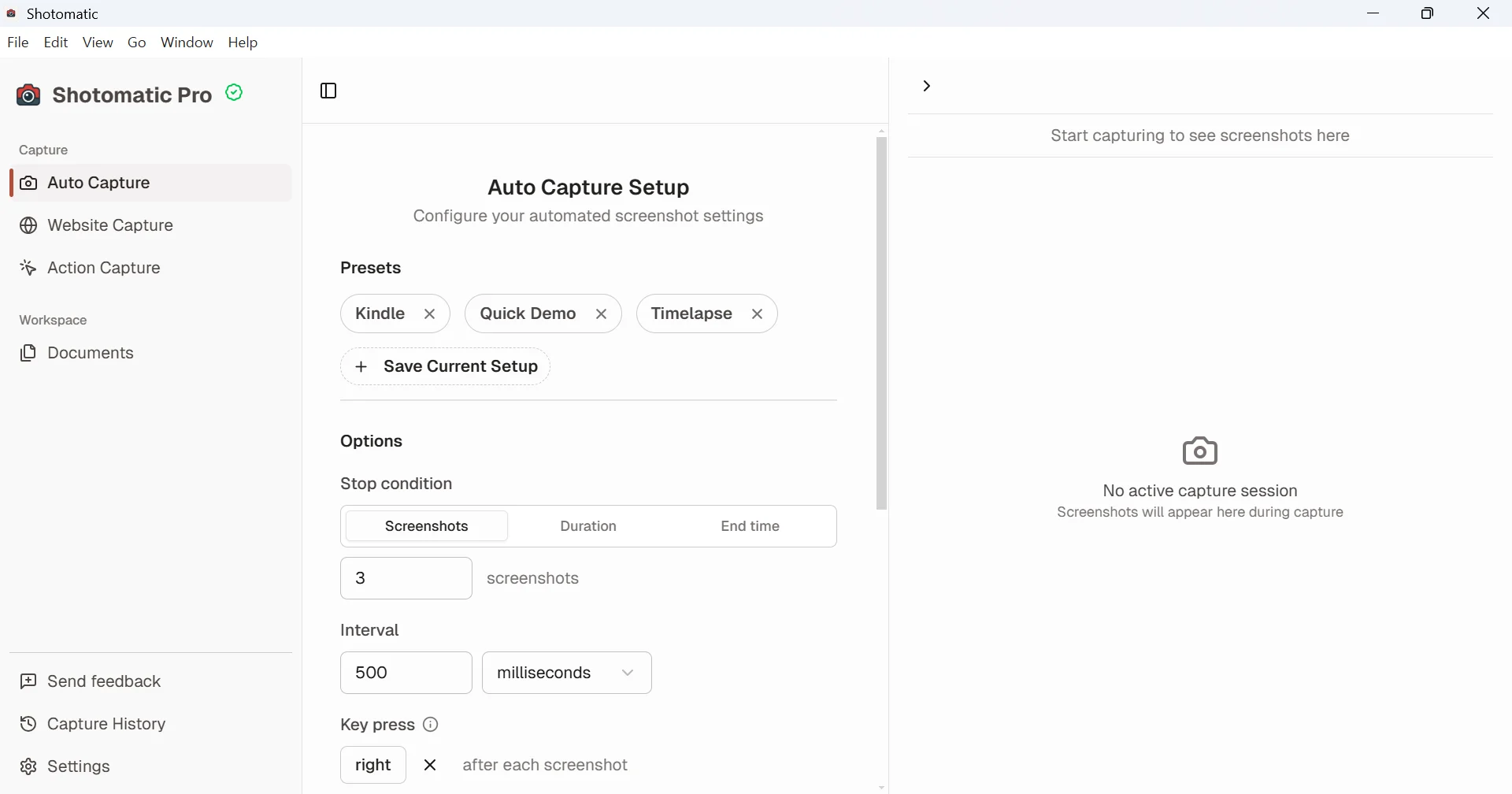
Set up Auto Capture on Windows

Set a screenshot count, duration, or end time, then choose the interval and countdown. Add a key press when the capture needs to move to the next page between screenshots. Windows does not ask you to allow screen capture or key presses first.

  • Choose a count, duration, or end time
  • Set the interval and countdown
  • Save settings you reuse as a preset
Shotomatic Auto Capture setup on Windows with presets, stop condition, interval, and key press options
Auto Capture on Windows keeps the stop condition, interval, and key press in one setup.

Capture work or page sequences

Start the capture and carry on with the task. Shotomatic collects each frame in order. For a page archive, a key press moves to the next page after every screenshot, and the capture can stop by itself when the page stops changing.

  • Create a visual record of work in progress
  • Advance permitted pages with a key press
  • Stop early without losing saved frames

Keep and export the session

Open the session from Capture History, select the frames you need, and export them as images, ZIP, PDF, or MP4. The session stays on your PC unless you choose to share it.

  • Keep individual frames as images or ZIP
  • Combine an ordered page sequence into a PDF
  • Use MP4 to show changes over time

Ready to automate screenshots on your Mac without scripts?

Set the capture target, interval, and export format, then let Shotomatic run the session.

Screenshot Automation on Windows with Auto Capture | Shotomatic