Where Do Screenshots Go on Windows? Find Them by Shortcut
Windows saves screenshots to Pictures > Screenshots, but some shortcuts only copy to the clipboard. Find a missing screenshot by the keys you pressed.

Windows saves screenshots to Pictures > Screenshots, but only some shortcuts save a file there. Others copy the screenshot to the clipboard and save nothing. To find a missing screenshot, start with the keys you pressed.
This guide lists where each shortcut sends a screenshot, then shows how to find one you just took, where OneDrive and Xbox Game Bar put theirs, and how to change Snipping Tool's save folder.
Short answer: Windows + Print Screen saves the whole screen to Pictures > Screenshots. Snipping Tool (Windows + Shift + S, or Print Screen on most Windows 11 PCs) copies the snip to the clipboard and also saves it to Pictures > Screenshots while automatic saving is on. Alt + Print Screen only copies the active window to the clipboard. If you can't find a file, paste with Ctrl + V or open clipboard history with Windows + V.
Where do screenshots go on Windows?
Each screenshot shortcut on Windows does one of two things: it saves a file, or it copies to the clipboard. Microsoft's list of Windows keyboard shortcuts and its Snipping Tool guide describe them like this:
| How you took it | Where it goes |
|---|---|
| Windows + Print Screen | A PNG file in Pictures > Screenshots |
| Windows + Shift + S (Snipping Tool) | The clipboard, and Pictures > Screenshots while automatic saving is on |
| Print Screen on most Windows 11 PCs | Opens the same Snipping Tool selection as Windows + Shift + S |
| Print Screen where it doesn't open Snipping Tool | The clipboard only; no file is saved |
| Alt + Print Screen | The active window, to the clipboard only |
| Windows + Alt + Print Screen (Game Bar) | A PNG file in Videos > Captures |
| A browser's screenshot tool | Usually your Downloads folder, when you choose Download or Save |
The full path of the Screenshots folder is usually C:\Users\<your name>\Pictures\Screenshots. On some laptops, Print Screen shares a key with another function, so you may need to hold Fn as well.
Whether Print Screen opens Snipping Tool depends on a keyboard setting. Open Settings and search for "Print screen" to see it; its location differs between Windows versions.
Find a screenshot you just took
Check these places in order:
- Pictures > Screenshots. Open File Explorer, select Pictures, then open Screenshots. Switch the view to Details and sort by Date modified so the newest file is at the top.
- The clipboard. If you used Alt + Print Screen, Windows + Shift + S, or a Print Screen that doesn't open Snipping Tool, the screenshot may only be on the clipboard. Paste it with Ctrl + V into Paint, a document, or a chat before you copy anything else.
- Clipboard history. Press Windows + V. Clipboard history is off by default, so if Windows offers to turn it on, your earlier screenshot isn't there, but future ones will be.
- OneDrive. If your Pictures folder is backed up to OneDrive, it lives inside your OneDrive folder, so check OneDrive > Pictures > Screenshots. Microsoft removed OneDrive's separate "save screenshots" setting and now points people to backing up the Pictures folder instead.
- Videos > Captures. Screenshots taken with Xbox Game Bar go here, named after the game or app and the date and time, as Microsoft's Game Bar recording guide explains.
- Downloads. A screenshot you saved from Edge, Firefox, or Chrome's developer tools is a download, so look in Downloads.
If none of these has it, search File Explorer for *.png in your user folder and sort by date.
Change where Snipping Tool saves screenshots
Snipping Tool has its own save setting:
- Open Snipping Tool from Start.
- Select See more (the three dots), then Settings.
- Change the screenshot save location, or turn automatic saving off if you only want snips on the clipboard.
Turning automatic saving off is a common reason a snip never shows up as a file. If you rely on finding screenshots later, leave it on.
Windows + Print Screen saves to the Screenshots folder. If you want those files somewhere else, move them after you take them, or use Snipping Tool with your own save location.
Copy a screenshot instead of saving it
Sometimes you only want to paste a screenshot into an email or a chat. Use a shortcut that copies to the clipboard:
- Windows + Shift + S, then pick Rectangle, Window, Full screen, or Freeform
- Alt + Print Screen to copy the active window
Then paste with Ctrl + V. If Snipping Tool's automatic saving is on, Windows + Shift + S also leaves a copy in Pictures > Screenshots, which you can delete later. Our Snipping Tool alternatives guide covers what else Snipping Tool can do and when another screenshot tool is worth installing.
Where Shotomatic saves its captures
Shotomatic doesn't use the Screenshots folder. Results from Auto Capture, Action Capture, and Website Capture go to Capture History, which keeps them in the app's own storage on your PC, newest session first. By default it keeps the last 30 sessions, so export anything you need to keep.
To get files out, select frames in Capture History and export them as images, a ZIP archive, a searchable PDF, or an MP4. Exports go to the export path in Settings > General, which starts as your Downloads folder. Choose Change to pick another folder, and use the folder button to open it in File Explorer. To keep a series together, create a Document from the session, then annotate the pages and export them as a PDF or images.
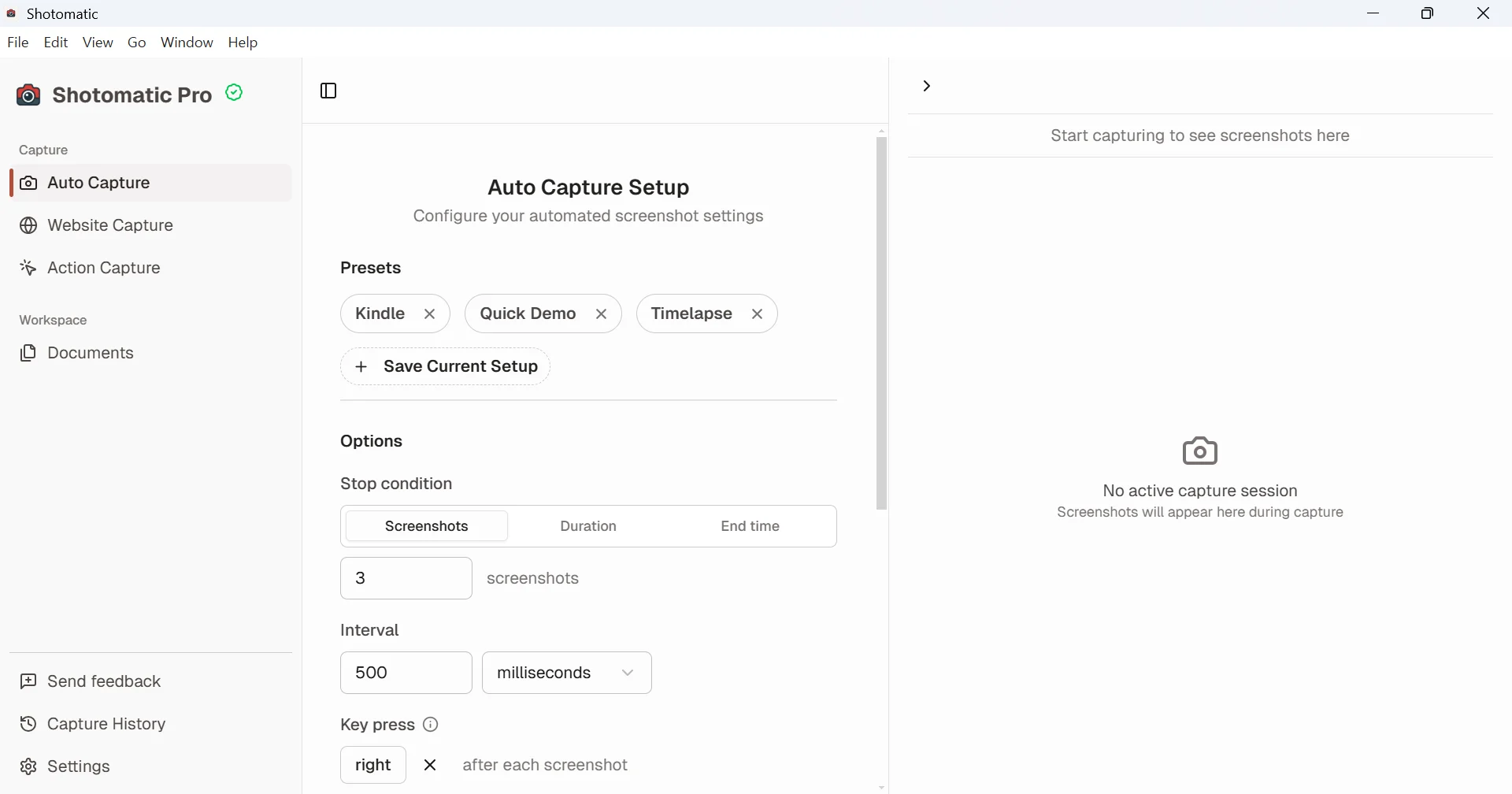
For a single screenshot, the Windows shortcuts above are enough. Shotomatic is for capturing the same screen or window again and again on an interval and keeping the results together.
Frequently Asked Questions
Turn repeatable screenshots into finished work
Shotomatic captures, organizes, and exports screenshot sessions on Mac and Windows.
Related posts
See more postsSnipping Tool Alternatives for Windows (2026)
What Snipping Tool already does on Windows 11, where it stops, and when ShareX, Greenshot, Snagit, or Shotomatic is the better screen capture tool.

How to Take a Scrolling Screenshot on Windows
Snipping Tool can't take a scrolling screenshot. Save a whole web page from Edge, Chrome, or Firefox, or stitch overlapping captures of any app window.

Greenshot for Mac: What the Mac Version Does and What to Use Instead
Greenshot's Mac App Store version is paid and hasn't been updated since 2020. See what it covers, how Greenshot features map to macOS, and what fills the gaps.

Free Snagit Alternatives for Windows (2026)
No single free app replaces all of Snagit. See which free Windows tools cover screenshots, scrolling capture, annotation, and screen recording.
