Snipping Tool Alternatives for Windows (2026)
What Snipping Tool already does on Windows 11, where it stops, and when ShareX, Greenshot, Snagit, or Shotomatic is the better screen capture tool.

Before you install another screenshot app, check whether Snipping Tool already does what you need. On Windows 11 it already handles quick snips, short screen recordings, and text extraction. People usually start looking elsewhere for one of three reasons: they need a scrolling capture, they want more control over what happens after each capture, or they take the same kind of screenshot over and over.
This guide starts with what Snipping Tool already does, then compares ShareX, Greenshot, Snagit, and Shotomatic by the job each one does best.
What Snipping Tool already does
Microsoft's Snipping Tool guide lists these features in the current Windows 11 version:
- Capture modes: Rectangle, Window, Full screen, and Freeform, opened with Windows + Shift + S.
- Delay: a capture delay of a few seconds, so you can open a menu before the snip.
- Text actions: text recognition that runs on your PC, with options to copy text and quickly hide email addresses and phone numbers.
- Markup: pen, highlighter, shapes, crop, and undo.
- Video snips: short screen recordings saved to your Screen Recordings folder.
- Automatic saving: captures go to your Screenshots folder unless you change the location in settings.
If those cover your work, you don't need another app.
Where Snipping Tool stops
Snipping Tool has three gaps that send people to other tools.
- No scrolling capture. Microsoft's own Snipping Tool explainer says long scrolling pages need a third-party tool. Our guide to scrolling screenshots on Windows covers the free workarounds.
- No after-capture actions. Each snip is saved and copied, and anything beyond that, like uploading, renaming, or running OCR automatically, is up to you.
- One capture at a time. It can't capture a window every few seconds or save a screenshot each time you click, so a series of screenshots means pressing the shortcut for every one.
Windows screen capture tools at a glance
| Tool | Cost | Scrolling capture | Best for |
|---|---|---|---|
| Snipping Tool | Built into Windows | No | Quick snips, text extraction, short videos |
| ShareX | Free, open source | Yes | Power users who want OCR, GIFs, uploads, and automation |
| Greenshot | Free, open source | Internet Explorer pages only | Fast capture, simple annotation, sending to Office apps |
| Snagit | Paid, Windows and Mac | Yes | Polished, branded captures and screen recordings |
| Shotomatic | See pricing | Full pages of web addresses only | Repeated captures and click-by-click step guides |
The table compares what each tool is built to do. Plans and prices change, so check each product's site before you buy.
ShareX: free, for power users
ShareX is free and open source. Its capture methods include full screen, active window, region, scrolling capture, and screen recording as video or GIF. The editor has arrows, numbered steps, blur, pixelate, highlight, and text, and text recognition is built in.
What sets ShareX apart is after-capture tasks. You can set each capture to be copied, saved, uploaded, run through OCR, or passed to another action automatically, and ShareX supports a long list of upload destinations. The trade-off is a dense settings window that takes time to learn. If you only need to grab and mark up a screenshot now and then, it's more than you need.
Greenshot: quick and simple
Greenshot is free and open source for Windows. It captures a region, a window, or the full screen, opens the result in a light editor where you can add notes, highlight, or hide parts of the image, and then sends it to a file, the clipboard, a printer, an email, or an Office program.
Greenshot's scrolling capture only works with Internet Explorer pages, so treat it as a fast region-and-annotate tool rather than a long-page tool. It's a good fit when Snipping Tool's markup feels too limited but ShareX feels like too much.
Snagit: polished captures, paid
Snagit from TechSmith runs on Windows and Mac. It offers scrolling capture for long pages and documents, screen recording with microphone, system audio, and webcam, and stamps, templates, and themes that apply a team's colors and fonts to every capture.
Snagit is a paid app. It suits people who make training material, documentation, or support replies every day and want consistent, branded images without building their own presets. For occasional screenshots, the free tools above cover most of the same ground.
Shotomatic: when you repeat the same capture
Shotomatic runs on Windows 10 and 11. It's built for the cases where you'd otherwise press the snip shortcut dozens of times.
- Auto Capture saves a screen, a window, or a custom area at an interval you set, until it reaches a screenshot count, a duration, or an end time. It can also press a key between captures to move through pages you have permission to save. See screenshot automation on Windows.
- Action Capture saves a screenshot each time you click and arranges the steps into a guide you can edit and export. It replaces what Steps Recorder used to do, as our Steps Recorder alternatives guide explains. See how Action Capture turns clicks into a guide.
- Website Capture takes viewport or full-page screenshots of a list of web addresses.
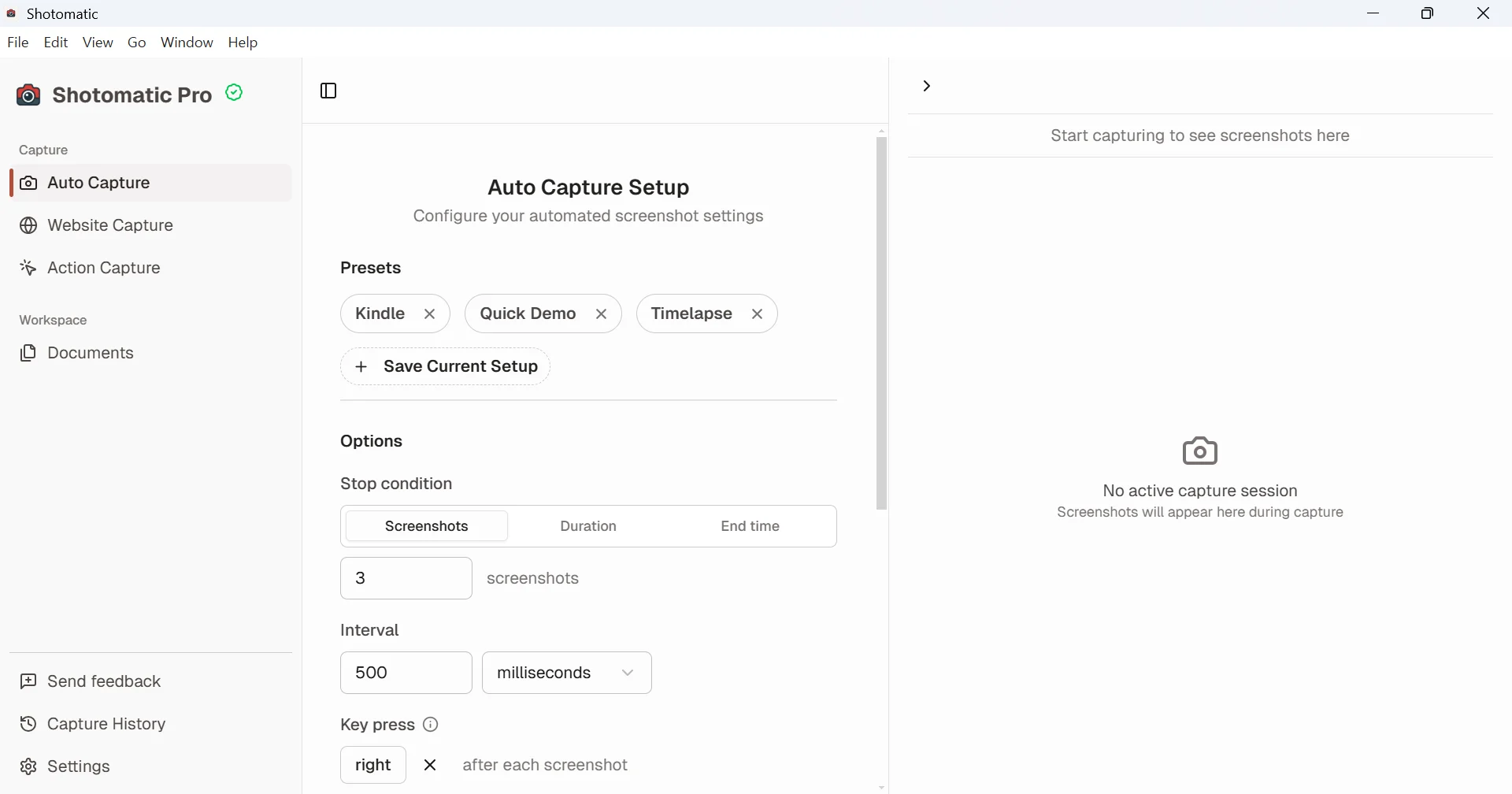
Sessions stay on your PC, and you can export them as images, ZIP, PDF, or MP4. Windows doesn't ask you to grant capture permissions first. Shotomatic has no scrolling capture for app windows, so pair it with the stitching method in our scrolling screenshot guide when you need one tall image.
Which tool should you use?
- Occasional snips with quick markup: keep Snipping Tool.
- Scrolling capture, OCR, GIFs, or automatic uploads for free: ShareX.
- A simpler editor than ShareX, with sending to Office apps: Greenshot.
- Branded, consistent captures and recordings every day: Snagit.
- The same capture repeated, or a step-by-step guide from your clicks: Shotomatic.
- Recording a game or app with sound: Xbox Game Bar, opened with Windows + G.
Frequently Asked Questions
Turn repeatable screenshots into finished work
Shotomatic captures, organizes, and exports screenshot sessions on Mac and Windows.
Related posts
See more postsHow to Take a Scrolling Screenshot on Windows
Snipping Tool can't take a scrolling screenshot. Save a whole web page from Edge, Chrome, or Firefox, or stitch overlapping captures of any app window.

Windows Steps Recorder Alternatives for Windows 11 (2026)
Steps Recorder is deprecated in Windows 11. Compare Microsoft's video replacements with click-based tools that still turn each step into a screenshot.

Snipping Tool for Mac: Every Snip Mode and Its Mac Shortcut
Macs have no app called Snipping Tool, but macOS covers the same jobs. See the Mac shortcut for each snip mode, plus delay, video, copy, markup, and text.

ShareX for Mac: Is There a Mac Version and What to Use Instead
ShareX doesn't run on Mac. See how each ShareX feature maps to macOS shortcuts and to Mac apps for scrolling capture, GIFs, OCR, uploads, and auto capture.
