How to Screenshot on an HP, Dell, Lenovo, or Surface Laptop
Laptop keyboards often hide Print Screen behind Fn or a function key. Find the screenshot keys for HP, Dell, Lenovo, and Surface, plus shortcuts that work on any Windows laptop.

On a laptop, the screenshot key is often harder to find than on a desktop keyboard. Print Screen may share a key with another function, sit on the function row behind Fn, or be missing entirely. The fix depends on the brand, but one shortcut works on every Windows laptop: Windows + Shift + S.
This guide starts with that universal shortcut, then covers the keys for HP, Dell, Lenovo, and Surface laptops, based on each maker's own support pages.
The shortcut that works on any Windows laptop
Windows + Shift + S doesn't use the Print Screen key, so it works whatever your keyboard looks like. It opens the Snipping Tool capture bar, where you choose Rectangle, Window, Full screen, or Freeform. The snip is copied to the clipboard and, while Snipping Tool's automatic saving is on, saved to Pictures > Screenshots.
Once you find your laptop's Print Screen key, these combinations also work on any brand:
| Keys | Result |
|---|---|
| Windows + Shift + S | Choose an area; copied and usually saved |
| Print Screen | Copies the screen, or opens Snipping Tool on Windows 11 |
| Windows + Print Screen | Saves the whole screen to Pictures > Screenshots |
| Alt + Print Screen | Copies the active window |
If Print Screen needs Fn on your laptop, add Fn to each combination, for example Fn + Windows + Print Screen. Our guide to every Windows screenshot shortcut covers what each one does in detail.
HP laptops
HP's screenshot guide says the Print Screen key is usually labeled PrtScn or Prt Sc and sits near the top right of the keyboard.
- Press PrtSc to copy the whole screen, then paste it with Ctrl + V.
- If nothing happens, HP suggests pressing Fn + PrtSc, because some HP models require it.
- Press Windows + PrtSc to save the screen to Pictures > Screenshots.
- Press Alt + PrtSc to copy only the active window.
Some HP keyboards put Print Screen on a function key marked with a small icon instead of a separate key. If you can't find PrtSc, look for that icon or check your model's keyboard guide.
Dell laptops
Dell's article on the Print Screen key says that on laptops, Print Screen is usually on the function row.
- You may need to press Fn with a function key, such as Fn + F10, depending on the model.
- On laptops with a touch-style, illuminated function row, press Fn to switch the row to its function keys and reveal Print Screen.
- If your laptop has no Print Screen key, Dell suggests pressing Fn + Insert together.
- Windows + Print Screen saves the screen to Pictures > Screenshots, and Alt + Print Screen copies the active window.
Lenovo laptops
Lenovo's explanation of the Print Screen key notes that on laptops, Print Screen often sits on the function row, so you press it together with Fn.
- Try PrtSc first, then Fn + PrtSc if nothing happens.
- Use Windows + PrtSc to save to Pictures > Screenshots, adding Fn if your model needs it.
- Windows + Shift + S works on any Lenovo running Windows 10 or 11.
Lenovo keyboards differ a lot between ThinkPad, IdeaPad, Yoga, and Legion models. Your model's user guide shows exactly where Print Screen is and whether it needs Fn.
Surface
Microsoft's guide to taking a screenshot on Surface lists:
- Power + Volume Up: press and hold the Power button, then press Volume Up. This works on most Surface models, but not on Surface Laptop.
- Windows + PrtScn, or Windows + Snipping key on keyboards that have one, saves the screen to Pictures > Screenshots.
- Windows + Shift + S opens the Snipping Tool overlay to capture an area.
The button shortcut is handy when your Surface is used as a tablet, with the keyboard folded back or detached.
If the screenshot doesn't appear
Print Screen on its own copies to the clipboard, so a screenshot can work without creating a file. Paste with Ctrl + V to check, or look in Pictures > Screenshots. If no shortcut works at all, our guide to fixing Snipping Tool and Print Screen goes through the checks in order, and our guide to where screenshots go on Windows lists every save location.
When you need many screenshots
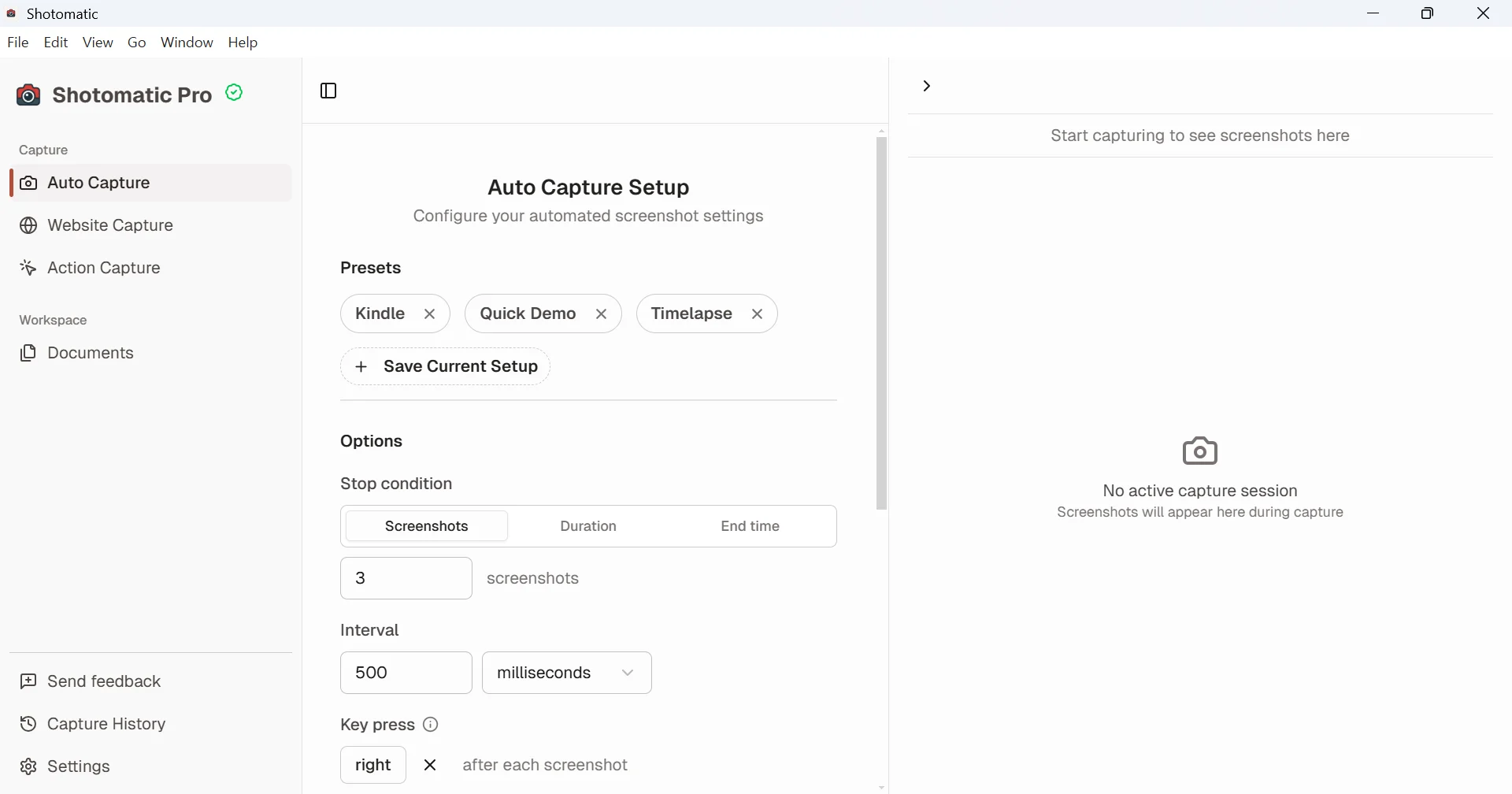
Every shortcut above takes one screenshot per press. If you're capturing a long process or the same window every few seconds, Shotomatic can take them for you on Windows 10 and 11, on any laptop brand. Its Auto Capture saves a screen, a window, or a custom area at an interval until it reaches a screenshot count, a duration, or an end time, and keeps the results together for export.
Frequently Asked Questions
Turn repeatable screenshots into finished work
Shotomatic captures, organizes, and exports screenshot sessions on Mac and Windows.
Related posts
See more postsHow to Take a Screenshot on Windows 11 and 10: Every Shortcut
Every way to take a screenshot on Windows 11 and 10: Snipping Tool, Print Screen, Windows + Print Screen, Alt + Print Screen, and Game Bar, with what each one saves.

Snipping Tool Not Working? How to Fix Windows Screenshot Shortcuts
Fix Snipping Tool, Windows + Shift + S, and Print Screen when they stop working on Windows 11 or 10, from quick checks to repairing or reinstalling the app.

Where Do Screenshots Go on Windows? Find Them by Shortcut
Windows saves screenshots to Pictures > Screenshots, but some shortcuts only copy to the clipboard. Find a missing screenshot by the keys you pressed.

Scribe vs Tango: Which Step-by-Step Guide Tool Fits Your Team?
Compare Scribe and Tango: browser and desktop capture, on-screen guidance, blur and redaction, sharing, exports, free plan limits, and how each is sold.
