How to Save a Screenshot as PDF on Windows

To save one screenshot as a PDF on Windows 10 or 11, open it in Photos, press Ctrl + P, choose Microsoft Print to PDF as the printer, and select Print.

For several screenshots, add them to the free Image to PDF tool, arrange the pages, and download one PDF. If you still need to capture a sequence, Shotomatic can handle the repeated captures and PDF export on your PC.

Best for

  • Saving a single screenshot as a PDF
  • Combining existing screenshots into one document
  • Capturing your own or permitted pages in a repeatable sequence

One screenshot: Print to PDF

Use the Microsoft Print to PDF printer included with Windows to save an existing screenshot.

Several screenshots: free PDF tool

Add JPG, PNG, or WebP images, reorder them, and download one PDF. Your images stay in your browser.

Repeated captures: Shotomatic

Capture an ordered session, remove unwanted frames, and export it as one PDF.

Save one screenshot as PDF with Print to PDF

1

Open the screenshot

In File Explorer, double-click the screenshot to open it in Photos.

2

Choose the PDF printer

Press Ctrl + P. In the Printer list, select Microsoft Print to PDF.

3

Save the file

Select Print, choose a name and folder, then select Save. Open the PDF to check the result.
Capture a sequence and export it with Shotomatic

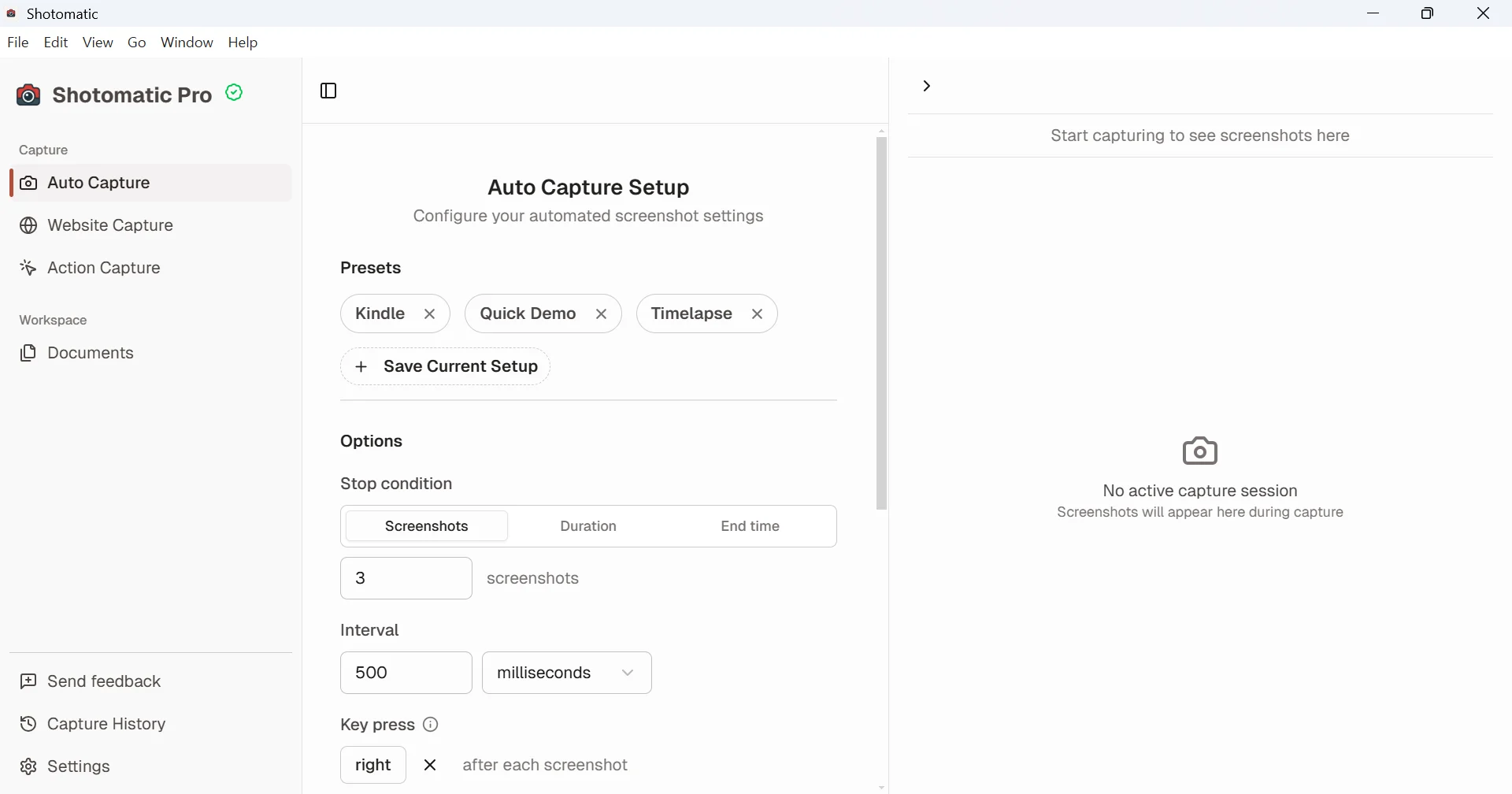
When you still need the screenshots, Shotomatic keeps repeated captures together in one session. Capture a window or area at an interval, review the results, and export the pages as a PDF.

  • Choose the capture target and interval, then test a short sequence
  • Review the captured pages before exporting the PDF
  • Use an official export when available; capture only material you own or have permission to save
Shotomatic Auto Capture setup on Windows with presets, stop condition, interval, and key press options
Set the interval and key press once, then capture the whole sequence.

Review the sequence before it becomes a document

A missing, duplicated, or half-loaded frame is easier to fix while the captures are still visible as a set. Review the order before creating the final file.

  • Remove accidental or repeated frames
  • Check transitions and page order
  • Keep the original screenshots for another export later

Choose PDF settings with a preview

Shotomatic previews the document before export so you can choose page size, orientation, image fit, and quality without guessing how the final file will look.

  • Use a page size and orientation that fit the screenshots
  • Balance image quality against PDF file size
  • Export the same session again as images, ZIP, or MP4 when you need another format

Ready to automate screenshots on your Mac without scripts?

Set the capture target, interval, and export format, then let Shotomatic run the session.

How to Save a Screenshot as PDF on Windows | Shotomatic