How to Take a Delayed Screenshot on Windows with Snipping Tool
Set a Snipping Tool delay to capture open menus and tooltips on Windows, and what to use when you need a screenshot every few seconds instead.

Some things disappear the moment you press a screenshot shortcut: an open menu, a tooltip, a hover state, or a drop-down list. Snipping Tool's delay fixes that by waiting a few seconds before the capture starts, so you have time to open what you want to show.
This guide shows how to set the delay, how to use it to capture a menu, and what to do when you need screenshots on a repeating timer instead of once.
How to set a delay in Snipping Tool
Microsoft's Snipping Tool guide gives these steps for Windows 11:
- Select Start, type
snipping tool, and open Snipping Tool. - Select the Delay option and choose how long to wait, for example 5 seconds. In the Snipping Tool window, Alt + D also changes the delay.
- Open Snipping Mode and choose Rectangle, Window, Full screen, or Freeform.
- Select New to start the countdown.
- During the countdown, open the menu or set up the screen you want.
- When the screen turns gray, draw around the area you want, or click the window if you chose Window mode.
On Windows 10, the steps are the same except that you choose Delay and then Mode to start the countdown.
The finished snip is copied to the clipboard, and Snipping Tool also saves it to Pictures > Screenshots while automatic saving is on. If you can't find it afterward, our guide to where screenshots go on Windows lists every place to check.
Capture an open menu or tooltip
The delay works because it changes the order of things. Normally you open the menu first, then press the screenshot shortcut, and the shortcut takes focus away and the menu closes. With a delay, you start the countdown first and open the menu while it runs.
- Right-click menus: start the countdown, right-click where you want the menu, then wait.
- Drop-down lists: start the countdown, click the list to open it, then keep the pointer still.
- Tooltips and hover states: start the countdown, rest the pointer over the item, and don't move it until the screen turns gray.
Choose a delay long enough to open the item calmly. If the screen turns gray before the menu is open, pick a longer delay and start again.
If the delay doesn't work
- The menu closes when the screen turns gray. Choose Full screen mode, which captures without dragging, then crop the snip afterward.
- The countdown never started. The delay is set in the Snipping Tool window, so start the snip there with New rather than with Windows + Shift + S.
For other Snipping Tool features, and when another screenshot tool is worth installing, see our Snipping Tool alternatives guide.
Take screenshots on a repeating timer
Snipping Tool's delay applies to one capture. Windows has no built-in way to take a screenshot every few seconds, which is what you need to record a long process, keep a visual log of a dashboard, or save pages of something you have permission to keep.
Shotomatic runs on Windows 10 and 11, and its Auto Capture does this:
- Choose a screen, a window, or a custom area.
- Set the interval between screenshots and a countdown before the first one.
- Set when to stop: after a number of screenshots, after a duration, or at an end time. You can also add a key press between captures, for example to move to the next page.
- Start the capture. The screenshots collect in order in Capture History, ready to review and export as images, a ZIP, a PDF, or an MP4.
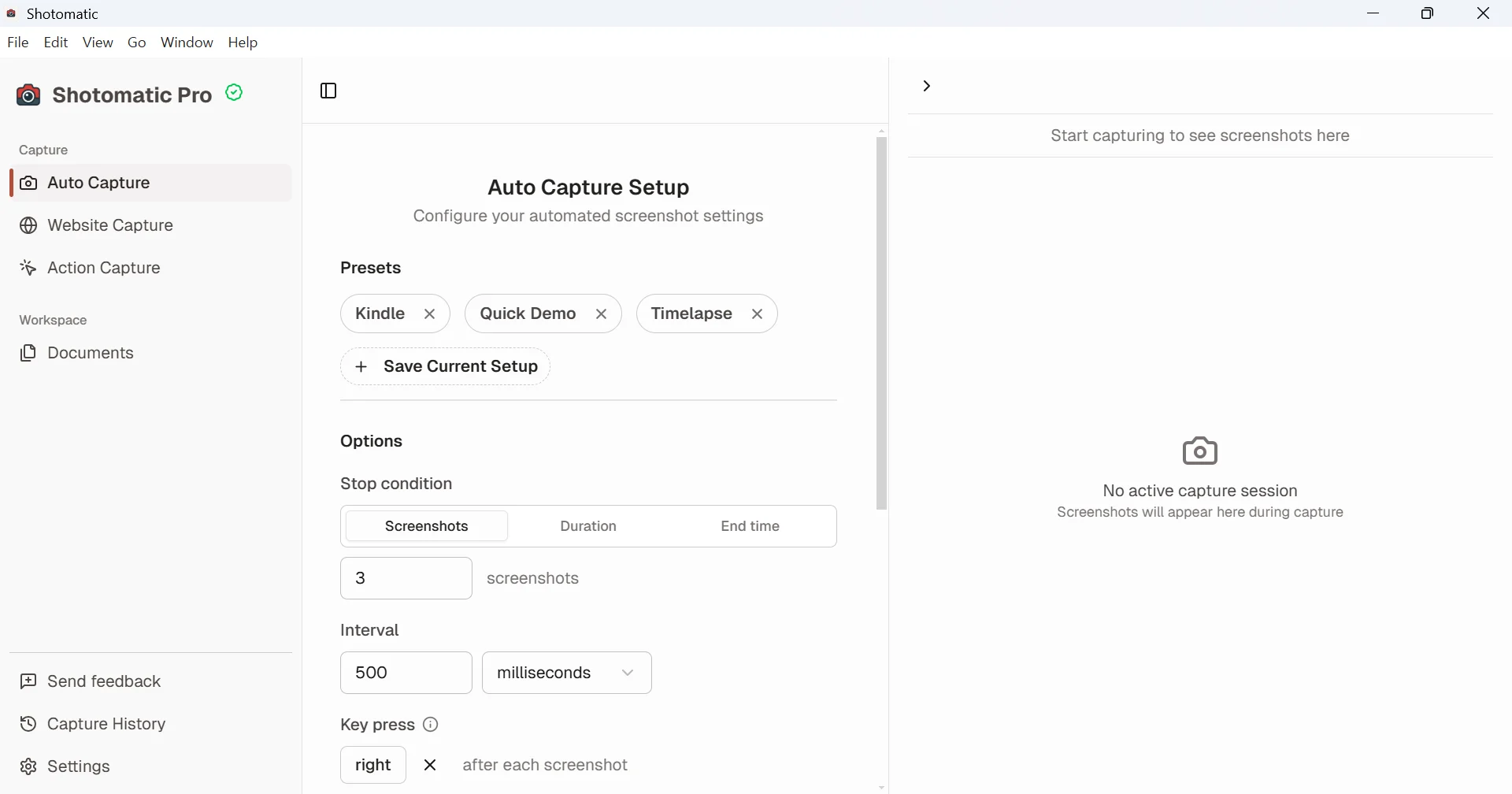
Windows doesn't ask you to grant capture permissions first, so you can start right after installing Shotomatic on Windows. For one delayed screenshot, Snipping Tool is enough; Auto Capture is for when you'd otherwise repeat that snip dozens of times.
Frequently Asked Questions
Turn repeatable screenshots into finished work
Shotomatic captures, organizes, and exports screenshot sessions on Mac and Windows.
Related posts
See more postsSnipping Tool Alternatives for Windows (2026)
What Snipping Tool already does on Windows 11, where it stops, and when ShareX, Greenshot, Snagit, or Shotomatic is the better screen capture tool.

Where Do Screenshots Go on Windows? Find Them by Shortcut
Windows saves screenshots to Pictures > Screenshots, but some shortcuts only copy to the clipboard. Find a missing screenshot by the keys you pressed.

How to Take a Scrolling Screenshot on Windows
Snipping Tool can't take a scrolling screenshot. Save a whole web page from Edge, Chrome, or Firefox, or stitch overlapping captures of any app window.

Greenshot for Mac: What the Mac Version Does and What to Use Instead
Greenshot's Mac App Store version is paid and hasn't been updated since 2020. See what it covers, how Greenshot features map to macOS, and what fills the gaps.
