Drag to Select Multiple Thumbnails
Click and drag across thumbnails to select multiple captures at once instead of toggling each one individually.
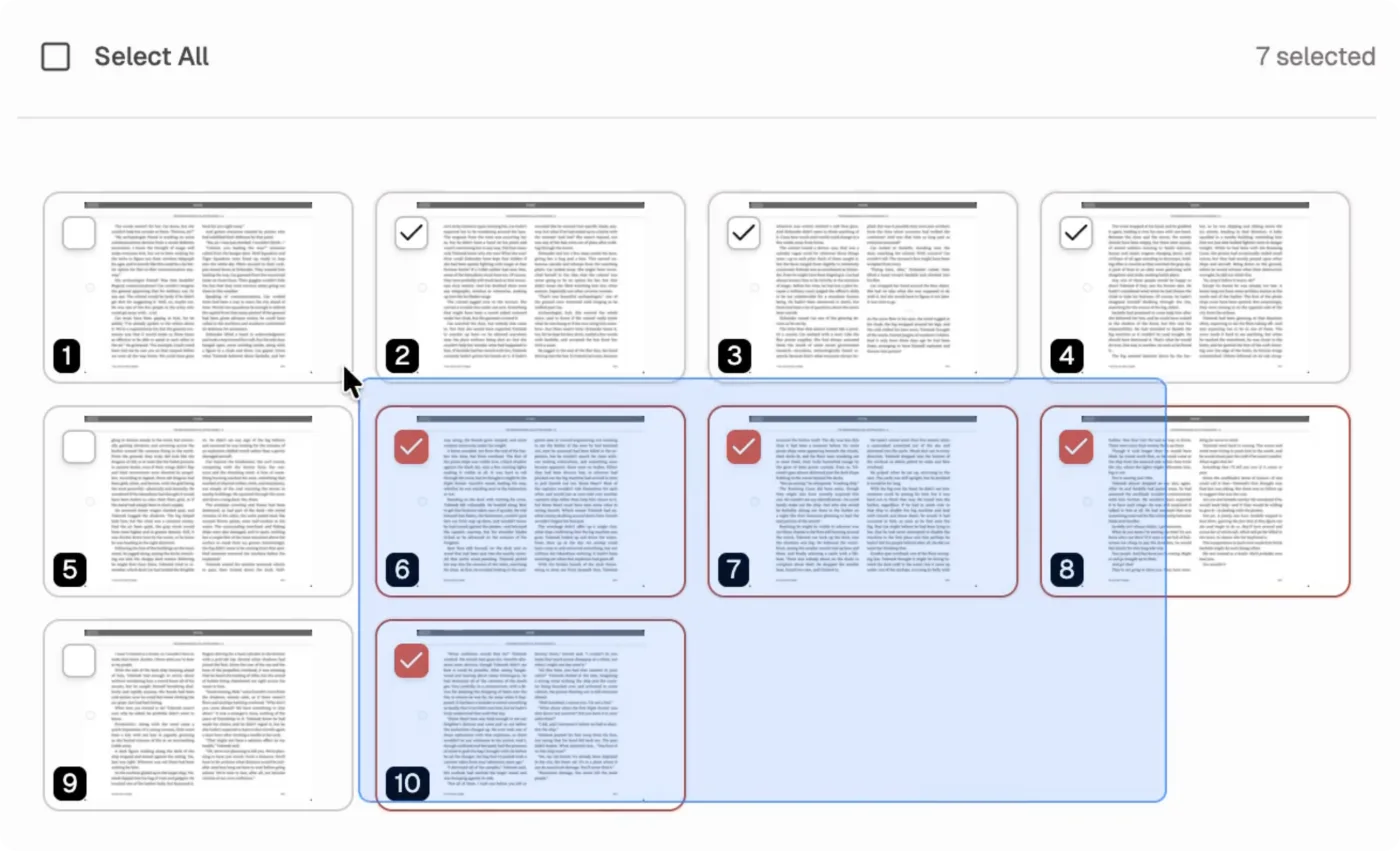
Selecting a batch of screenshots is now much faster. Instead of clicking thumbnails one by one to select and deselect them, you can now drag across the grid to select multiple captures in a single gesture. The same interaction helps both in the current capture sidebar and in Previous Sessions when you come back to older work.
Before vs After
The workflow change is simple: what used to take repeated click-select and click-deselect passes can now be done with one drag gesture across the thumbnail grid.
What's Improved
- Drag-to-select marquee selection lets you sweep across thumbnails and build a selection in one motion.
- Less repetitive clicking makes it easier to prepare large batches for export or cleanup.
- Accidental drags are reduced by waiting for a small movement threshold before starting selection.
- Shift-drag can add to an existing selection when you want to keep building a batch.
- The same thumbnail-grid interaction also carries into Previous Sessions when working with older captures.
Why It Matters
This is a small interaction change with a big workflow payoff. Whether you are sorting the current capture session or reviewing an older one in Previous Sessions, selecting the right group should feel fast and direct instead of fiddly. That makes batch cleanup, export prep, and session review much smoother.
Update to Shotomatic v1.7.0 to select multiple thumbnails with one drag.
Related features and updates
Related features
Manage Multiple Screenshots with Visual Thumbnails
Preview, organize, and export multiple screenshots at once with our visual thumbnail sidebar. Perfect for batch operations and quick navigation through capture sessions.
Export Screenshots as PDF Documents or Animated GIFs
Transform your screenshot sessions into professional PDFs for documentation or engaging GIFs for tutorials. Perfect for creating user guides, bug reports, and demos.
Previous Sessions
Shotomatic now saves completed capture history automatically, so you can revisit past sessions without turning on a separate save-as-you-go option.
Ready for a simpler screenshot workflow?
Automate recurring captures and save time.