Windows Steps Recorder Alternatives for Windows 11 (2026)
Steps Recorder is deprecated in Windows 11. Compare Microsoft's video replacements with click-based tools that still turn each step into a screenshot.

If Steps Recorder on your Windows PC now shows a deprecation notice, or you need a tool that will keep working after Microsoft removes it, the first question is what you want to hand over at the end. Microsoft's suggested replacements record video. Steps Recorder produced something different: one screenshot and one line of text for every click.
This guide checks where Steps Recorder stands in Windows 11, compares Microsoft's video tools with click-based guide apps, and ends with which one fits a bug report, a support guide, or an internal procedure.
Is Steps Recorder still in Windows 11?
Steps Recorder is deprecated, and Microsoft says it will be removed in a future release of Windows. Microsoft's list of deprecated Windows features has carried it since November 2023 with the note that it is no longer being updated. Its deprecation notice adds that Windows 11 has shown a banner inside the app since the February 2024 update.
On many PCs it still opens. Select Start, type psr, and open Steps Recorder. If it runs, it keeps working the way it always did, but no fixes are coming, and a later Windows update can take it away. Teams that build procedures or bug reports around it usually move to a supported tool before that happens.
What Steps Recorder recorded
Steps Recorder saved a screenshot of the screen at each click, plus a short text description of what was clicked. According to Microsoft's guide to Problem Steps Recorder, you select Start Record, perform the task, select Stop Record, and save a ZIP file that opens in a browser.
Three limits shaped how people used it:
- It does not capture what you type, so typed values have to go into a comment.
- It keeps 25 screenshots by default. A longer recording overwrites the earliest steps unless you raise Number of recent screen captures to store in its settings first.
- The result is a fixed recording. Removing a step, rewriting a description, or reordering pages means editing the file in another program.
A replacement worth switching to should keep the screenshot-per-step result and remove at least the last two limits.
Windows alternatives at a glance
| Option | Captures | Finished output | Best fit |
|---|---|---|---|
| Steps Recorder (while it lasts) | A screenshot and text description per click | ZIP file that opens in a browser | A quick repro for someone who asked for PSR |
| Snipping Tool, Xbox Game Bar, or Clipchamp | Continuous screen video | Video file | Showing motion, timing, or a narrated demo |
| Shotomatic Action Capture | The chosen window or area before each click, click marked | Editable guide; PDF, PNG, JPG, WebP, or ZIP | Support guides, procedures, and bug reports |
| Folge | A screenshot on each click, on Mac and Windows | Edited guides in PDF, Word, HTML, Markdown, and more | Local guides that need many document formats |
| Scribe Desktop | Desktop actions turned into a visual guide | Online guide, link, or embed | Teams that share guides online |
The table compares the kind of result each tool is built to produce. It leaves out pricing, because plans and feature packaging change.
Use Snipping Tool, Game Bar, or Clipchamp for video
Microsoft's suggested replacements are the right choice when the viewer needs to see movement. Snipping Tool can record a selected part of the screen, Xbox Game Bar records the app in front when you press Windows + G, and Clipchamp records the screen and lets you trim the result.
The output is a video. A reviewer has to pause and scrub to find the step they need, and a video is hard to paste into a help article or print as a checklist. For a short demo that is fine; for a twelve-step procedure, still screenshots are usually easier to follow. If you have not settled that question, compare a step-by-step screenshot guide with screen recording.
Use a click-based guide app for screenshot steps
A click-based guide app follows the task instead of a timer, which is how Steps Recorder worked. You start recording, click through the task, and each click becomes a step with its own screenshot. The difference is what happens after you stop: the steps open in an editor where you can remove a stray click, write instructions, and export a finished document.
Shotomatic Action Capture
Shotomatic runs on Windows 10 and 11, and its Action Capture records a task the way Steps Recorder did, one screenshot per click. It saves the window or area you chose as it looked just before each accepted click and marks where you clicked. When you stop, the steps open as an ordered guide that you can trim, title, annotate, and export as PDF, PNG, JPG, WebP, or ZIP.
Compared with Steps Recorder:
- A longer recording does not overwrite earlier steps. If a run pauses at the step limit of your plan, the steps you already captured stay saved.
- For a step that has no click, such as a value you typed, press
Ctrl + Shift + 2to add a screenshot from the keyboard. - Windows does not ask you to allow screen capture or key presses, so you can start right after installing.
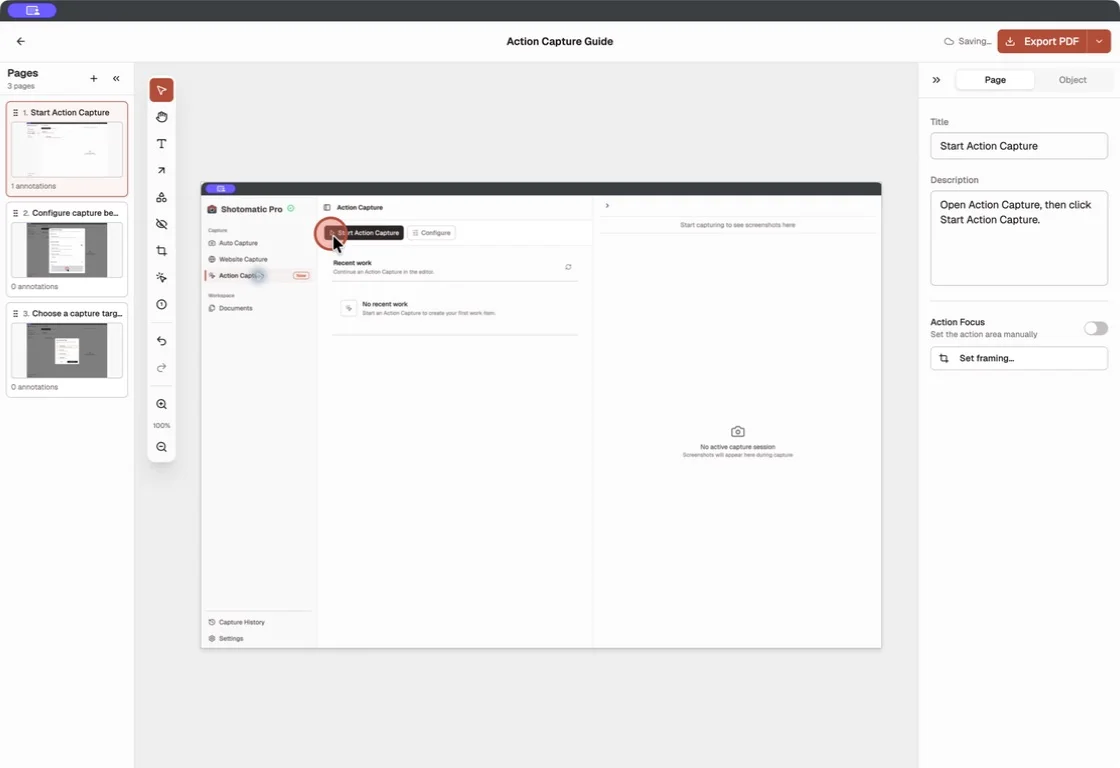
To try it, install Shotomatic on Windows, open Action Capture from the sidebar or with Ctrl + 3, choose what each step should capture, and click through the task.
Folge
Folge is a local desktop app for Mac and Windows. Its product page says it takes a screenshot on each mouse click, lets you annotate and reorder steps, and exports to PDF, Word, PowerPoint, HTML, Markdown, and other formats. It suits teams that need a guide in several document formats.
Scribe Desktop
Scribe Desktop captures desktop processes on Mac and Windows and turns them into visual guides with screenshots and generated text. Desktop capture is part of Scribe's paid plans, and guides are shared online through links and embeds.
Which alternative should you choose?
Start from the result your reader needs. If they need to watch something move, use Snipping Tool, Game Bar, or Clipchamp. If someone specifically asked for a Steps Recorder file and it still opens on your PC, it is fine for a one-off repro.
For anything you will keep, edit, or send to many people, use a click-based guide app. Choose Shotomatic when you want each click captured, edited locally, and exported as a PDF or images. Choose Folge when you need many document formats, and Scribe when the guide should be shared online.
On a Mac instead? The Mac version of this comparison covers the built-in macOS tools. To see the whole click-to-guide workflow before installing, read how Action Capture turns clicks into a step-by-step guide.
Frequently Asked Questions
Turn your clicks into a clear step-by-step guide
Action Capture records each click as an ordered step, then lets you edit and export the guide.
Related posts
See more postsMicrosoft Steps Recorder Alternative for Mac (2026)
Need Steps Recorder on a Mac? Compare click capture with screen recording, then choose the right workflow for image, PDF, or video instructions.

Step-by-Step Guide vs Screen Recording: Which Should You Use?
Choose between a screenshot guide and screen recording for tutorials, support, and documentation based on motion, audio, editing, and reader needs.

How to Write Clear Step-by-Step Instructions for Software
Write software instructions with one action per step, exact interface labels, visible checkpoints, useful screenshots, and concise error routes.

Greenshot for Mac: What the Mac Version Does and What to Use Instead
Greenshot's Mac App Store version is paid and hasn't been updated since 2020. See what it covers, how Greenshot features map to macOS, and what fills the gaps.
