Microsoft Steps Recorder Alternative for Mac (2026)
Need Steps Recorder on a Mac? Compare click capture with screen recording, then choose the right workflow for image, PDF, or video instructions.
If you are looking for Microsoft Steps Recorder on a Mac, the main question is what you need at the end. macOS can take screenshots and record video, but it does not include a direct equivalent that turns a series of clicks into an editable step-by-step document.
This guide compares built-in Mac screen capture with dedicated step-recording apps, then shows which route fits a video, a troubleshooting record, or a screenshot guide.
TL;DR: Use the macOS Screenshot app when a video or a few manual screenshots are enough. Use a click-based guide app when you need one screenshot per action, visible click locations, editing, and an ordered document.
What Microsoft Steps Recorder did
Microsoft Steps Recorder, previously called Problem Steps Recorder or PSR, captured screenshots and descriptive steps while someone completed a task. The result was a file that another person could review to reproduce the actions or troubleshoot the problem.
Microsoft has deprecated Steps Recorder. Its official deprecation notice says Windows 11 began showing a notice in the app with the February 2024 update. Microsoft points users toward Snipping Tool, Xbox Game Bar, and Clipchamp.
Those replacements record video. They are useful when the reviewer needs continuous motion, but they do not reproduce the same screenshot-and-step document.
Does Mac have a built-in Steps Recorder?
Mac does not have a direct built-in Steps Recorder equivalent. Apple's Screenshot app can capture the whole screen, a window, or a selected area. It can also record video and show the pointer or mouse clicks during a recording. Apple documents these options in its Mac screenshot guide.
The difference is the output. Screenshot saves individual image files. Screen recording saves a video. Neither one builds an editable list in which every action has its own screenshot and instruction.
That distinction matters when the result will become a help article, an internal procedure, a customer support guide, or a PDF someone follows one page at a time.
Mac alternatives at a glance
| Option | Captures | Finished output | Best fit |
|---|---|---|---|
| macOS Screenshot or QuickTime | Manual screenshots or continuous video | PNG, image markup, or MOV video | A few screenshots, motion, or narration |
| Automator, Shortcuts, or a shell script | Screenshots based on time or a custom action | Image files that need manual assembly | Technical users building a custom capture routine |
| Shotomatic Action Capture | The target state before each accepted click, with its location marked | Editable sequence; PDF, PNG, JPG, WebP, or ZIP | Mac tutorials, support guides, and procedures |
| Folge | Click-triggered screenshots across Mac and Windows | Edited guides in PDF, Word, HTML, Markdown, and other formats | Local cross-platform documentation with several export formats |
| Scribe Desktop | Recorded desktop or browser actions converted into a visual guide | Cloud guide, link, embed, and supported exports | Teams that want online sharing and collaboration |
The table compares the type of result each route is designed to produce. It does not include pricing because plans and feature packaging can change. Scribe details come from its current public product documentation rather than a hands-on desktop test.
Use macOS Screenshot for a video or a few images
The built-in Screenshot app is the simplest option when you need a short recording or only a handful of images. Press Shift-Command-5, choose a screenshot or recording mode, select the area, and start the capture.
For screen recordings, macOS can include microphone audio and display a circle when you click. The viewer still receives a video, so they must pause or scrub to find a particular action.
For manual screenshots, you control every frame but must stop after each action, save the image, name it, and assemble the guide later. This is manageable for three or four steps and tedious for a longer procedure.
Use built-in automation for repeated captures
Automator, Shortcuts, and the screencapture command can produce repeated screenshots without another app. These routes work well when time, a keyboard command, or a script determines when a capture should happen.
This kind of screenshot automation requires more setup when mouse clicks should define the steps. You also need a separate process for marking clicks, writing instructions, removing unwanted frames, and creating the final document.
For the built-in routes, read How to Automate Screenshots on Mac with Built-In Tools.
Use a click-based guide app for screenshot steps
A dedicated step recorder follows the task rather than a timer. Start a session, complete the process, and let each meaningful click create a new step. After capture, review the screenshots, remove actions the reader does not need, and add short instructions.
This approach is closer to the original Steps Recorder workflow because the output remains a sequence of actions instead of a continuous video.
Shotomatic Action Capture
Shotomatic Action Capture is designed for Mac users who want to turn clicks into a screenshot guide. It saves the target state immediately before each accepted click, marks the click location, and opens the sequence in an editor. Free users can save up to 5 steps per session and export PDF, PNG, JPG, WebP, or ZIP. The total number of saved guides is not limited.
Free includes text, rectangles, ellipses, lines, arrows, Framing, and Action Focus. Pro removes the per-session step limit and adds Blur, Click Marker, and Step Numbers.
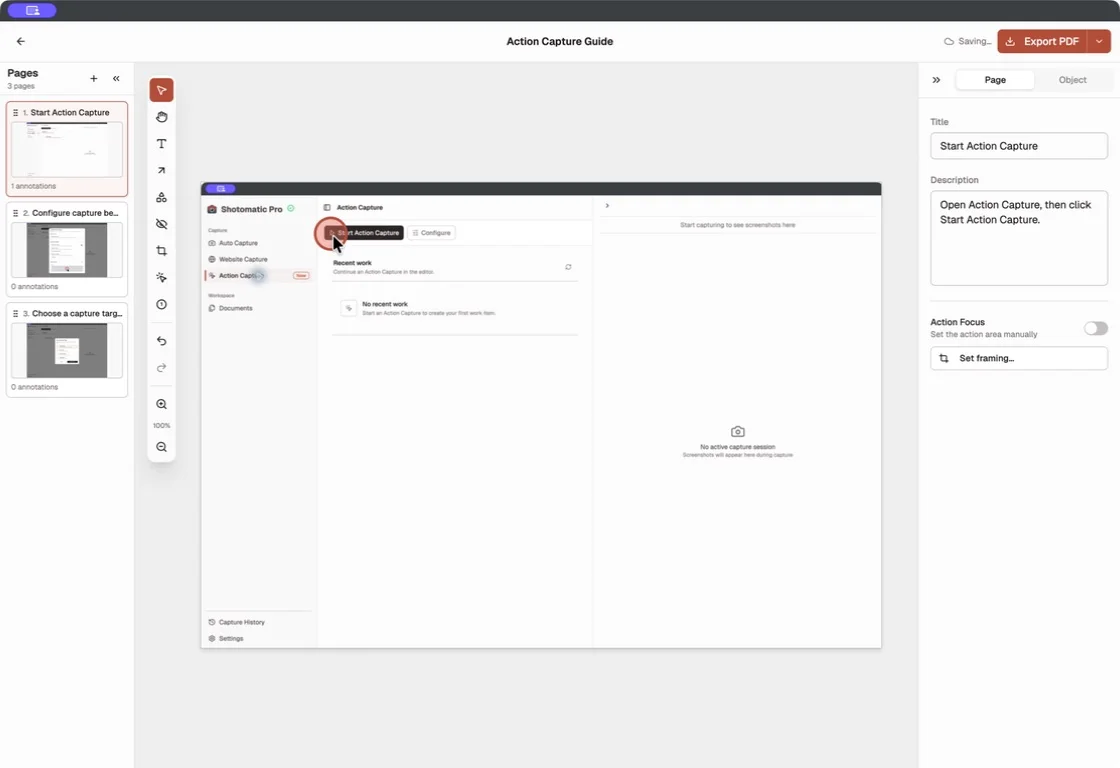
The result is useful when the reader needs to follow a task at their own pace or return to one step without watching a recording from the beginning.
Folge
Folge is a local desktop app for macOS and Windows. Its official product page says it captures a screenshot on each mouse click, supports annotations and step reordering, and exports to PDF, Word, PowerPoint, HTML, Markdown, and other formats.
Folge supports both macOS and Windows and offers several document formats. Shotomatic focuses on a Mac screenshot workflow that ends in an edited sequence or PDF.
Scribe Desktop
Scribe Desktop captures desktop processes on Mac and Windows and turns them into visual guides with screenshots and generated text. Its sharing model centers on online guides, links, embeds, and team collaboration.
Scribe fits teams that want guides stored and shared through a cloud workspace.
Which alternative should you choose?
Choose the alternative after deciding whether the finished result should be a video, a folder of images, or an ordered guide. Use macOS Screenshot for a video or a few manual images. Use Automator, Shortcuts, or a script when you want custom repeated captures and are prepared to assemble the result yourself. Use a click-based guide app when each action needs its own screenshot and instruction.
Among dedicated guide apps, choose Shotomatic for a Mac-focused workflow with click markers, local editing, and image or document export. Choose Folge when local Mac and Windows support and several document formats matter. Choose Scribe when online sharing, embeds, and team collaboration matter most.
If you have not chosen between video and still instructions, compare a step-by-step screenshot guide with screen recording. If you are ready to build an ordered guide, follow How to Create a Step-by-Step Guide from Clicks on Mac.
See Action Capture for the click-driven workflow and the broader Shotomatic feature set for other capture modes. If the task needs timed frames instead, use Screenshot Automation on Mac. Check current plan details without relying on a fixed quoted price.
FAQ
Does Mac have a built-in equivalent to Microsoft Steps Recorder?
No direct equivalent. The macOS Screenshot app can take still screenshots or record video and can show mouse clicks in a recording, but it does not turn those clicks into an editable list of screenshot-based steps.
What replaced Microsoft Steps Recorder?
Microsoft recommends Snipping Tool, Xbox Game Bar, and Clipchamp as screen-recording alternatives. Those tools create video rather than the screenshot-and-step document produced by Steps Recorder.
Can a Mac take a screenshot every time I click?
Yes, with a dedicated click-capture app. This type of tool watches for clicks, captures the relevant screens, and prepares the results for review as an ordered guide.
Can I export recorded steps as a PDF on Mac?
Yes, when the guide app supports PDF export. Shotomatic includes PDF export on both Free and Pro, along with PNG, JPG, WebP, and ZIP.
Related posts
See more postsHow to Create a Step-by-Step Guide from Clicks on Mac
Create a step-by-step guide on Mac by capturing meaningful clicks, marking each action, editing the steps, and exporting images or a PDF.

How to Automate Screenshots on Mac with Built-In Tools
Automate screenshots on Mac with screencapture, Automator, or Shortcuts, including permissions, safe loops, and troubleshooting.
How to Screenshot on Mac: Built-In vs Third-Party Apps
When third-party screenshot software beats Mac's built-in tool, and when Cmd+Shift shortcuts are enough. Compare CleanShot X, Snagit, and Shotomatic.

Local vs Cloud Process Documentation Tools
Choose a local or cloud process documentation tool based on capture, storage, privacy, collaboration, offline access, sharing, and administration.

Turn your clicks into a clear step-by-step guide
Action Capture records each click as an ordered step, then lets you edit and export the guide on your Mac.