Automate Screenshots with the Apple Shortcuts App on Mac
Use Apple Shortcuts on Mac to take timed screenshots, run the shortcut at a set time or when an app opens, and fix script or screen recording permissions.
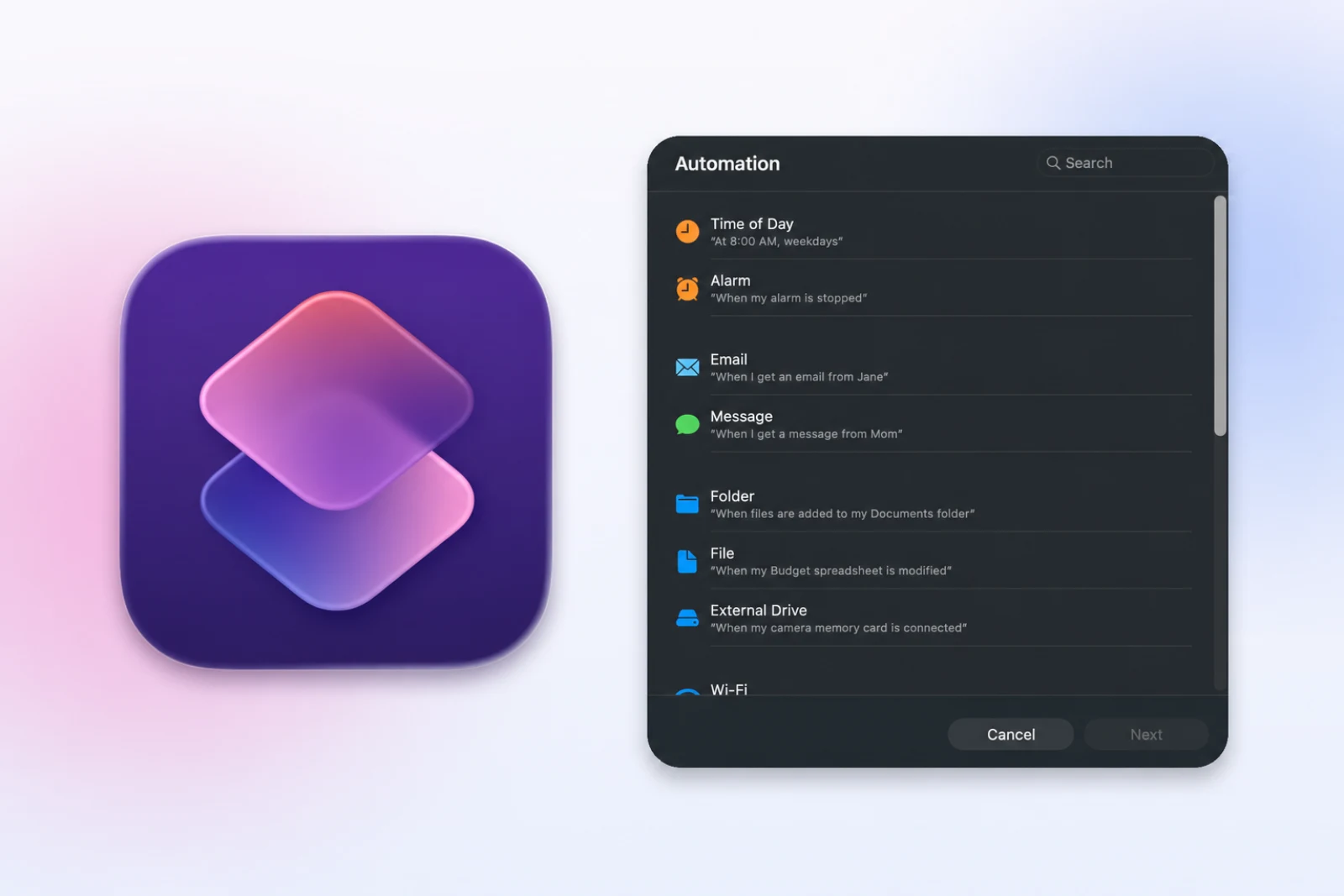
This guide covers Apple's Shortcuts app, not the Shift-Command-3, Shift-Command-4, or Shift-Command-5 keyboard shortcuts. You will check the required permissions, build a three-frame screenshot shortcut, test it, add a personal automation trigger, and choose how to launch it.
Allow script actions and screen capture
Check two settings before the first run:
- Script actions: If Run Shell Script is unavailable, open Shortcuts settings and review the advanced privacy and security option for allowing scripts. Apple documents these advanced Shortcuts settings. Enable script actions only for commands you understand.
- Screen capture: Shortcuts may ask for screen capture access on the first run. If the images are blank or incomplete, allow Shortcuts under System Settings > Privacy & Security > Screen & System Audio Recording, then reopen it if macOS asks.
Accessibility access is not needed for the screenshot loop below. It is required only if you add AppleScript that sends keys or controls another app.
Create and test a repeated screenshot shortcut
Once Run Shell Script is available, build a short test:
- Open Shortcuts on Mac.
- Create a new shortcut.
- Name it
Repeated Screenshots. - Add Run Shell Script.
- Paste the script below.
- Keep the three-frame test for the first run.
- Run the shortcut and inspect the output folder.
RUN_DIR="$HOME/Desktop/shortcuts-run-$(date +%Y%m%d-%H%M%S)"
mkdir -p "$RUN_DIR"
COUNT=3

for ((i=1; i<=COUNT; i++)); do
  screencapture -x -m "$RUN_DIR/frame-$(printf "%02d" "$i").png"
  if (( i < COUNT )); then
    sleep 10
  fi
done
The shortcut creates a new timestamped folder and captures the main monitor three times, ten seconds apart. Check the folder, image contents, and file order before increasing COUNT or changing the interval.
Start it from a personal automation
On macOS 26, Shortcuts includes an Automation section for personal automations. Apple documents personal automations on Mac, and the current app includes triggers such as Time of Day, App, Folder, and File.
To schedule the tested screenshot shortcut:
- Open Automation in the Shortcuts sidebar.
- Choose New Automation.
- Select Time of Day.
- Set the time and repeat schedule.
- Choose the
Repeated Screenshotsshortcut as the action to run. - Save the automation.
The trigger starts the shortcut once. The loop inside the shortcut controls how many screenshots it takes and how far apart they are.
Use an App trigger when the capture should start after a particular app opens or closes. Folder and File triggers are useful for workflows tied to incoming assets, but test them with harmless sample files before relying on them.
Run the shortcut from Terminal
Apple also documents running shortcuts from the command line:
shortcuts run "Repeated Screenshots"
This is helpful when a larger script or developer workflow needs to launch a shortcut by name. If Terminal is the only place you start the routine, running screencapture directly is usually simpler. The Mac command-line screenshot guide covers page turns, JPG output, and long-run controls.
Shortcuts vs Automator
Both apps can launch repeated captures, but they suit different starting points:
| Choose Shortcuts when | Choose Automator when |
|---|---|
| You want a personal automation trigger | You want native Take Screenshot and Loop actions |
| You launch routines from Spotlight or the Dock | You want a double-clickable Application workflow |
| You already organize routines in Shortcuts | You prefer the traditional Automator editor |
For the native Automator route, see how to take repeated screenshots with Automator.
Troubleshoot the shortcut
| Problem | What to do |
|---|---|
| Run Shell Script is disabled | Review Shortcuts advanced settings and allow scripts only if you understand the command |
| Images are blank | Give Shortcuts Screen & System Audio Recording access, reopen it, and retry |
| Automation fires but no files appear | Run the shortcut manually, check the Desktop folder, and inspect the shell action for errors |
| Old files mix with a new run | Keep the timestamped output folder |
| The target moves outside the crop | Reposition it and update the -R rectangle before the automation runs |
| The run takes too long | Lower the count or interval, then retest with three frames |
When Shortcuts is not the best capture interface
Shortcuts is useful when you value launch options and event triggers. It becomes awkward when each run needs a different window, frame count, interval, page-turn setting, review step, or export format.
If you want capture controls and frame review in the same app, Shotomatic lets you choose the target, count, interval, and optional keypress, then export the selected frames. See Shotomatic screenshot automation on Mac. For an ordered document after capture, see save screenshots as a PDF on Mac.
FAQ
Can the Shortcuts app automate screenshots on Mac?
Yes. A shortcut can run a screencapture shell script, and a personal automation can launch that shortcut from a supported trigger such as a time of day or app event.
Is this the same as a Mac screenshot keyboard shortcut?
No. This guide uses Apple's Shortcuts app to run a repeatable workflow. For a one-off screenshot, use Shift-Command-3, Shift-Command-4, or Shift-Command-5.
Why is Run Shell Script disabled in Shortcuts?
You may need to allow script actions in Shortcuts advanced settings. Enable them only for scripts you have read and understand.
Can I run a Mac shortcut from Terminal?
Yes. Use the built-in shortcuts command, for example shortcuts run followed by the shortcut name.
Related posts
See more postsHow to Automate Screenshots on Mac with Built-In Tools
Automate screenshots on Mac with screencapture, Automator, or Shortcuts, including permissions, safe loops, and troubleshooting.
Automate Screenshots on Mac with the Command Line
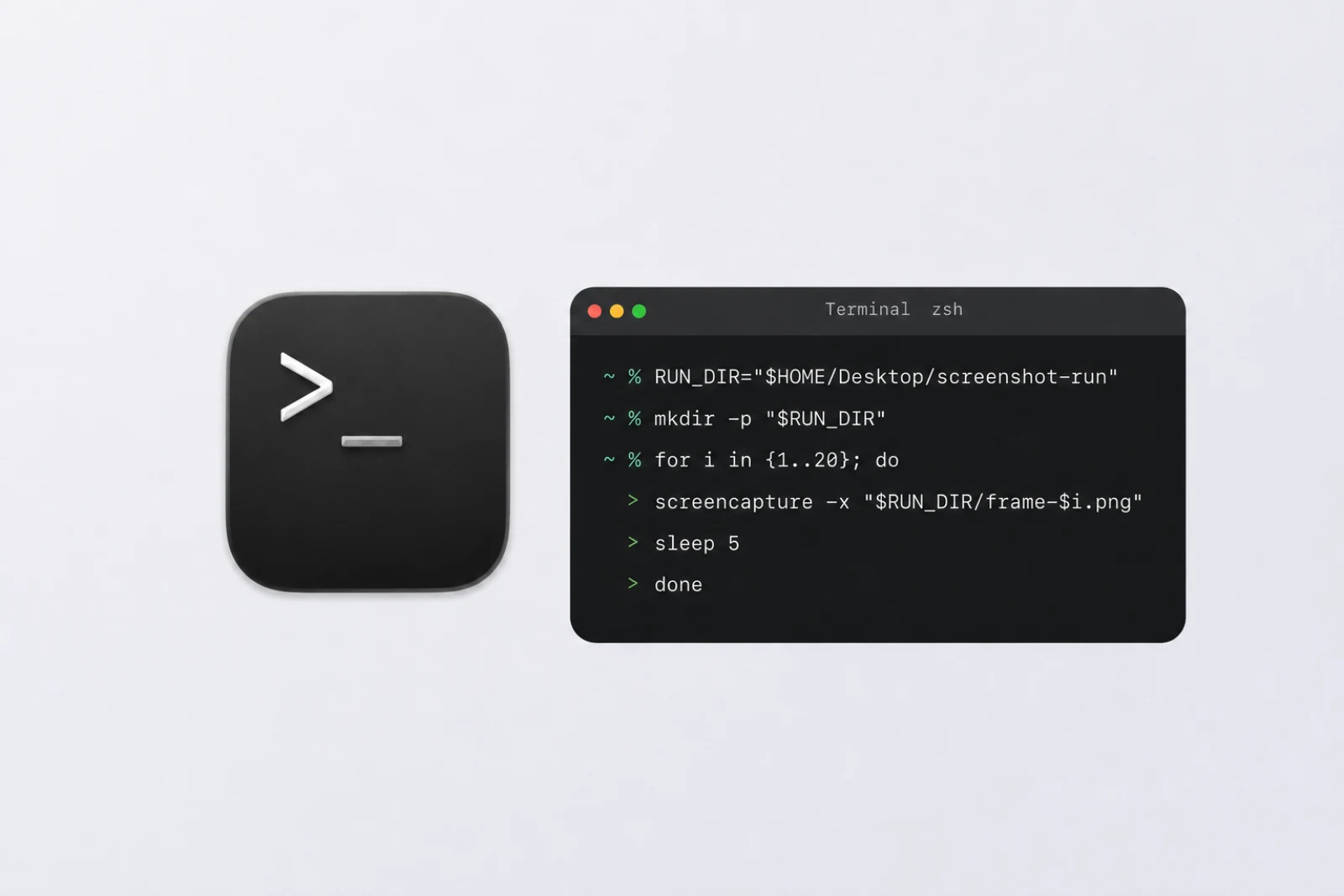
Use macOS screencapture loops for full-screen, fixed-area, and page-turn screenshots, with safe file names and troubleshooting.
How to Take Repeated Screenshots with Automator on Mac
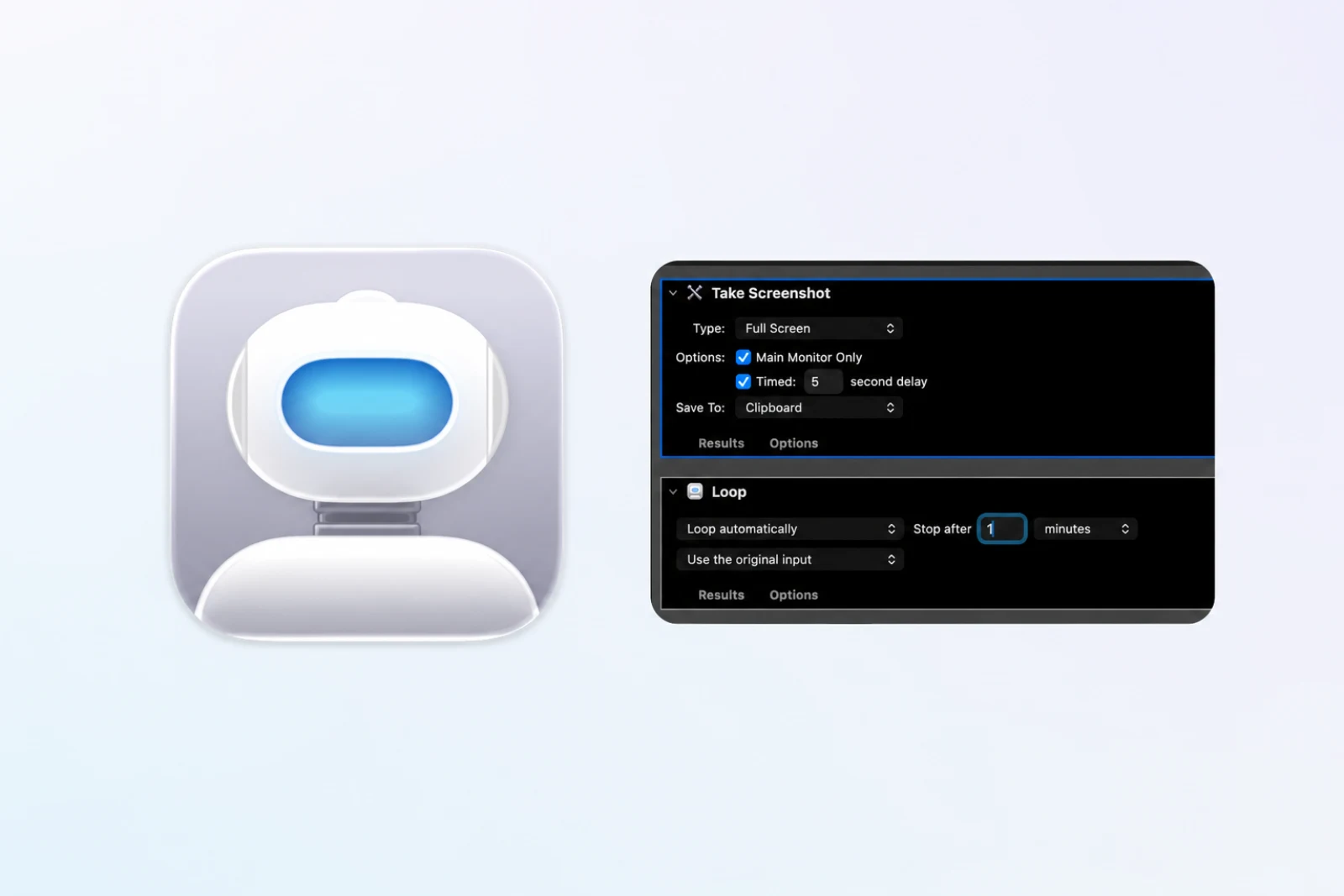
Build an Automator screenshot workflow with Take Screenshot and Loop, then use a shell action when you need ordered files.
What Is Screenshot Automation on Mac?
What screenshot automation means on Mac, how it differs from manual screenshots and screen recording, and when a dedicated capture workflow starts to matter.
Turn repeatable screenshots into finished work
Shotomatic captures, organizes, and exports screenshot sessions on your Mac.