How RedShelf Offline Reading and Print to PDF Work
Use RedShelf offline reading in a browser or mobile app, then create a PDF only through the title's publisher-approved print allowance.

RedShelf offers two different ways to take material outside the live online session. In the web reader, Download for Offline stores allowed sections in browser cache. The iOS and Android apps can download eligible titles to the device. On desktop, Print Pages to a PDF creates a portable file for pages within the publisher's allowance.
Short answer: Use RedShelf's offline command or mobile app when you need to read without internet. Use RedShelf's desktop print command when you need permitted pages as a PDF. Do not exceed the displayed allowance.
Offline access and PDF export are separate
| RedShelf feature | Result | Main caution |
|---|---|---|
| Web Download for Offline | Allowed book sections in browser cache | Keep the unique link and cache intact |
| Mobile app download | Eligible title stored inside the app | Availability and device count depend on the publisher |
| Desktop Print Pages to a PDF | PDF file for selected allowed pages | Publisher-set allowance varies by title |
| Notes and Highlights | Synced study data | Some offline features wait for reconnection |
| Copy Text | Clipboard text within an allowance | Remaining amount is displayed by the reader |
RedShelf documents the current browser routes in its guides to offline access and printing. Both features depend on allowances set for the title.
Download RedShelf content in a browser
- Sign in and open the title from My Shelf.
- Select Read Now.
- Open Additional Options in the top bar.
- Choose Download for Offline.
- Review the allowance shown in the dialog.
- Select the permitted chapters or subchapters you need.
- Wait while each item completes in the queue.
- Bookmark the unique eReader link or keep the tab open.
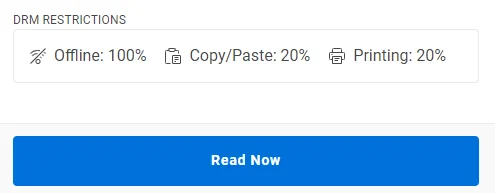
The publisher determines how much of the book can be stored offline on a device and browser. RedShelf shows that allowance in the download panel.
Use the mobile app when you prefer a phone or tablet
RedShelf also provides an eReader mobile app for iOS and Android. In My Shelf, the download icon indicates whether a title can be taken offline: an available download has a plain down arrow, while a completed download has a green indicator. Printing is not offered in the mobile app, so use the desktop reader if you need the title's permitted PDF route.
If your RedShelf access begins in an LMS, the mobile app may not sign you in automatically. RedShelf's guide says to use the email associated with the LMS account and its password-reset route to create app credentials if needed.
Test the browser before leaving internet
The web reader stores offline material in browser cache rather than creating a PDF in Downloads. RedShelf warns that clearing cache may disrupt access. This warning does not describe the separate iOS or Android app download.
Before travel:
- use the same browser and browser profile you used for download;
- save the exact reader link;
- avoid private browsing, which may clear storage;
- do not run a cache-cleaning utility;
- open every downloaded section once;
- disable Wi-Fi and restart the browser for a real test.
When offline, sections not downloaded appear unavailable. Search, definitions, and copied content may be unavailable, while annotations can sync after the connection returns.
Print permitted RedShelf pages to PDF
On desktop, use the built-in print route rather than the browser's generic Print command:
- Open Additional Options.
- Choose Print Pages to a PDF.
- Enter the first and last page for a permitted range.
- Add the range to the print queue.
- Select whether to include notes and highlights.
- Check the allowance indicator.
- Start Print to PDF and wait for completion.
- Open the downloaded PDF and verify page order and annotations.
Different publishers allow different percentages. The reader shows how much the job uses and what remains. Do not use repeated jobs, alternate accounts, screenshots, or browser workarounds to exceed the allowance.
Which option should you choose?
Choose offline mode when you want to read chapters without internet and are comfortable staying in RedShelf. It preserves the reader experience and can sync study activity later.
Choose Print Pages to a PDF when you need an allowed set of pages in Preview, Acrobat, GoodNotes, or a printer. The output is portable, but limited.
Choose Notes and Highlights when the real goal is exam revision. Including annotations in an allowed PDF can preserve context without saving unrelated pages.
Troubleshooting
The offline command is missing or the allowance is small
The publisher controls the allowance. Check the DRM information shown for the title. Contact RedShelf or the bookstore if the listing promised different access.
The book does not open offline
Reconnect, use the saved unique link, confirm the section shows as downloaded, and check whether browser data was cleared. Verify that your rental or course access remains active.
The PDF is missing pages
Compare the requested range with the reader's page numbering and print history. Open a smaller range to identify whether the issue is a title page map or a failed job. Send support the title, page range, browser, and screenshot of the allowance.
Notes did not appear
Confirm they are synced and that the include-notes option was selected before printing. Keep an independent notes export if the study material is important.
Use RedShelf for book pages
Use RedShelf's own PDF feature for book pages. It preserves the displayed allowance, can include annotations, and should not be replaced with Shotomatic to recreate a RedShelf title or exceed its limits.
FAQ
Where is offline RedShelf content stored?
In browser cache. Reopen it through the unique reader link in the same browser profile.
Can RedShelf create a PDF?
Yes, for pages within the publisher's displayed print allowance.
Can the PDF include notes and highlights?
Yes. Select that option in the print queue before creating the PDF.
Why did my offline content disappear?
The cache may have been cleared, the link may be wrong, or the underlying access may have ended.
Related posts
See more postsHow Can I Read an Online Textbook Without Internet?
Prepare an online textbook for a flight, commute, or weak connection using the reader's official offline mode, then test access before you leave.

Why Doesn't My Offline eTextbook Appear in the Downloads Folder?
An offline eTextbook may be stored inside its app or browser cache, not as a PDF. Learn where to reopen it and what not to move or delete.

When You Should Not Screenshot Online Learning Materials
Do not screenshot around DRM, print limits, access expiry, missing permission, or accessibility problems. Use official downloads and approved alternatives instead.

How to Create Employee Onboarding Guides with Screenshots
Build role-based employee onboarding guides with screenshots for first-day access, first-week tasks, training, checks, and ownership.
Working with pages you are allowed to save?
Shotomatic keeps permitted page captures in order, lets you review the set, and exports a searchable PDF on your Mac. It does not bypass viewer restrictions or print limits.