How to Plan a Screenshot-Based Software Documentation Set
Plan a maintainable software documentation set with clear page types, task ownership, screenshot rules, naming, navigation, and reviews.
A visual documentation set becomes difficult to maintain when every team organizes software pages differently. Start with reader questions, assign a page type to each answer, define a screenshot policy, create the highest-value guides, connect them, and record who reviews each page.
TL;DR: Build documentation around reader tasks rather than product menus. Give each question one clear answer, use screenshots only where they reduce uncertainty, and record who updates every guide after the interface changes.
List the questions readers need answered
The documentation inventory should begin with reader questions, not a tour of every screen. Gather the tasks and problems that appear in support tickets, onboarding sessions, sales handoffs, release feedback, and product analytics.
Write each item as an outcome or decision:
- Install the app and grant required permissions.
- Capture a selected window.
- Export a document as image files.
- Fix a missing screen preview.
- Choose Action Capture or Auto Capture.
Group repeated wording under one question. This prevents separate teams from creating several pages that give nearly identical answers under different titles.
Assign one page type to each question
The page type determines the structure a reader expects. Use a tutorial for a task, a reference page for complete options, a troubleshooting page for symptoms and fixes, and release notes for changes.
| Reader question | Best page type | Main content |
|---|---|---|
| What is this feature for? | Overview | Purpose, fit, limits, next actions |
| How do I complete this task? | Tutorial | Prerequisites, ordered steps, result |
| What does each option do? | Reference | Complete fields, values, defaults |
| Why is this failing? | Troubleshooting | Symptom, cause checks, fixes, evidence |
| What changed? | Changelog | Shipped behavior, migration, availability |
One page can link to another, but it should not repeat the full answer. An overview should route the reader to a tutorial instead of copying all of its steps.
Define a screenshot policy
The screenshot policy makes visual pages consistent and maintainable. State when an image is required, which data can appear, how the active target is marked, and where source and edited files are stored.
Use screenshots for:
- locating a control or section
- choosing between visible options
- showing a state before or after an action
- confirming a successful result
- identifying a warning or error
Prefer text for exact commands, values that change often, conceptual explanation, and information a reader may need to copy. A screenshot of a command is less accessible and less useful than a code block.
Name and store images for replacement
Stable filenames make updates safer. Name the file after the guide and step purpose instead of the order in which it was captured.
For example, action-capture-start-session.webp survives a paragraph moving from step two to step three. screenshot-02-final.webp becomes misleading after the next edit.
Store these details with the guide or in its maintenance record:
- source capture
- edited and optimized image
- alt text
- product and operating-system version
- capture date
- page owner
- source or license when the image is not first-party
Create task guides before broad tours
Task guides should cover the work readers perform most often or the mistakes that create the most support effort. Start with setup, the first successful output, common repeated tasks, and high-cost failure paths.
Keep one guide tied to one finished result. A broad "Everything about exports" page is difficult to follow and update. Separate "Export Action Capture pages as PNG" from a reference table that lists every format and plan requirement.
Action Capture can collect click-driven steps while you perform the task. Use How to Create a Step-by-Step Guide from Clicks on Mac for the capture, review, editing, and export process.
Connect the documentation set
Navigation should follow the next reader question. A setup guide can link to the first task, a task can link to troubleshooting for its common failure, and a reference page can link back to the workflow where an option is used.
Use direct link labels that name the destination. "Grant screen recording permission" is more useful than "learn more." Keep related links short enough that they do not replace the documentation hierarchy.
Test the set by giving readers a problem without telling them which page to open. Check whether they can find the right answer, complete the task, and recover from a likely error.
Assign ownership and review triggers
Every visual page needs an owner and an event that triggers review. Time-based reviews help, but interface changes, plan changes, permission changes, and support spikes should create an earlier check.
Record these fields:
Page owner:
Verified product version:
Last reviewed:
Next scheduled review:
Review triggers:
- UI label or layout change
- Workflow or permission change
- Plan or export change
- Repeated support failure
The documentation set is ready when readers can find one clear answer for each important question and the team can identify which pages a product change affects. Use Action Capture for click-driven visual steps and How to Create a Step-by-Step Guide from Clicks on Mac for the capture, editing, and export workflow.
Frequently Asked Questions
Related posts
See more postsHow to Create a Step-by-Step Guide from Clicks on Mac
Create a step-by-step guide on Mac by capturing meaningful clicks, marking each action, editing the steps, and exporting images or a PDF.

How to Create an SOP with Screenshots
Create a visual SOP with a defined scope, owner, prerequisites, step-by-step screenshots, exceptions, checks, and a review date.

How to Create Customer Support Guides with Screenshots
Turn a solved support ticket into a reusable screenshot guide with a clear scope, verified steps, privacy checks, and a support handoff.

How to Turn Existing Screenshots into a Step-by-Step Guide on Mac
Import existing screenshots into an ordered guide on Mac, add clear page instructions and annotations, then export the result as PDF or images.
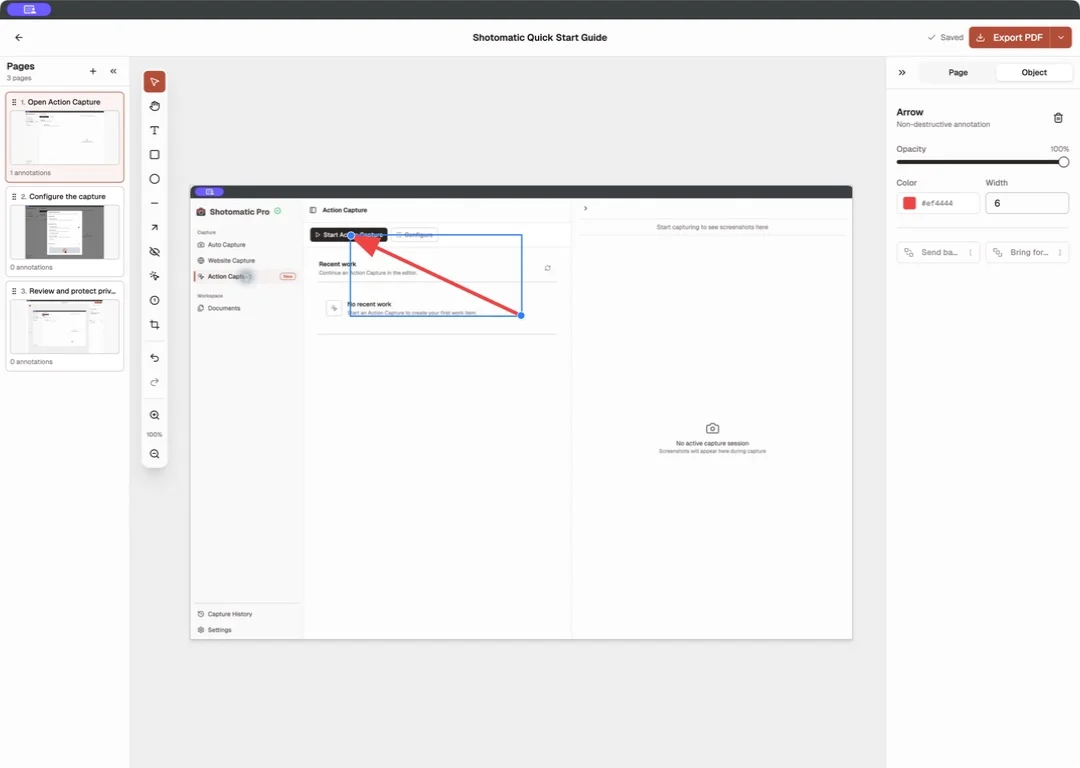
Turn your clicks into a clear step-by-step guide
Action Capture records each click as an ordered step, then lets you edit and export the guide on your Mac.