How to Export Screenshots as PDF, JPG, PNG, MP4, GIF, or ZIP
Choose PDF, JPG, PNG, MP4, GIF, or ZIP for screenshots using a practical comparison of quality, size, search, and sharing.
Choose the export format from what the recipient needs to do next. One crisp interface screenshot calls for a different file than a searchable study packet or a time-lapse of a changing screen.
Short answer: Use PNG for text and interface details, JPG for photographic captures when size matters, PDF for an ordered document, MP4 for change over time, GIF for a short automatic loop, and ZIP when the recipient needs the original image files.
Choose by what happens next
| Recipient's next step | First format to test | Main tradeoff |
|---|---|---|
| Read one screenshot with small text | PNG | Lossless detail, but photographic areas can make the file large |
| View a mostly photographic capture | JPG | Smaller at useful quality settings, but sharp text can soften |
| Read several captures in order | One document and optional OCR, but pages remain images | |
| Watch a process change over time | MP4 | Compact playback, but individual frames are harder to reference |
| See a short loop without pressing Play | GIF | Automatic looping where supported, but limited color and inefficient files |
| Edit or place each image separately | ZIP | Preserves separate files, but the recipient must extract the archive |
This is an image format decision, not a contest with one permanent winner. Export a representative sample and inspect it in the destination that will receive it.
PNG or JPG for individual images
PNG uses lossless compression and is the macOS default for screenshots. Text, code, thin lines, and interface controls usually stay cleaner than they do in a compressed JPG.
JPG uses lossy compression. It is often a better fit for a capture dominated by photographs, maps, video frames, or gradients. Small text and sharp edges reveal compression artifacts first, so inspect those areas at normal reading size before using the setting for a batch.
Do not rely on a universal file-size ratio or a single JPG quality number. Screen resolution, visual detail, dimensions, and the exporter all change the result. A three-image test gives you a better answer than a generic estimate.
PDF or ZIP for a set of screenshots
PDF export turns a sequence into a document. Each capture becomes a page, and OCR can add a searchable text layer. That is useful for a walkthrough, review packet, or study reference where page order matters. OCR helps you find a page, but copied text still needs checking against the image.
ZIP keeps the screenshots as individual files. Choose it when a writer, designer, or reviewer needs to place, crop, annotate, or rename each image separately. A ZIP is less convenient when the recipient only needs to read the sequence.
The save screenshots as PDFs on Mac page covers selection, ordering, OCR, and export in detail.
MP4 or GIF for change over time
MP4 is usually the first format to test for a screen timelapse. Video compression handles repeated frames efficiently, and the viewer can pause or seek. Start with a short export and choose a frame rate that leaves enough time to understand each visible change.
GIF is useful when a short sequence should loop automatically in a destination that supports it. GIF has a 256-color palette per frame, so gradients and photographs can degrade quickly. It also has no audio. Use MP4 when the sequence is longer, color matters, or the viewer needs playback controls.
Neither format is good for quoting text or inspecting one exact frame repeatedly. Include a PNG key frame or a PDF when the recipient needs a stable reference alongside the motion.
Online textbooks require a different first decision
Format choice comes after the reader's official options and the permission attached to the material.
| What the reader provides | Use first | Why |
|---|---|---|
| Official EPUB or PDF download | The supplied file | Preserves the publisher's text and structure |
| Official Save to PDF or Print Pages | The generated PDF | Follows the title's page allowance |
| Notes or highlights export | The notes file | Keeps your study material without recreating pages |
| App-only offline download | The same reader app | It is offline access, not a portable file |
| Permitted visual pages with no useful export | PNG for a few pages or PDF for an ordered set | Preserves the visible layout within the allowed scope |
A PDF made from screenshots is not equivalent to the original ebook. It contains page images, depends on OCR for search, and loses source links and document structure. Equations, footnotes, and diagrams need visual review. Do not choose PDF, PNG, or ZIP to work around a platform that prohibits third-party extraction.
Four concrete combinations
| Job | Main file | Supporting file |
|---|---|---|
| Software instructions | PDF walkthrough | PNG files for a wiki or help center |
| Weekly progress update | MP4 timelapse | PNG of the final state |
| Design handoff | ZIP of PNG files | PDF contact sheet for quick review |
| Sequence-based bug report | MP4 reproduction | PNG of the error state |
Two formats are worth using only when they serve two real jobs. Exporting every format "just in case" leaves the recipient to work out which file matters.
Test before the full export
Export three representative captures before processing a long session. Include the smallest text, the most detailed image, and a typical transition.
Open the result in its destination and check:
- whether text is readable at normal size;
- whether OCR finds a known phrase in a PDF;
- whether JPG or GIF introduces visible artifacts;
- whether MP4 moves too quickly to follow;
- whether filenames and page order survive the handoff.
Shotomatic supports PDF with OCR, PNG and JPG images, MP4, GIF, and ZIP. If the sample proves that you need several ordered, searchable captures, continue with the screenshot-to-PDF workflow. If you need the wider export set, see current Shotomatic pricing.
Frequently Asked Questions
Related posts
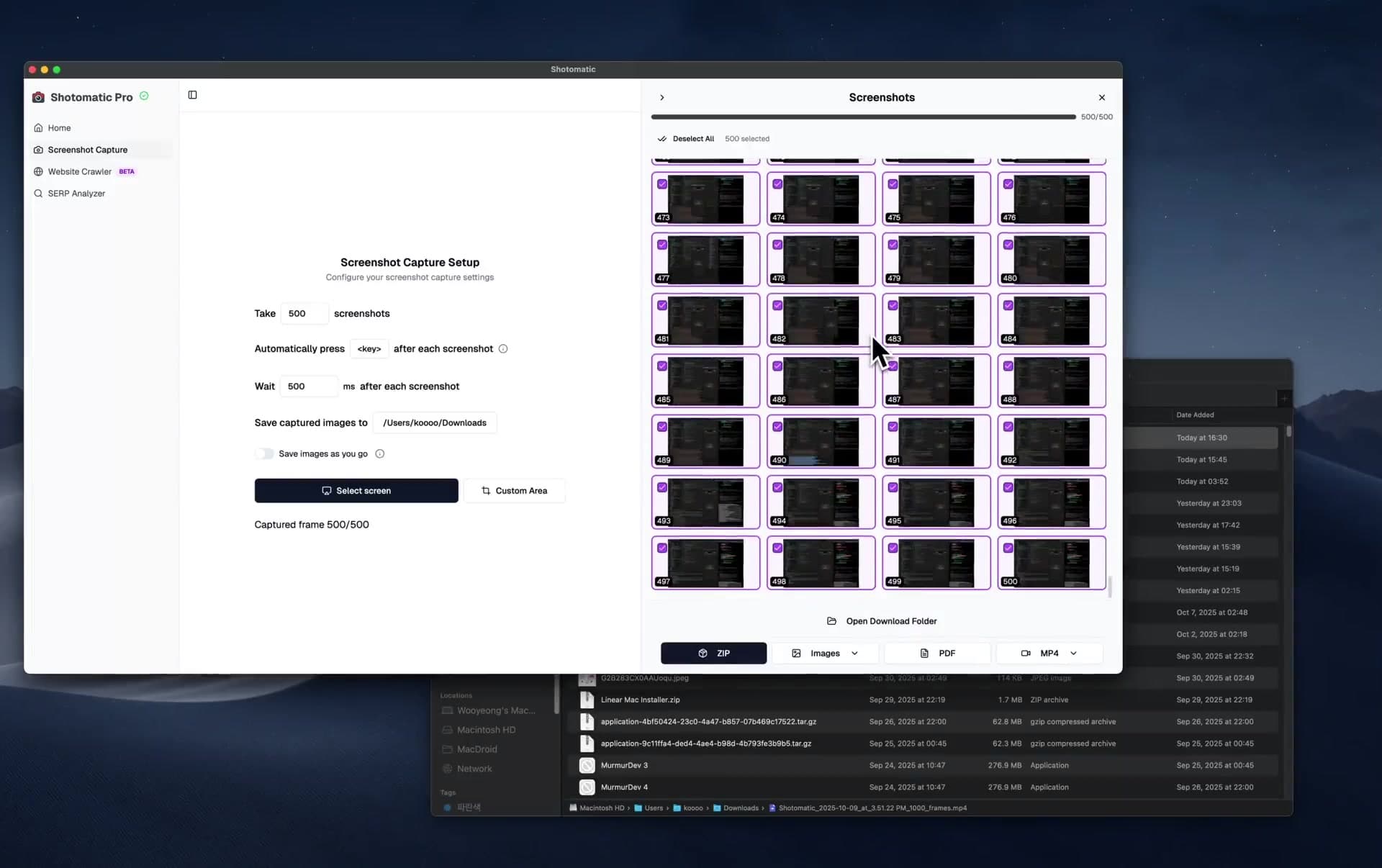
See more postsBest Screenshot Automation Tools for Mac (2026)
Compare Shotomatic, Snagit, and CleanShot X for interval captures, click-by-click guides, website batches, searchable PDFs, and manual screenshots.
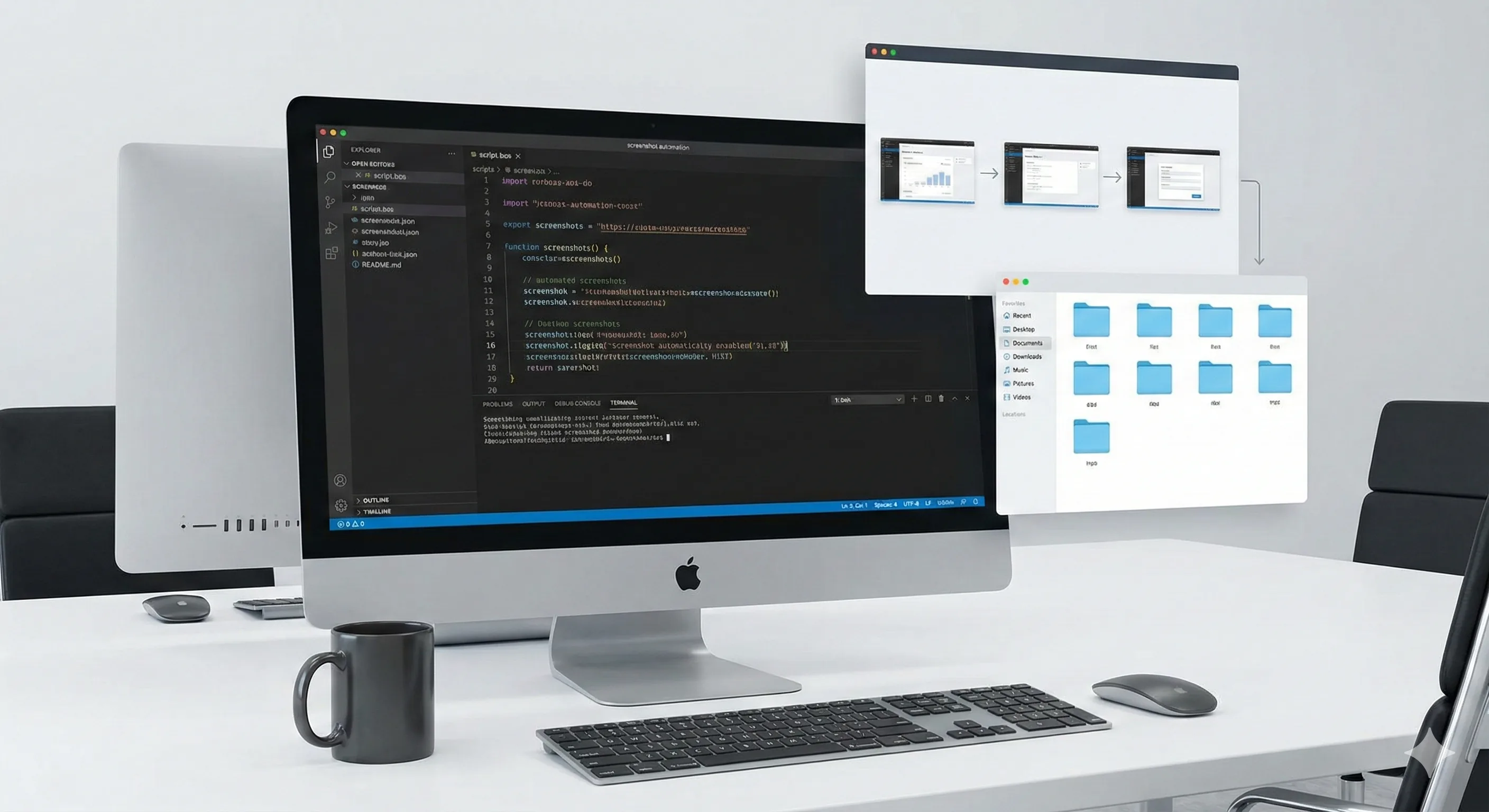
How to Create a Screen Timelapse on Mac (2026)
Create a screen timelapse on Mac with interval screenshots and MP4 export. Compare Shotomatic, a screencapture and FFmpeg script, and OBS.
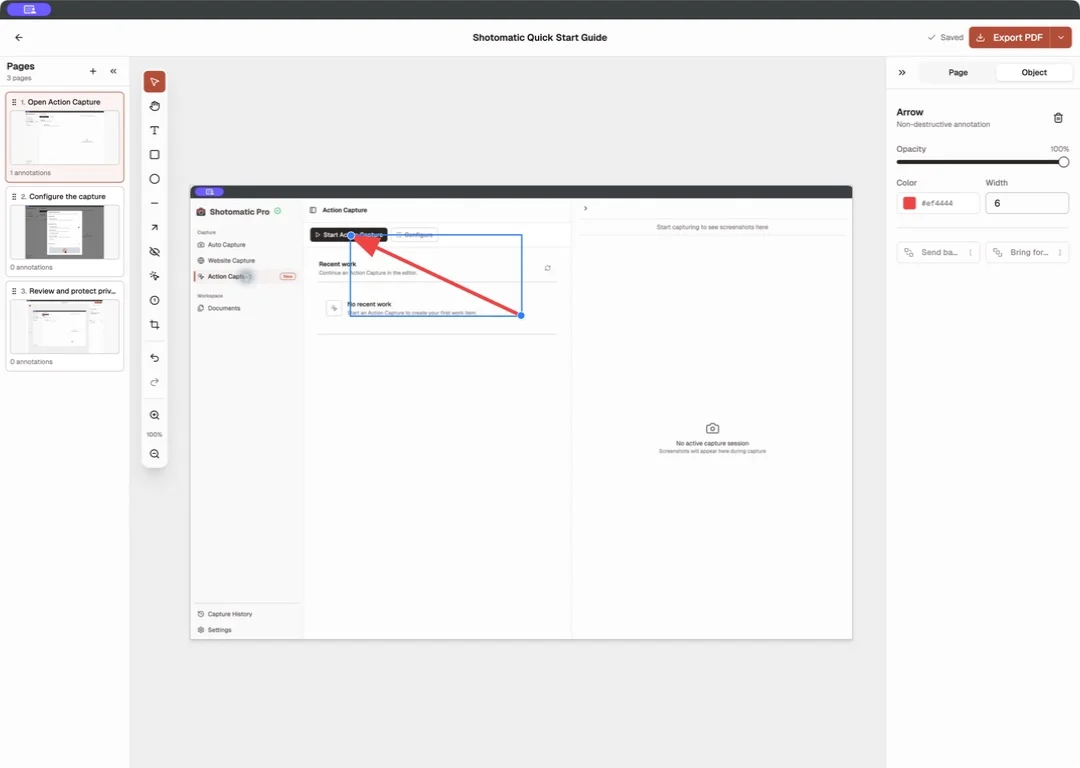
How to Turn Existing Screenshots into a Step-by-Step Guide on Mac
Import existing screenshots into an ordered guide on Mac, add clear page instructions and annotations, then export the result as PDF or images.
PDF Guide vs Online Knowledge Base Article
Choose a PDF guide or online knowledge base article based on distribution, updates, search, access, offline use, printing, and ownership.
Working with pages you are allowed to save?
Shotomatic keeps permitted page captures in order, lets you review the set, and exports a searchable PDF on your Mac. It does not bypass viewer restrictions or print limits.