How to Save Online Recipes as PDFs on Mac (No More Lost Recipes)
Stop losing your favorite recipes to broken links and dead blogs. Save online recipes as clean, searchable PDFs on your Mac using automated screenshots.
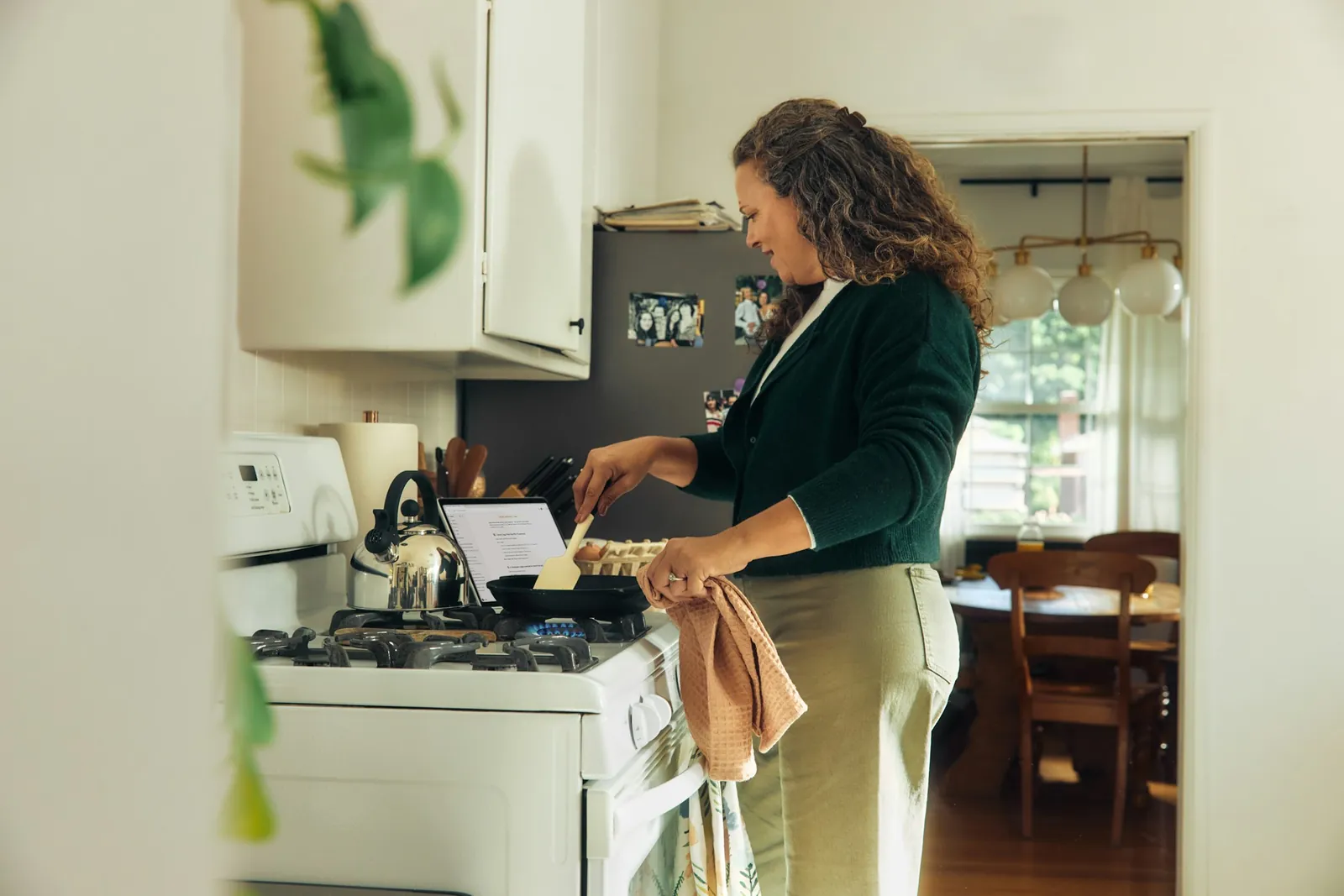
This guide shows how to save an online recipe as a searchable PDF on Mac. You will decide whether Reader Mode preserves the content you need, capture either the recipe card or the full page, export the screenshots as a PDF, and file it with a useful name and source URL.
Try the site's own print or save option first. Use screenshot capture when that output removes important photos, breaks the layout, or includes page elements you do not need.
TL;DR: Try the recipe site's print view first. If it removes useful photos or breaks the layout, capture the recipe card or full page and export the selected screenshots as a searchable PDF.
Choose print, Reader Mode, or screenshots
Start with the site's print view or the browser's Save as PDF option. Many recipe sites provide a compact print layout with native selectable text.
Use Reader Mode when you only need the ingredients and instructions. Use screenshot capture when photos, technique notes, or the original layout matter and the print version removes them. Shotomatic can add an OCR text layer to the screenshot PDF for search, though OCR is not a substitute for the original text.
For a list of public recipe URLs, website screenshot automation can reuse the same capture settings across the pages. Use the scrolling methods below when you need to follow one long recipe from top to bottom.
Method 1: capture the recipe card
For a recipe that fits on one or two screens: a simple ingredient list and a few instructions.
Step 1: Open the Recipe and Clean Up the Page
Navigate to the recipe in your browser. Before capturing:
- Enable reader mode (Safari: click the reader icon in the address bar; Chrome: install a reader mode extension): this strips ads, sidebars, and navigation, leaving just the content
- Or use an ad blocker to remove the most distracting elements
- Scroll to the recipe card: most food blogs put the actual recipe in a structured card near the bottom, below the lengthy personal story
Step 2: Capture the Recipe
Open Shotomatic and select window capture. Choose your browser window.
If the recipe fits on one screen, take a single capture: one click, done.
If it extends below the fold (most recipe cards with detailed instructions do), record Page Down as the keypress (press the key in the key recorder) and set an interval of 800ms. Shotomatic will scroll through the recipe, capturing each section.
Step 3: Export as PDF
Export the selected screenshots as PDF. Shotomatic adds an OCR text layer so you can search for visible ingredient names and instructions later.
If the screenshots already exist, the broader guide to saving screenshots as a PDF on Mac covers review and export without another capture run.
Method 2: capture the full recipe page
Some recipes are worth saving in full: including the step-by-step photos, technique notes, and variations that appear throughout the page. For these, you want the entire article, not just the recipe card.
Step 1: Prepare the Page
Open the recipe page in your browser. Use an ad blocker to clean up the page. Don't use reader mode for this method: you want the photos and layout preserved.
Set your browser window to a reasonable width. Recipe text becomes hard to read when stretched across a full ultrawide monitor. A width of 900-1100px works well: wide enough for content, narrow enough for comfortable reading.
Step 2: Automated Scroll Capture
Open Shotomatic:
- Capture mode: Window capture: select your browser window
- Keypress: Page Down
- Interval: 1000ms: gives images time to load as you scroll
Click Start. Shotomatic captures the visible area, presses Page Down to scroll, waits for content to load, and repeats. Stop when you reach the comments section or footer.
Step 3: Export
Export as PDF. The result is the full recipe page: introduction, ingredient lists, step-by-step instructions with photos, tips and variations: all in one file.
Organize the recipe archive
A pile of unsorted PDFs isn't much better than a pile of bookmarks. A little naming discipline makes your archive genuinely useful.
Naming Convention
Use a consistent format: Cuisine_DishName.pdf
Italian_Carbonara.pdfThai_GreenCurry.pdfMexican_Carnitas.pdfBaking_SourdoughStarter.pdf
This sorts naturally by cuisine in any file browser, and Spotlight search on Mac can find files by any part of the name.
Folder Structure
Keep it simple. One level of folders is usually enough:
Recipes/
├── Italian/
├── Thai/
├── Mexican/
├── Baking/
├── Quick Weeknight/
└── To Try/
Make It Searchable
PDF export includes OCR automatically, so the text inside your recipe PDFs is searchable. This means you can:
- Search "chicken thigh" in Finder and find every recipe that uses it
- Use Spotlight to find "tahini" or "miso" across your entire archive
- Search within a specific PDF for a measurement or step
The OCR layer can make ingredient searches more useful than filenames alone. Recognition errors are still possible, especially with decorative fonts or text placed over images.
Improve the recipe PDF
Use reader mode for text-heavy recipes. It strips the blog template, ads, and navigation, leaving clean content. Best for recipes where you only need ingredients and instructions.
Skip reader mode for photo-heavy recipes. If the step-by-step photos are part of why you're saving the recipe, capture the full page instead.
Set a reasonable window width. Recipe content reads best at 900-1100px wide. Too narrow and the layout breaks. Too wide and text lines become uncomfortably long.
Capture the recipe card, not the life story. Most food blogs front-load a long personal narrative before the actual recipe. Scroll past it to the recipe card, then start capturing from there. Unless you want the story too: no judgment.
Save the source URL. Consider including the original URL in your filename or a notes field. It's good attribution and helpful if you want to check for updates later: Italian_Carbonara_seriouseats.pdf.
FAQ
Why not just bookmark the recipe?
Bookmarks point to a URL rather than storing the page. A saved PDF gives you an offline reference copy. Keep the source URL and use the file in accordance with the author's rights and the site's terms.
Can I search across my saved recipes?
PDF export can add an OCR text layer. Search results depend on image quality and typography, so verify ingredient names in the exported file.
How much storage does a recipe archive take?
A single recipe PDF is typically 2-10MB depending on photos. A collection of 200 recipes takes about 1-2GB: a small fraction of any modern Mac's storage. Not something you'll notice.
Does this work with recipe apps like Paprika or Mela?
This guide focuses on saving recipes from websites. If you're already using a dedicated recipe manager, it likely has its own import and save features. Screenshot capture is most useful for recipes on blogs and websites that don't offer a clean export.
What about Windows or Linux?
Shotomatic is Mac-only. The general concept: automated screenshots with page navigation: works on any platform. On Windows, ShareX or AutoHotkey can achieve similar results with more setup.
Save the recipe
Run a short test and check the ingredients, instructions, photos, and page order before export. Keep the source URL with the file so you can return to the original page later.
Related posts
See more postsCan You Download Kindle Books as PDF? Official Options on Mac
Check whether a Kindle purchase has Amazon's official EPUB or PDF download, what offline access means, and how to save notes without bypassing DRM.

Visual Guide Tools for Mac: Compare Four Workflows
Compare Mac visual guide tools for click capture, editing, privacy, sharing, and export, including Shotomatic, Folge, Scribe, and built-in tools.

Local vs Cloud Process Documentation Tools
Choose a local or cloud process documentation tool based on capture, storage, privacy, collaboration, offline access, sharing, and administration.

How to Plan a Screenshot-Based Software Documentation Set
Plan a maintainable software documentation set with clear page types, task ownership, screenshot rules, naming, navigation, and reviews.
Working with pages you are allowed to save?
Shotomatic keeps permitted page captures in order, lets you review the set, and exports a searchable PDF on your Mac. It does not bypass viewer restrictions or print limits.